TABLE OF CONTENTS
- Important Hubbe Email Communication Updates and Information
- Staff Account Updates and Information
- New QCC Workforce Pathways Grant Data Report
- CDF Enhancements
- Stipend Application Enhancements
- Stipend Management Enhancements
- Parent Education Enhancements
- Coaching Enhancements
- QIP Enhancements
- Staff Education & Professional Development Enhancements
- Staff Survey Enhancements
- Fixes & Adjustments
Important Hubbe Email Communication Updates and Information
- We have two very exciting updates to share about the Hubbe Email Messaging service offered within your Hubbe system, detailed below:
- We are very happy to share that we have optimized the permissions of the Hubbe email server. After receiving reports from various users that email communications sent from within the Hubbe system landed in the recipient's "Spam" folder, our team worked to ensure this would not happen again so all important communication will be received and viewed by recipients in their inbox.
- We have also created a new option to customize the name of the "Sender" of email communication sent from within the Hubbe system. Currently, email messages are sent by "noreply@hubbeinc.com." Now, the first part of the address can be customized for the county system, such as "maple@hubbeinc.com." Please reach out to our support team at support@hubbeinc.com if you would like to customize the address name for email communications in your system.
- Note - We plan on releasing a future update to bring this customization option to the Settings area so that you can manage this address name whenever needed.
Staff Account Updates and Information
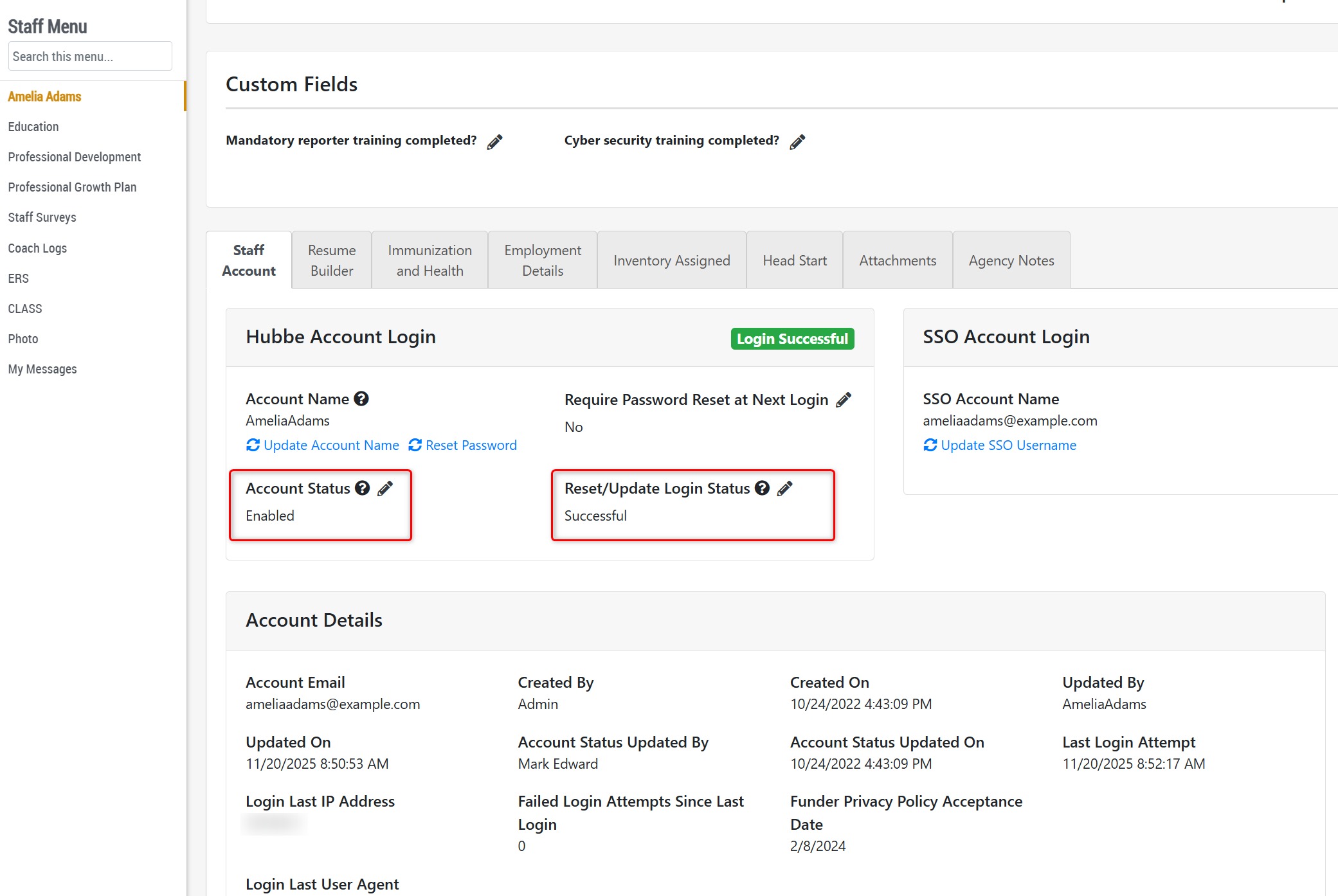
- Within the "Staff Account" tab of a staff record, we have updated the "Hubbe Account Login" area to be more user-friendly. There are two statuses tracked here, called "Account Status" and "Login Status." These tools still function the same, but we've reorganized the fields and have added tooltips to explain what each field is used for. Please see explanations of how these statuses work below:
- Account Status - This field enables users to control access to a staff account. For example, if a staff member should be restricted from accessing their account or blocked from logging in using the correct login credentials, that can be managed here. The options are:
- Enabled - User has full access to the account, within the permissions of the assigned role(s)
- Enabled, Forced Gray Access - User has limited access to their account. They can log in but may be restricted from viewing sensitive information.
- Disabled - User cannot log in to/access their account.
- Login Status - This field reflects the user's ability to log in to their account. Depending on the last login attempt(s), the following statuses may show:
- Successful - If the user has logged in using their correct login credentials (username, password), then the status will remain as "Successful."
- Failed - If the user has entered the wrong login credentials and has failed to log in to their account at least one time, then the status will show as "Failed." The user can still proceed to enter the correct password to log in, or reset their password, in which case the status will change to "Successful" on the next successful login attempt.
- Locked - If the user has entered the wrong login credentials and has failed to log in to their account five times in a row, then the status will show as "Locked." At this time, their account will be blocked from logging in for 15 minutes. After that time, the user can proceed to enter the correct password to log in, or reset their password, in which case the status will change to "Successful" on the next successful login attempt.
- Disabled - If the user has entered the wrong login credentials and has failed to log in to their account fifteen times in a row, then the status will show as "Disabled." At this point, the user will be blocked from logging into/accessing their account completely (even using the correct login credentials) until an administrator updates their Login Status from "Disabled" to "Successful" on the staff record. When resetting a staff's Login Status at this time, we recommend clicking the "Reset Password" link below the "Account Name" field to set a temporary password for the staff to login with, in conjunction with setting the field "Require Password Reset at Next Login" to "yes" so that this temporary password can be used to prompt the staff to create a new password at their next login.
- Account Status - This field enables users to control access to a staff account. For example, if a staff member should be restricted from accessing their account or blocked from logging in using the correct login credentials, that can be managed here. The options are:
New QCC Workforce Pathways Grant Data Report
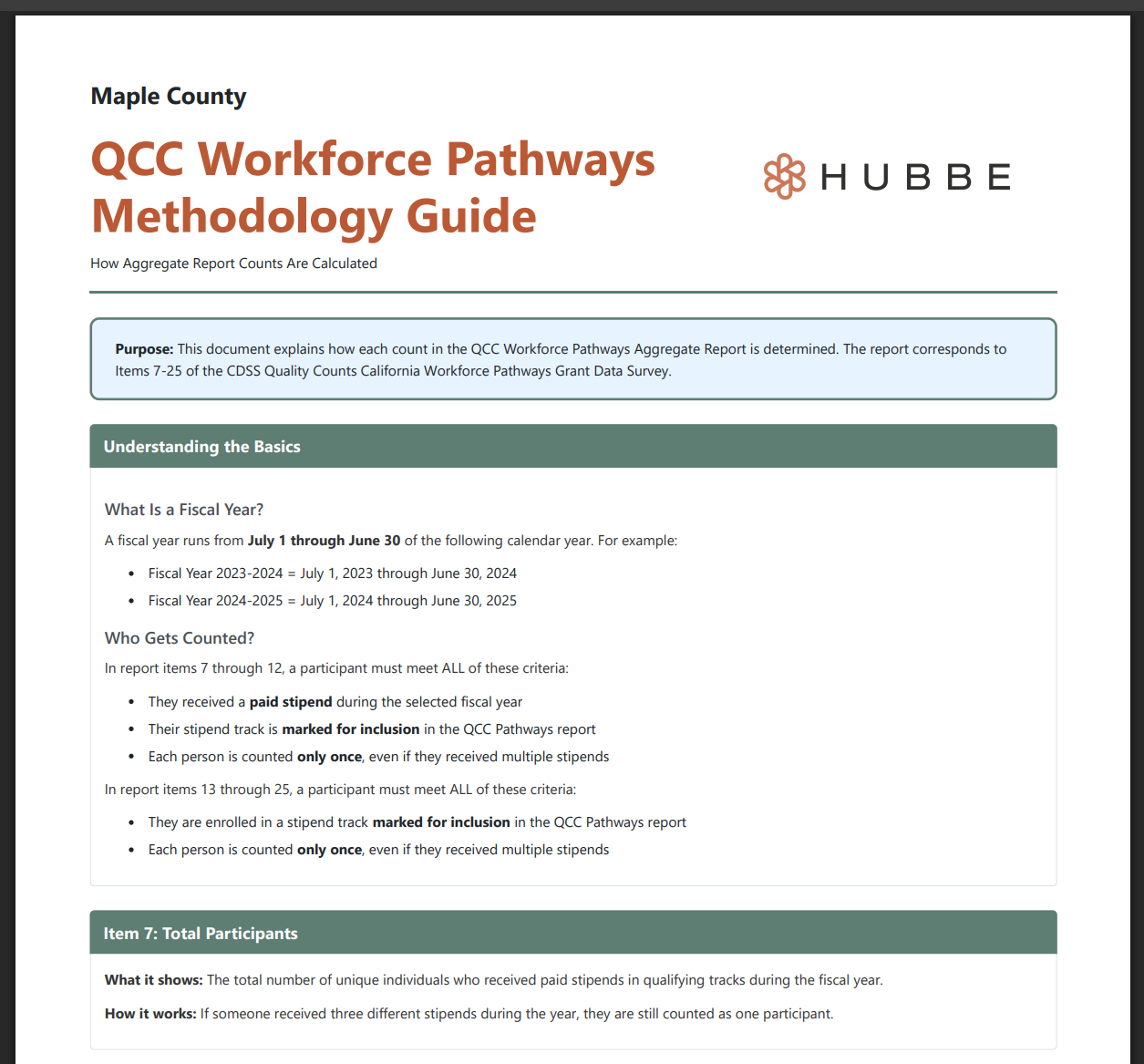
- We are excited to announce the release of the QCC Workforce Pathways Grant Data Report in Hubbe. This new report will be available from the Stipend Management record, and is available for each fiscal year that has at least one stipend track selected to include in the report. For example, the 2025-2026 QCC Workforce Pathways Report (Detailed or Aggregate) will include data for all participants across all stipend tracks in the 2025-2026 year that have been selected to include in the report (this option is available within the stipend track setup). The report will include Items 7, 8, 10 - 16, 18 - 21, 23-25 of the QCC Report. There is also a methodology guide available to download from the Stipend Management record that breaks down each Item and how that data is automatically calculated. We hope this new report helps your team collect and submit this information each year to the California Department of Social Services during the evaluation process for the QCC Workforce Pathways Grant.
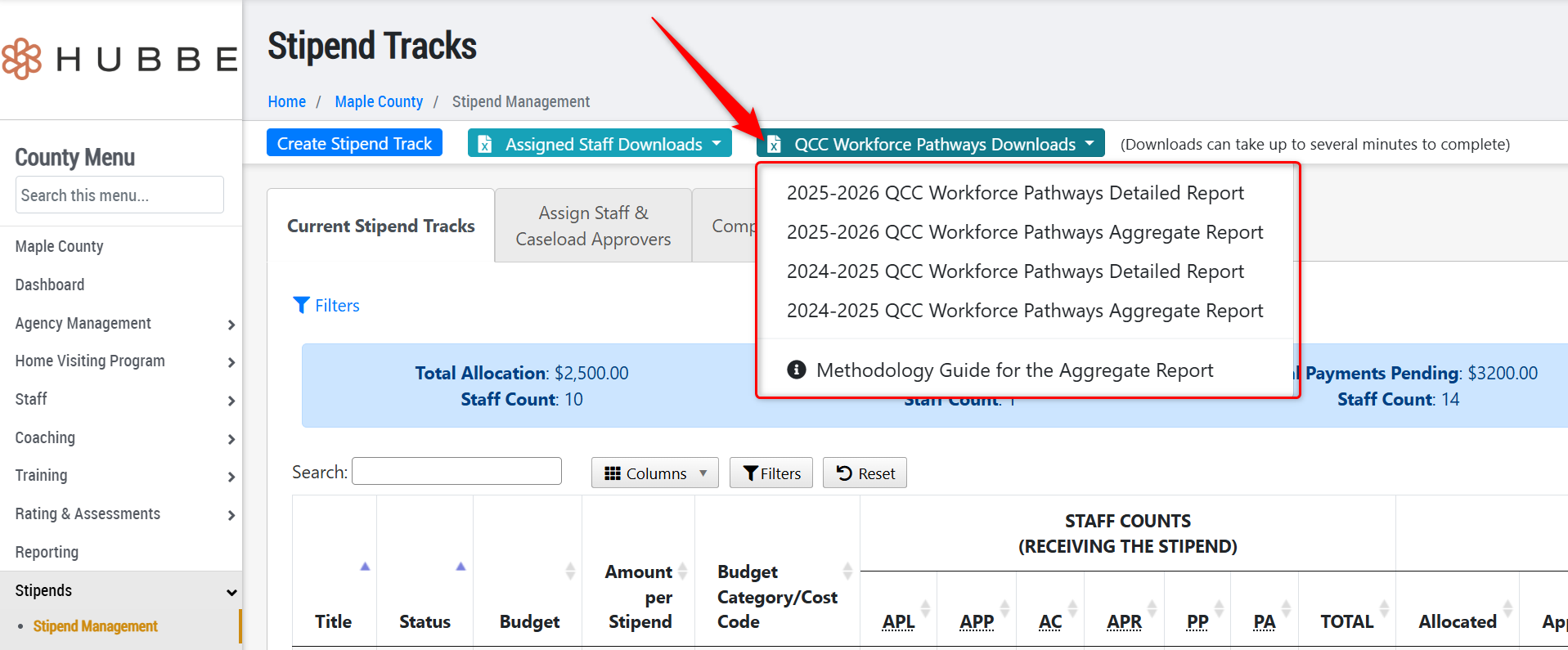
Example of a Portion of the Methodology Guide:
Example of the QCC Workforce Pathways Report (please click on the image to see it larger):

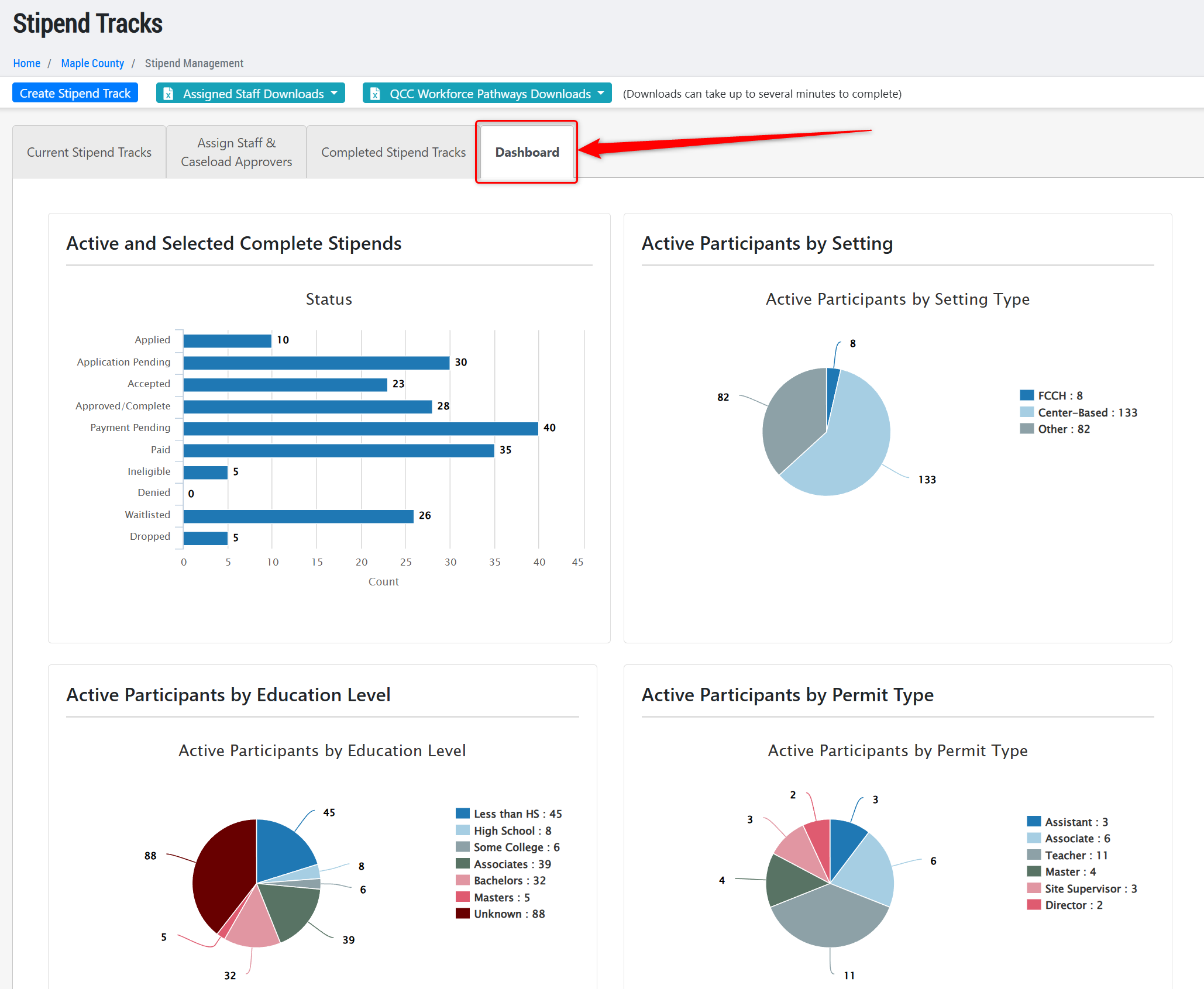
- We have also added a "Dashboard" available from the Stipend Management record that will display the aggregate calculations for each item in the new QCC Workforce Pathways Grant Report, in a visual presentation.
CDF Enhancements
- Updated the CDF Wizard by moving the "Funding" fields to its own section in the wizard, below the site's general information section. This update was made in collaboration with users to optimize the organization of the wizard.
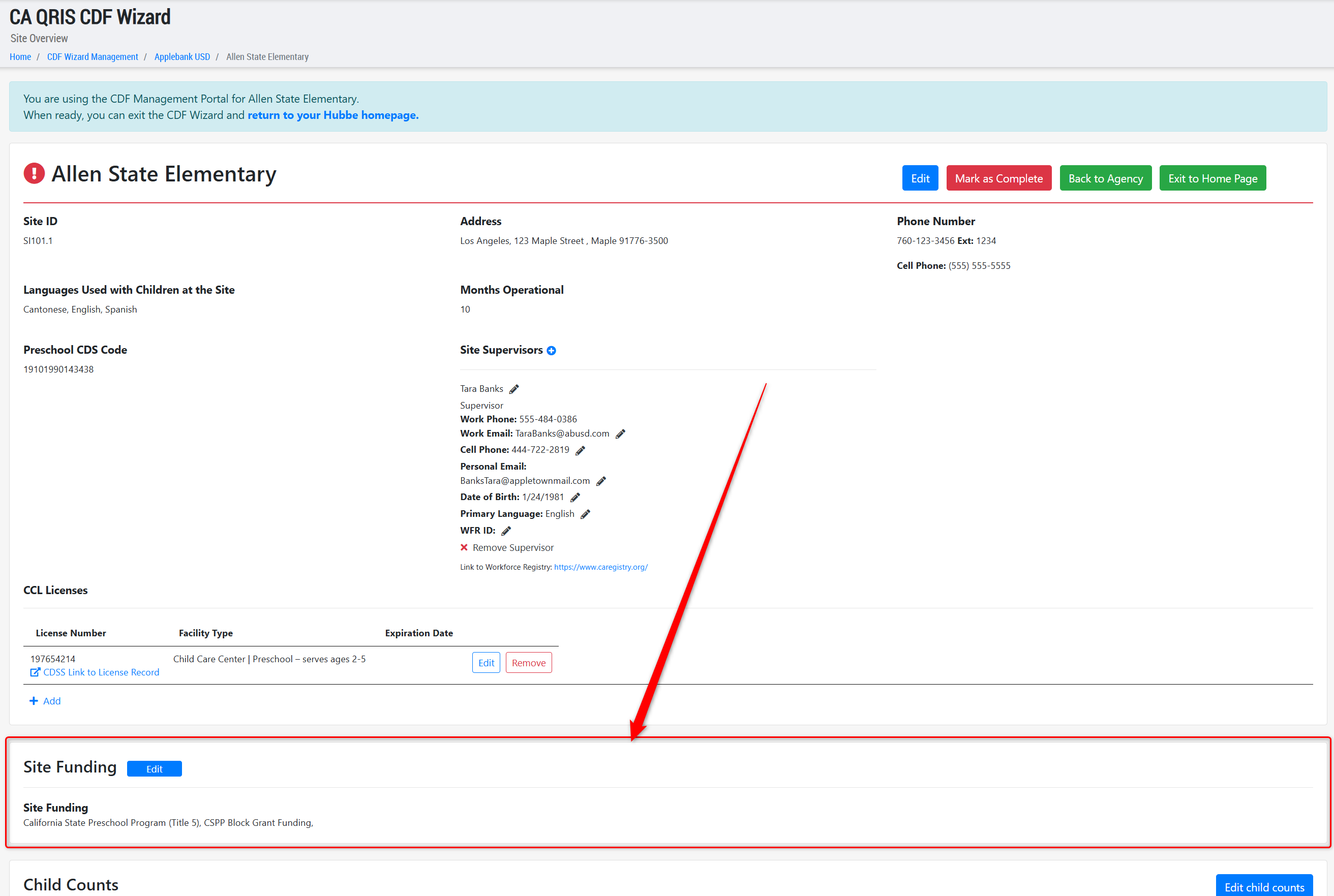
- Updated many field labels and areas of the CDF Wizard in response to user suggestion to improve the feature's terminology as used in the field:
- In the Funding section, if a CDF Wizard selects "CCTR - CA State General Childcare & Development Program" as a funding source for the site, the view card will display this as "CCTR."
- In the Funding section, we have updated the funding option previously titled "Private / Tuition-Funded Program" to now be "Family Tuition / Private-Pay."
- In the funding section, added a tooltip to the "Family Tuition / Private-Pay" funding option to assist with user comprehension of this option and when to select it.
- In the Funding section, added a tooltip to the "Local Education Agency (LEA) Funds" funding option to assist with user comprehension of this option and when to select it.
- In the Child Counts section, added a tooltip to the field "Number of Children Receiving an Alternative payment Program and/or CalWORKs Voucher" in the Additional Child Information Counts card to remind users to select child care subsidy funding if there are any children counted in this field.
- In the Child Counts section, added a tooltip beside the fields "Number of Children with an IFSP" and "Number of Children with an IEP" in the Additional Child Information Counts card to assist with user comprehension of what these counts should include.
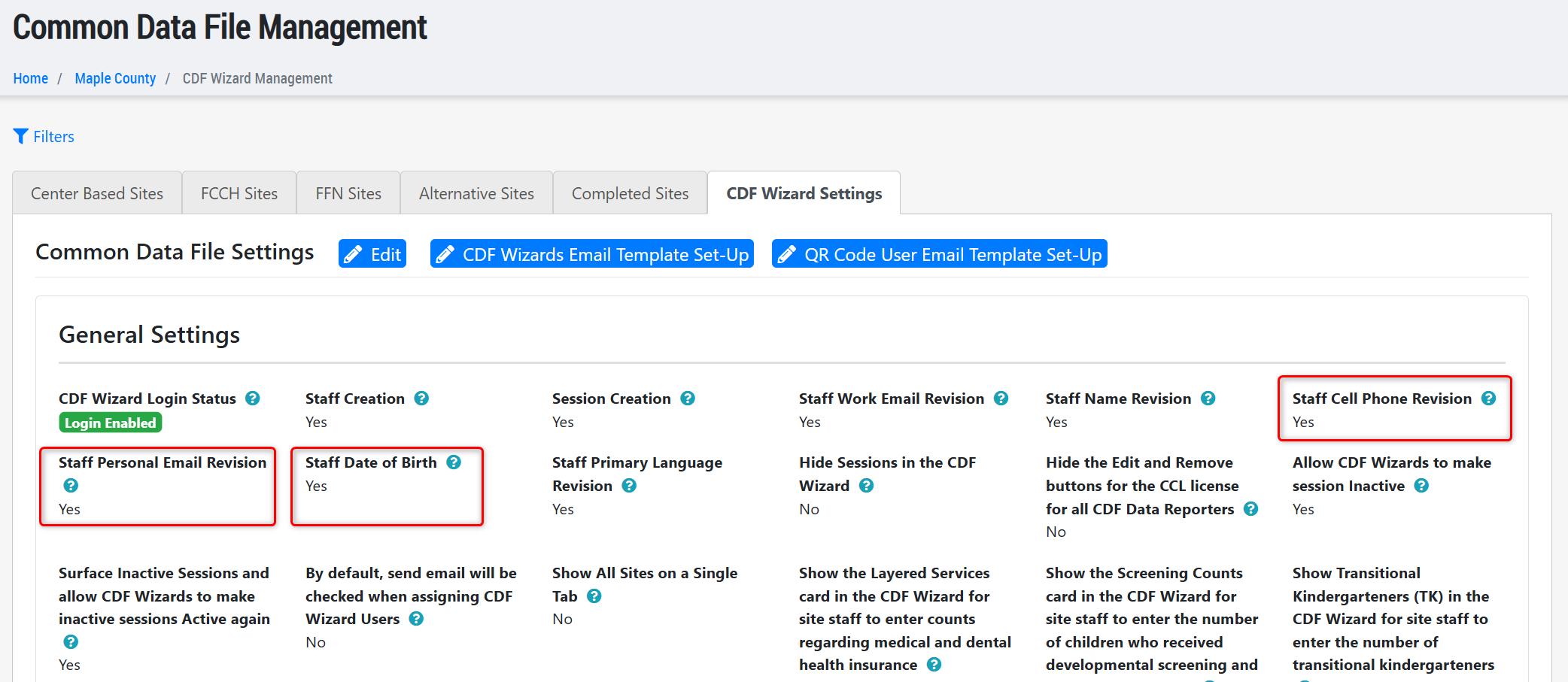
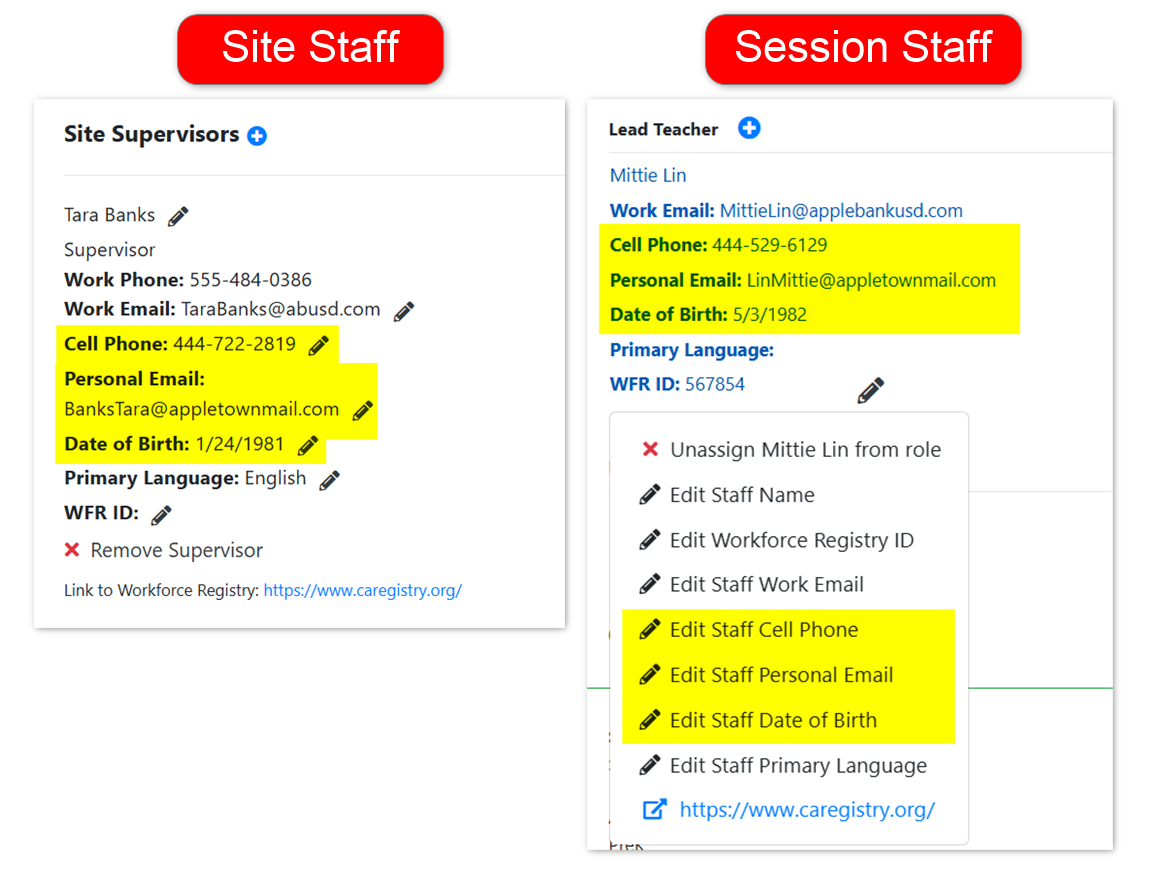
- Added three new CDF Wizard settings and fields that allow CDF Data Reporters to view and/or edit more of the site's staff information. These (3) new options were added in preparation for the new Hubbe Workforce Registry System coming this winter/spring. These (3) pieces of data will be used to identify staff uniquely in the new Hubbe Workforce Registry System. Adding these to this year's CDF data collection will assist the county in launching into this new system.:
- Staff Cell Phone Revision - This new setting allows users to determine whether CDF Wizards or QR Code users to edit the cell phone number of site and session staff assigned at the site. When set to "No" then this field will only be viewable and not editable in the CDF Wizard.
- Staff Personal Email Revision - This new setting allows users to determine whether CDF Wizards or QR Code users to edit the personal email address of site and session staff assigned at the site. When set to "No" then this field will only be viewable and not editable in the CDF Wizard.
- Staff Date of Birth - This new setting allows users to determine whether CDF Wizards or QR Code users to edit the date of birth of site and session staff assigned at the site. When set to "No" then this field will be hidden from view.
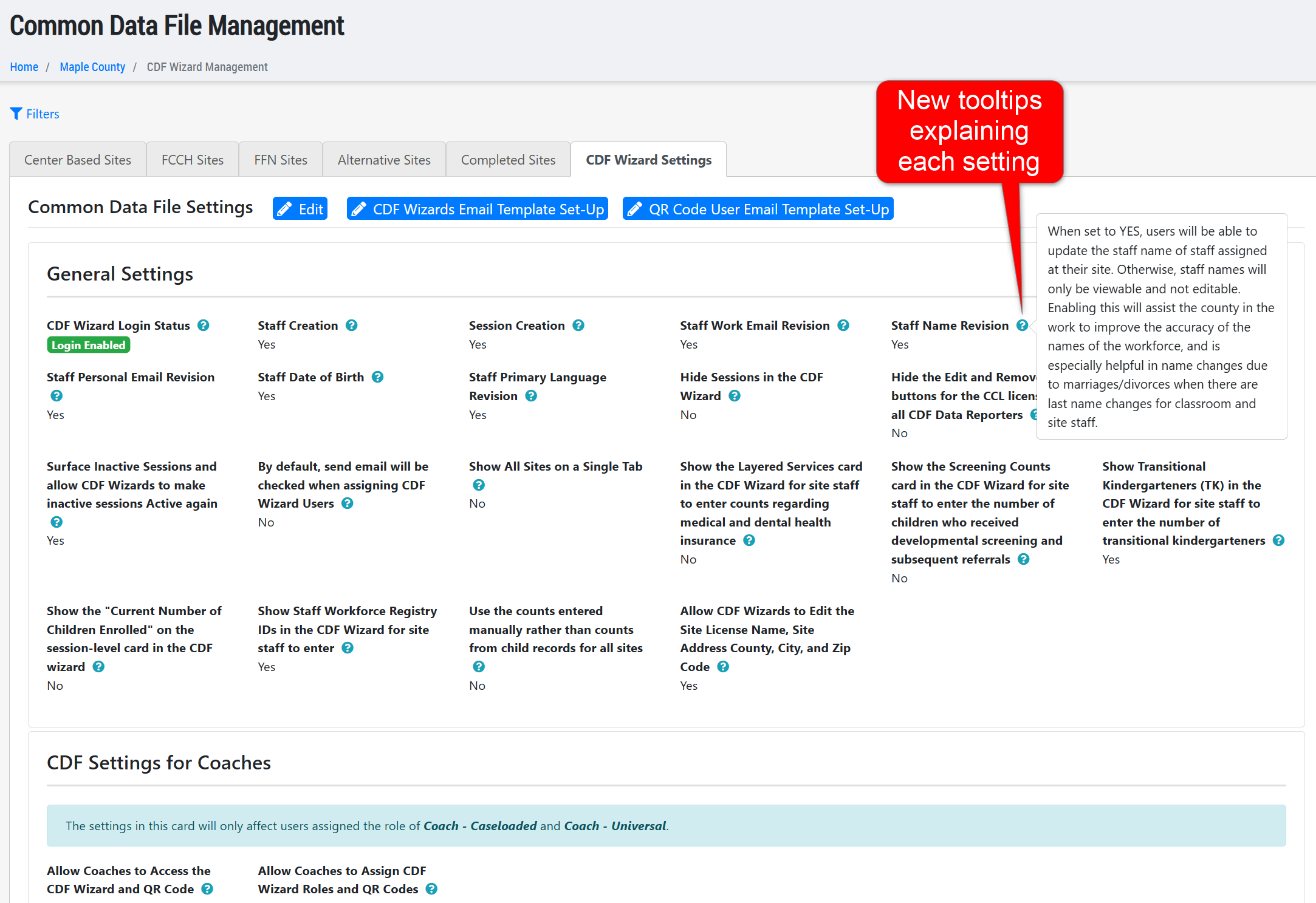
- Added helper language to all of the CDF Wizard Settings on the CDF Wizard Management record so that county users who are configuring the wizard for the CDF Data Collection period have a better understanding of what each setting does when set to Yes or No.
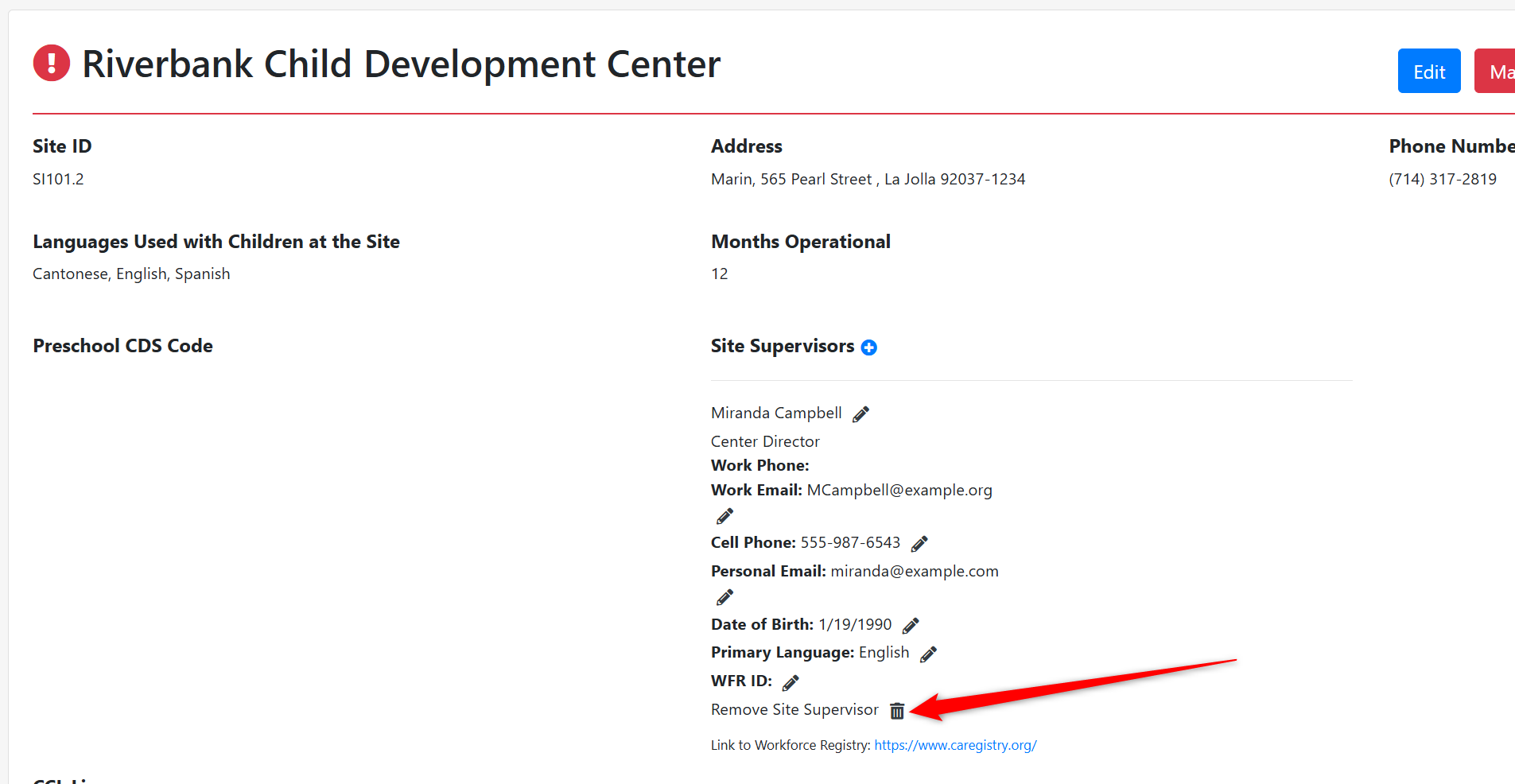
- Updated the CDF Wizard so that the "Remove Supervisor" link for any assigned Site Supervisors for the site is not in red text color, following feedback from users that this appeared as an error with data validation.
- Fixed the CDF Wizard Management's Excel export to ensure the QR Code users assigned to a site are included in the excel file.
Stipend Application Enhancements
- Added the "Filter Presets" grid tool to the Stipend Applications area, so that Stipend Application Managers can easily create and share Filter Presets that can be applied to your grid using pre-saved filter views.
- Added a new column cluster option titled "Application Custom Questions" that provides users with the option to hide/show the Stipend Application's custom questions for applicants right in the grid. This differs from the "Application Custom Fields" column cluster which are system custom fields created only to display and manage from the application grid for managing staff.
- Added a new column to the Stipend Applications grid for managing staff, titled "Job Title." This field will be shown by default upon release of this update, and will display the applicant's selected Job Title from their application.

Stipend Management Enhancements
- Updated the Professional Growth Plan approval message to be changed from "Completed By" to "Approved By" to align with the action more and with the Stipend Track participation tracker.
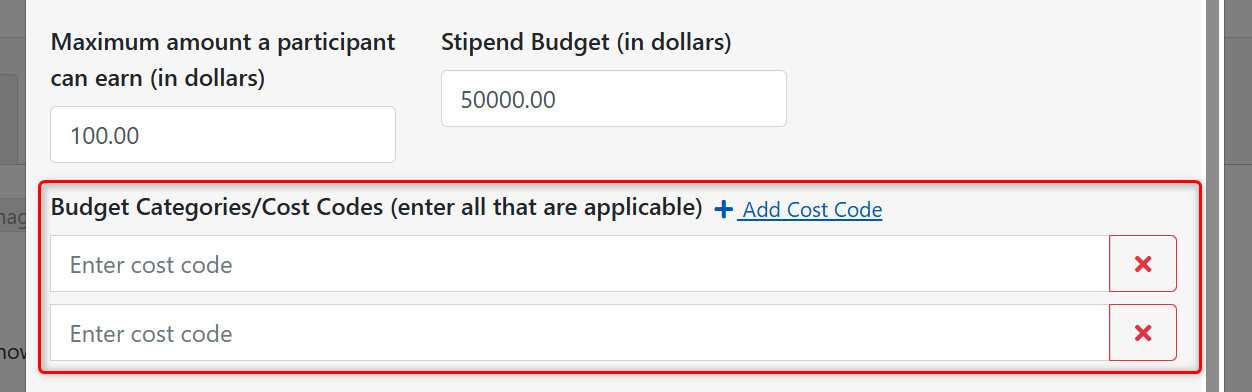
- We have updated the Stipend Track feature to allow more than one Budget Category/Cost Code within one track with the ability to assign a Budget Category/Cost Code to each staff participant in the stipend. The staffs' assigned code will be included in the Assigned Staff Downloads available from the Stipend Management record.
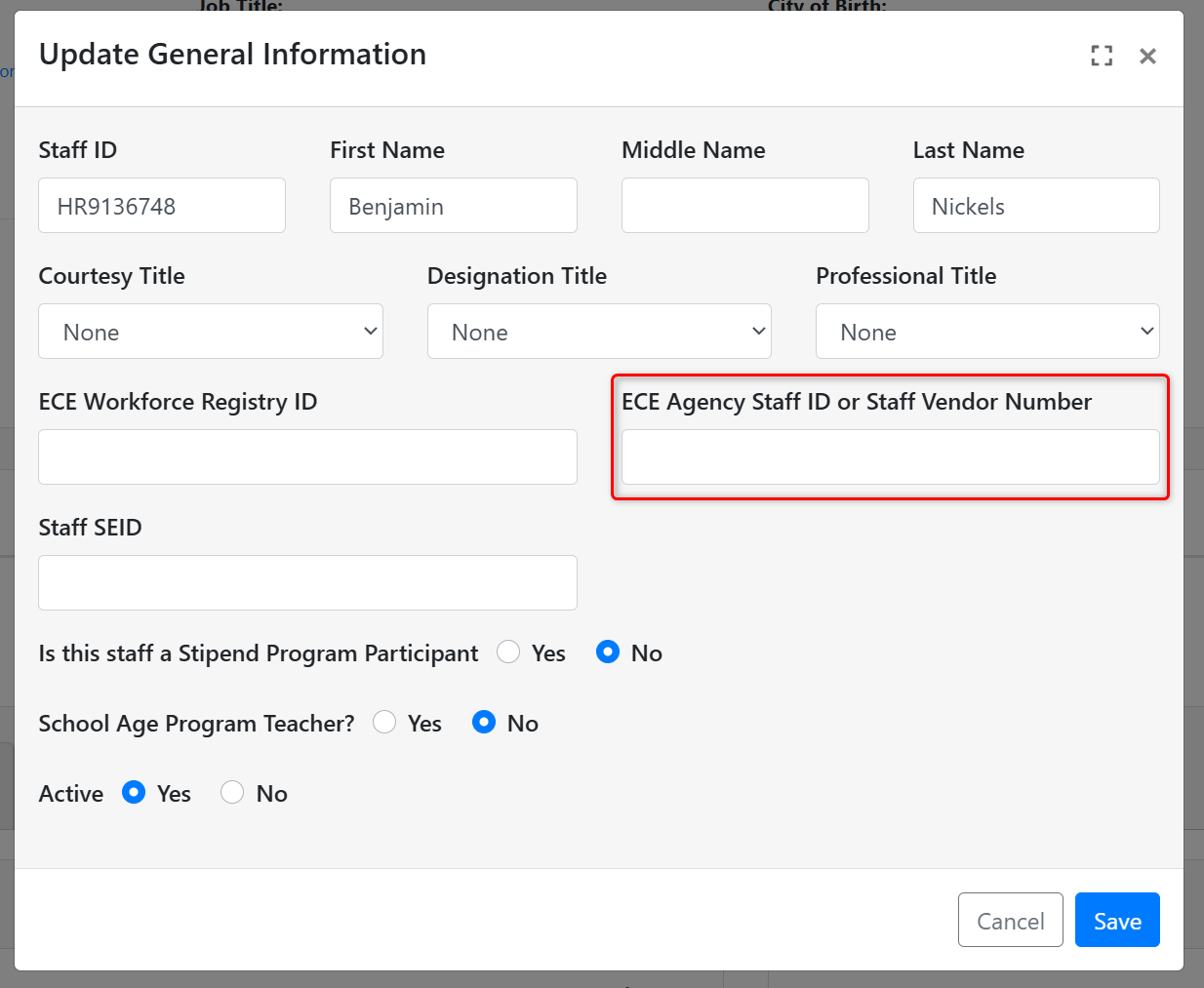
- Updated the field previously labeled "ECE Agency Staff ID" on the staff record to now be titled "ECE Agency Staff ID or Vendor Number" - this new field title was made in support of and will be reflected in the Assigned Staff Downloads available from the Stipend Management record.
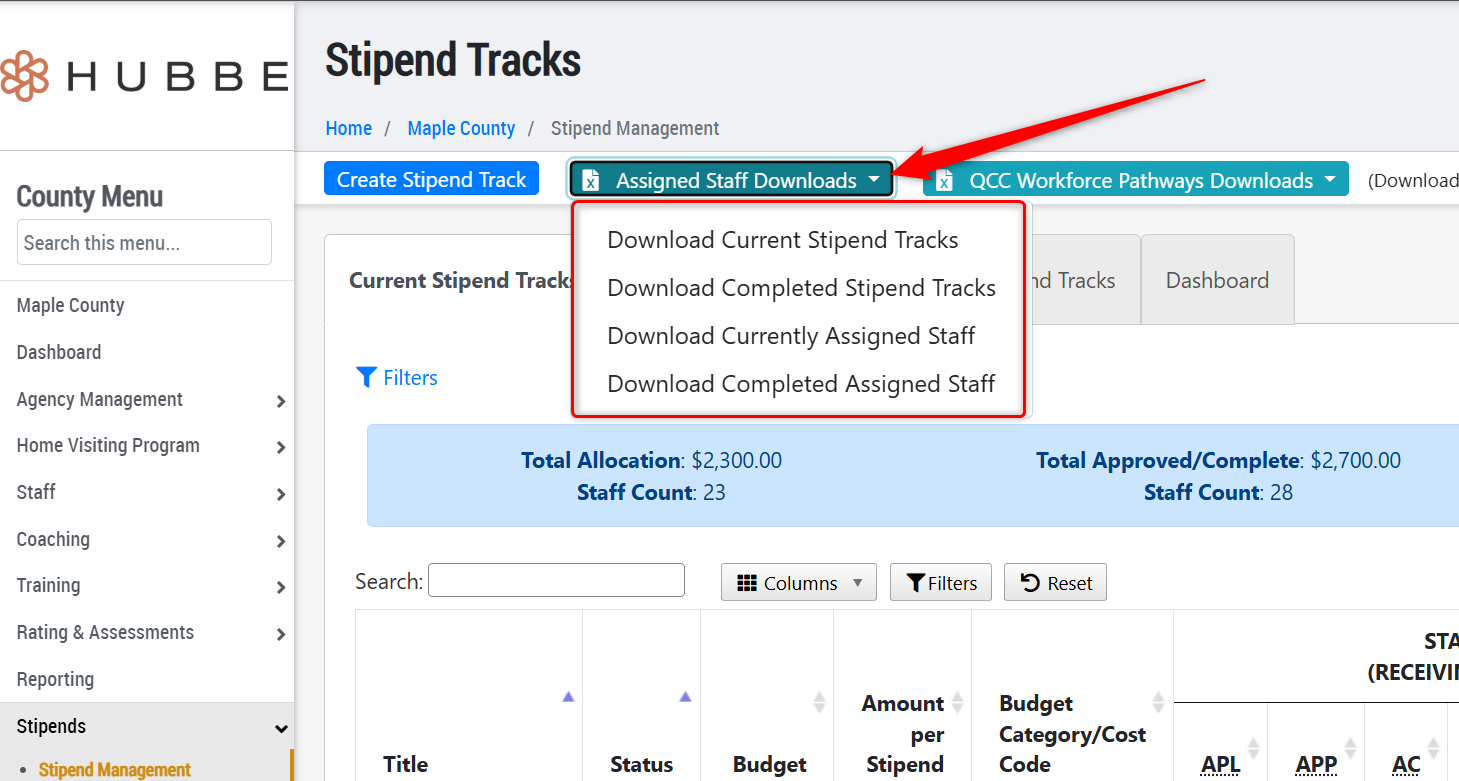
- Added the following three items of information to the "Assigned Staff Downloads" options, available from the Stipend Management grid: Race, Ethnicity, Primary Language.
Parent Education Enhancements
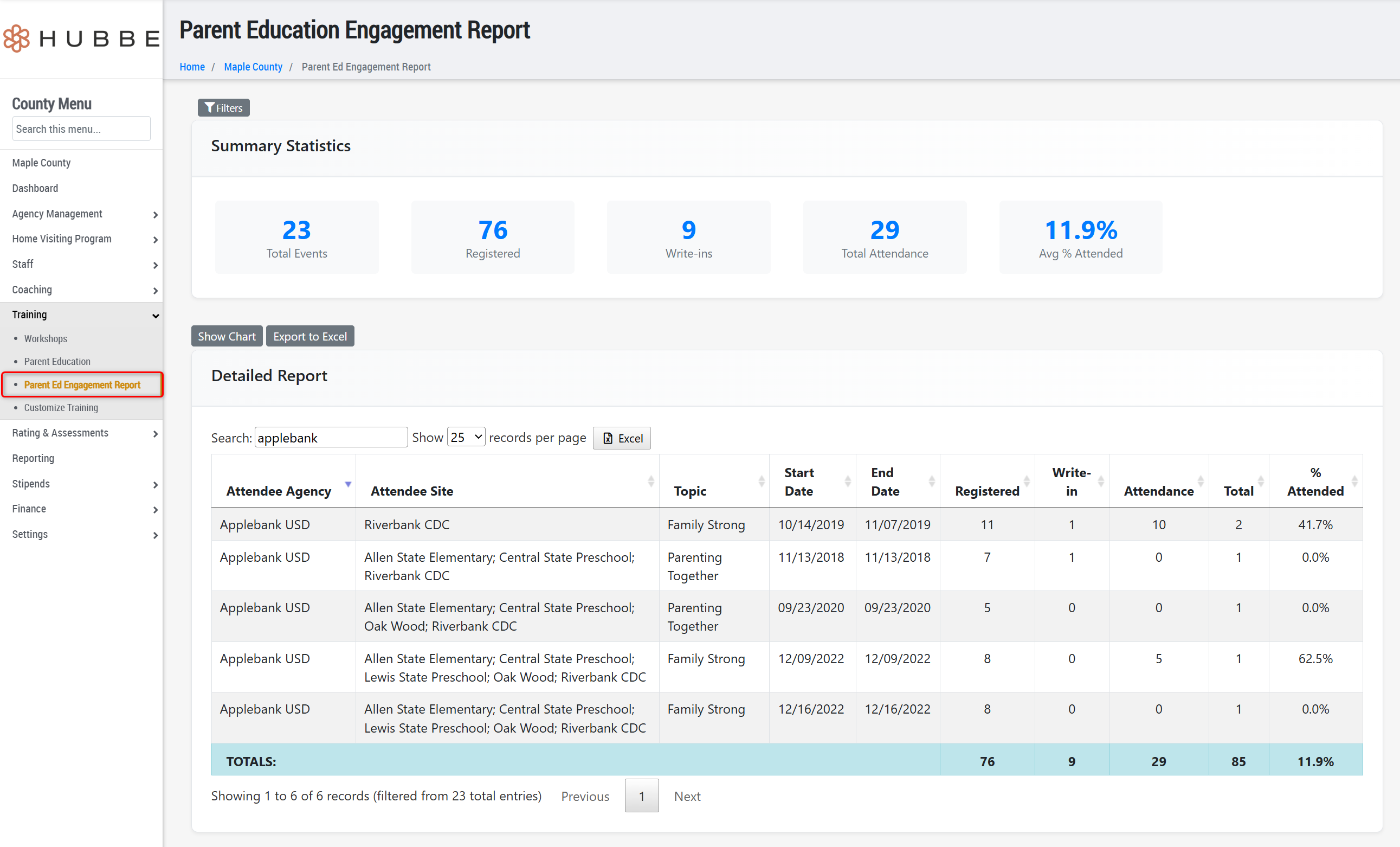
- We have updated the Parent Education feature within Hubbe to be more user-friendly and visually consistent with the other areas of the system. Now select county and agency staff can more easily create, edit, and manage Parent Education events in Hubbe. To navigate to this area: County Menu > Training > Parent Education. We hope you enjoy the newly improved Parent Education feature!

- We have also created a new Parent Ed Engagement Report that provides an overview of Parent Education events in three (3) formats: a detailed grid view, a Summary Statistics chart that displays overall values like "Total Attendance," and a chart that presents the Parent Education data in a visual format. We hope this new report helps your team better manage Parent Education events!
Coaching Enhancements
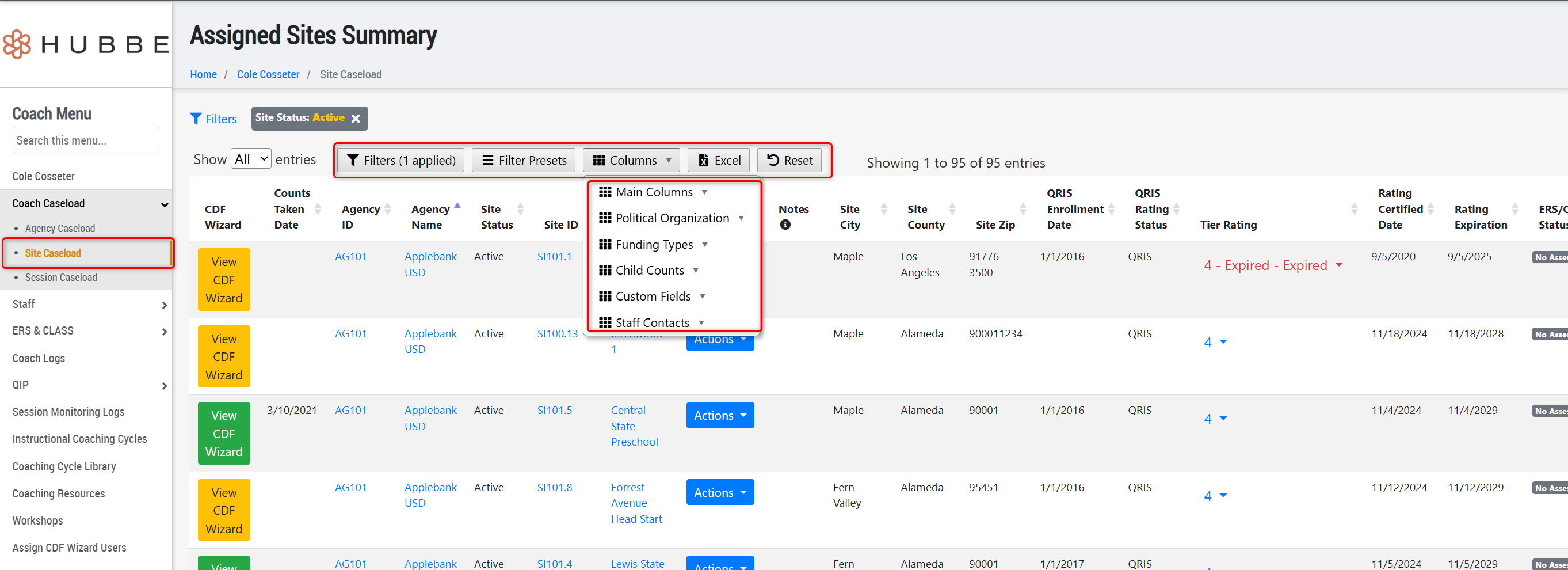
- Updated the Coach's Site Caseload grid to include many more tools and column options, including filters, filter presets, a column selection tool, and custom column ordering. There are now five (5) categories of column options to display or hide from the grid, allowing coaches to view much more data for each caseloaded site.
- Updated the permissions of the Coach - Caseloaded role to ensure the Coach user is unable to navigate into non-caseloaded entities using hyperlinks on various records. This update helps with Coaches who are caseloaded to specific site(s) and/or session(s) within an agency, rather than the entire agency as a whole.
QIP Enhancements
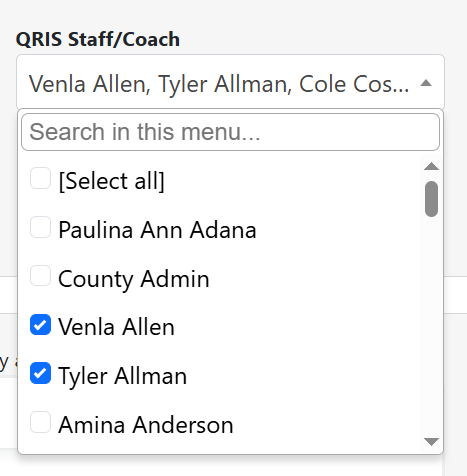
- Updated the QIP record to automatically populate the name of the user who created the QIP record in the "QRIS Staff/Coach" field. Users can still modify the selection, but this update will assist with users creating their own QIP records.
- We have updated the QIP record to allow users to select more than one "QRIS Staff/Coach" within a QIP, following feedback from users that coaches can sometimes team up on a QIP.
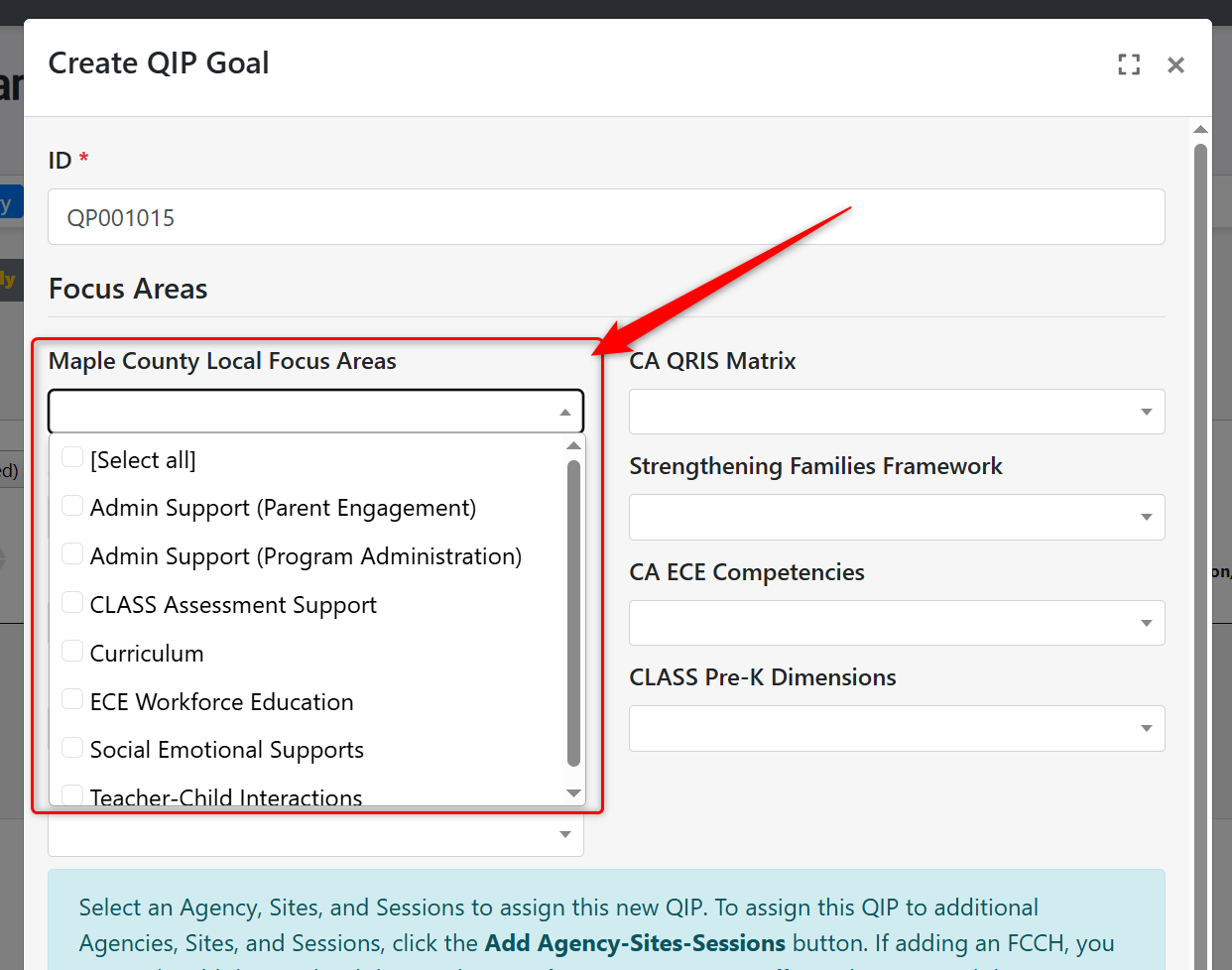
- Alphabetized the list of "Local Focus Areas" within a QIP record so that users can more easily locate a focus area, especially when the list is long.
Staff Education & Professional Development Enhancements
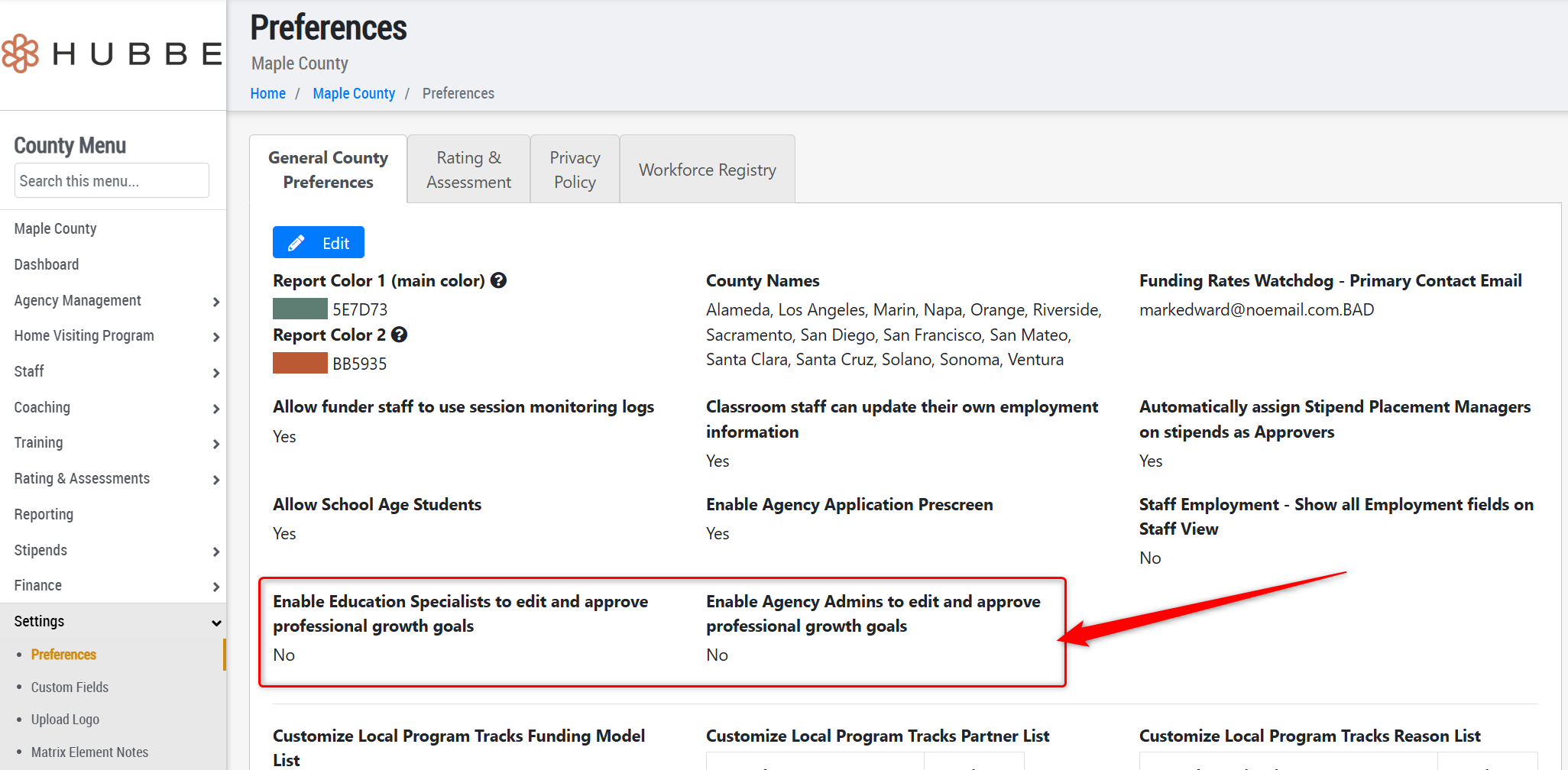
- Added two new settings that allow users to enable certain permissions for agency level roles, as detailed below:
- Enable Education Specialists to edit and approve professional growth goals - When set to "Yes" then agency users assigned the role of Education Specialists will be able to create new, edit existing, delete, and archive a staff's Professional Growth Goals and Plans. When set to "No" then these users will only be able to view the goals and plans, without any ability to create, edit, or delete. This setting has been defaulted to "No" for all QRIS systems, but can be managed in County Menu > Settings > Preferences > General County Preferences tab.
- Enable Agency Admins to edit and approve professional growth goals - When set to "Yes" then agency users assigned the role of Agency Admin will be able to create new, edit existing, delete, and archive a staff's Professional Growth Goals and Plans. When set to "No" then these users will only be able to view the goals and plans, without any ability to create, edit, or delete. This setting has been defaulted to "No" for all QRIS systems, but can be managed in County Menu > Settings > Preferences > General County Preferences tab.
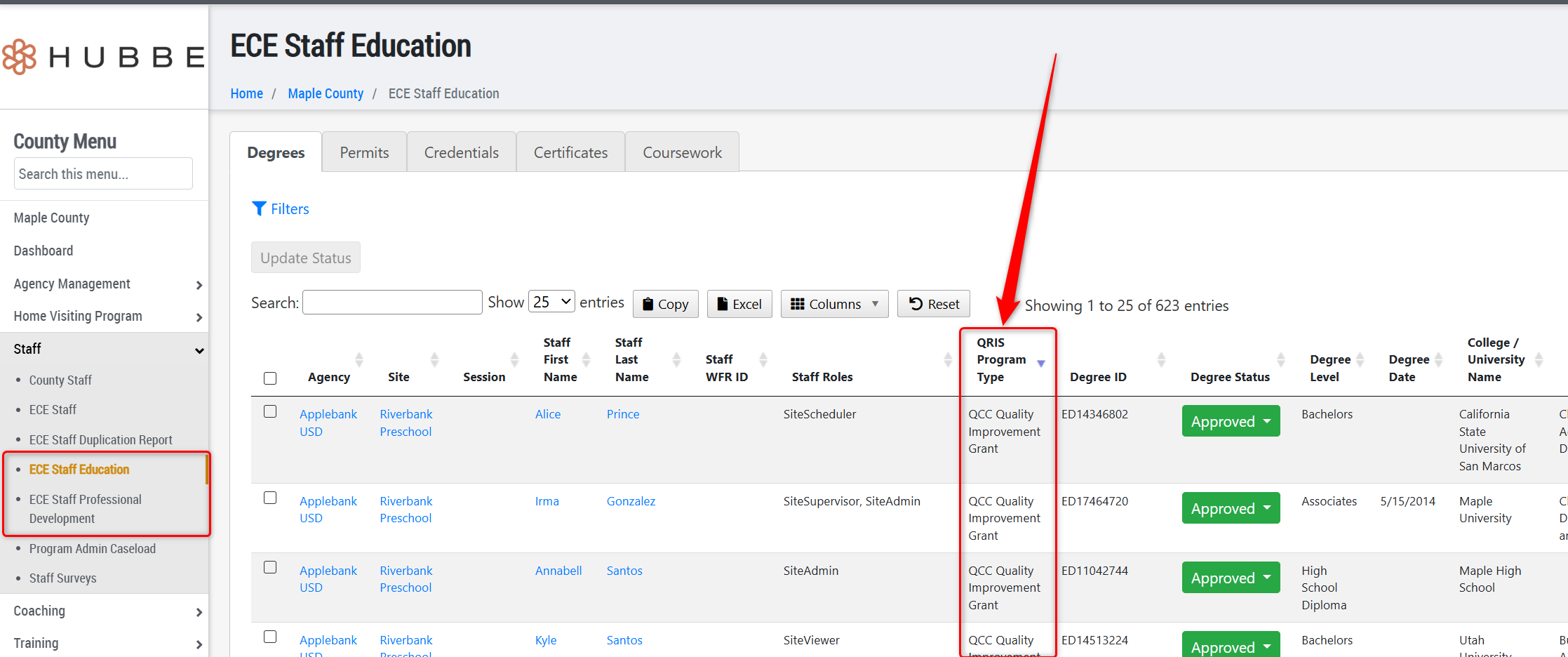
- Added a new column titled "QRIS Program Type" to the ECE Staff Education and the ECE Staff Professional Development grids. This column will display the types selected at the sites in which they have a role assigned to, indicating employment.
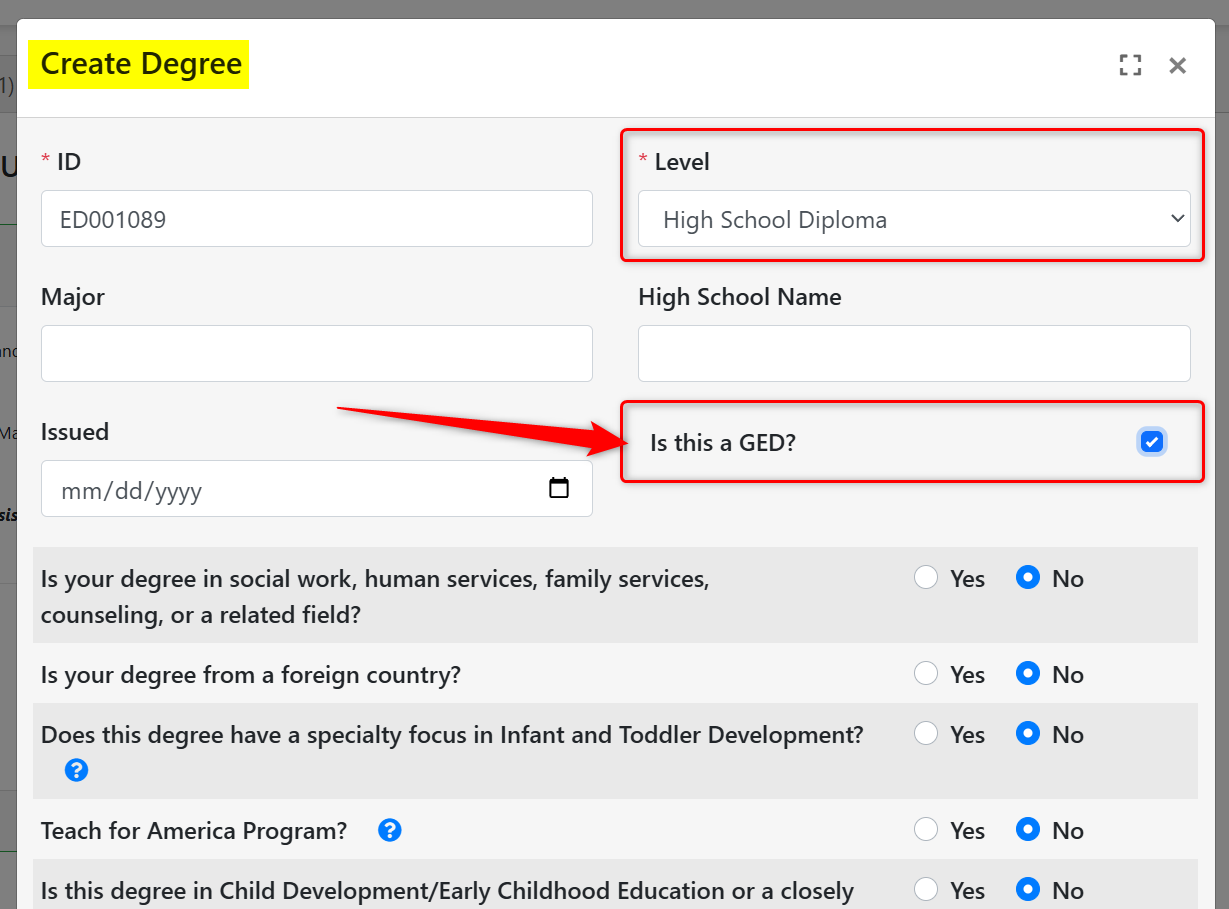
- Added a "GED" option to select when creating a High School Diploma degree in a staff's Education record. This new data piece was added in support of the new QCC Workforce Pathways Grant Report.
Staff Survey Enhancements
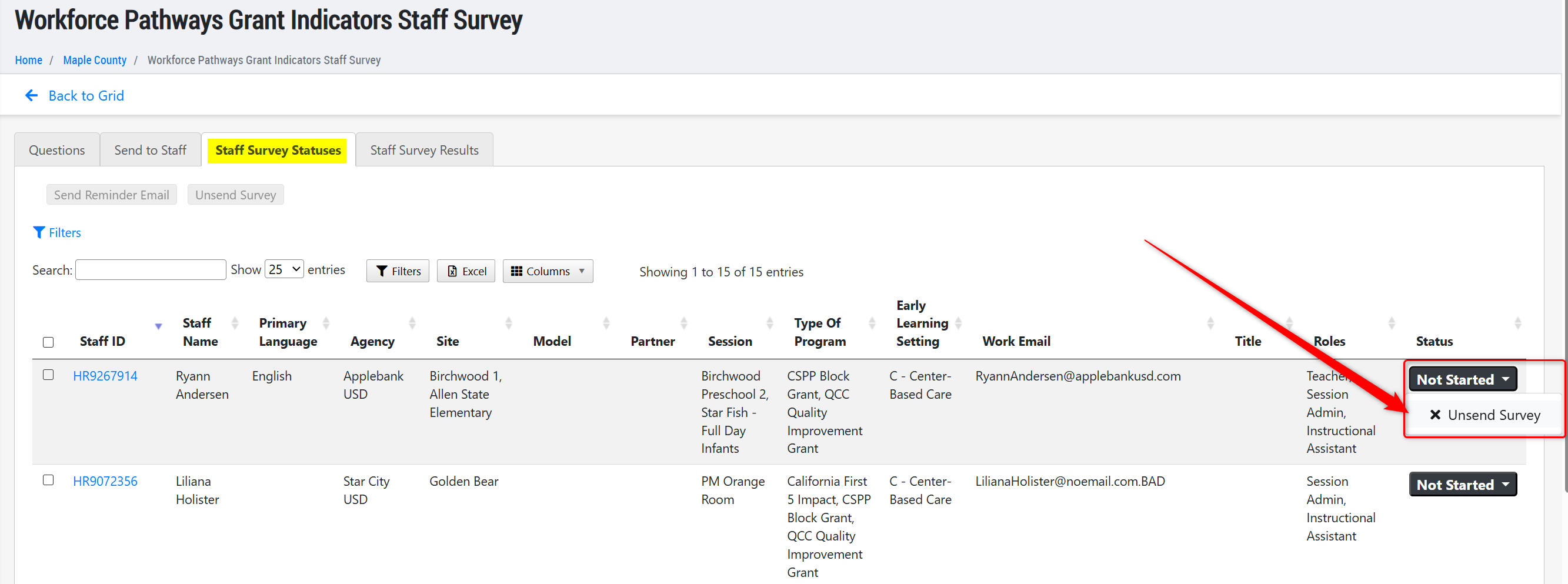
- Added a new tool to the Staff Survey feature that allows users to "Unsend" the survey from staff who have been sent it already. If the staff has already begun or completed the survey, then it cannot be unsent - but if the staff has yet to start the survey, then it can be unsent from an individual staff or in batch from all selected staff in one click. The staff who have been unsent the survey will move from the "Staff Survey Statuses" tab back to the "Send to Staff" tab, and will no longer see it as a survey to complete.
Fixes & Adjustments
- Updated the ID generation tool used when creating Site Rating records to ensure the ID is unique every time, following a report about an identical ID error upon creation of a record.
- Updated the Export portal to ensure the files export in a timely manner and that the page spinner stays open until the file is completely exported and downloaded to your computer.
- Fixed an issue reported by users when trying to archive Professional Growth Goal records within a staff's Professional Growth Plan area.
- Fixed an issue some users were experiencing when dually assigned both the "Coach - Caseloaded" and "Coach - Universal" role. Now, users can alternate between the caseloaded and universal coach roles and view only the applicable assigned entities. This can be useful for Universal coaches to assist with filling in for absent co-workers who are caseloaded coaches.
- Added a "blank" option for the site record's "QRIS Rating Status" field so that users can either assign the site as: QRIS, QI Only, or leave the field blank upon adding/saving other details in the same section.
- Fixed an issue reported by users on the "Certificate" download for workshop attendees, in which the meetings attended were not display dates correctly on staff certificates.
- Improved the performance of the All Sites grid to ensure systems with large data sets are able to utilize this grid and its features in an efficient manner.
- Fixed an issue with the Site Rating matrix reported by users to ensure sites with completed and certified CLASS assessments are scored accurately in Element 4b.
- Updated the CDF Wizard's "CDF Progress & Link" column value in the CDF Wizard Management grid to ensure it always matches the status of the site's wizard for the current data collection period. This update followed feedback from users that some sites in the "Completed Sites" tab with a completed site wizard were showing as "Not Started" in red, likely from user attempts to re-enter the QR Code user portal for a site.
- Fixed an issue reported by users regarding the Approval of a staff's stipend participation to ensure the approved payment amount appears for that staff.
- Fixed an issue reported by users with the "Total Earned" amount reported for a stipend participant within the "Stipend Progress" tab of the Stipend Track. This column will now show the cumulative amount earned across all requirements.
Was this article helpful?
That’s Great!
Thank you for your feedback
Sorry! We couldn't be helpful
Thank you for your feedback
Feedback sent
We appreciate your effort and will try to fix the article