TABLE OF CONTENTS
- New Staff Single-Sign-On Feature
- CAPSDAC 2.0 Updates
- State Reporting Updates
- Site and Session Admin Permissions
- New Rule Type & Enhancements for "Manage Sign-In/Out Events" Grid
- CACFP Enhancements
- Provider Invoicing Enhancements
- Messaging Enhancements
- Finance Enhancements
- General Enhancements
- Parent Education Enhancements
- Fixes & Adjustments
New Staff Single-Sign-On Feature
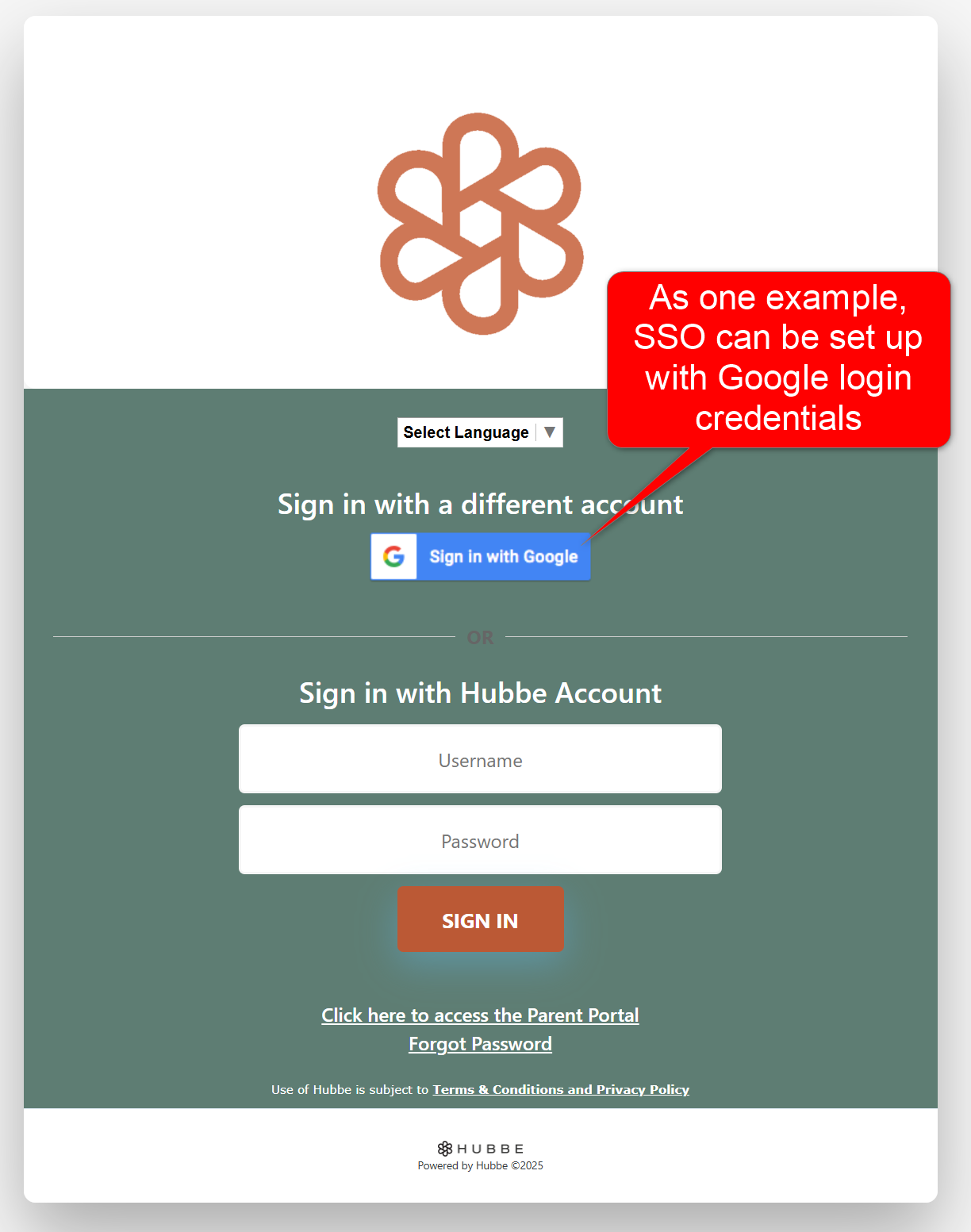
- We are excited to announce Hubbe's new Staff Single-Sign-On (SSO) feature that will allow staff to sign into their Hubbe accounts using their agency's login credentials. For example, if your center utilizes the Google Login feature, then staff in your Hubbe system can log into Hubbe via Google's SAML SSO feature. This feature will need to be configured in collaboration with the Hubbe team, so please contact us if you are interested in using this new feature.
CAPSDAC 2.0 Updates
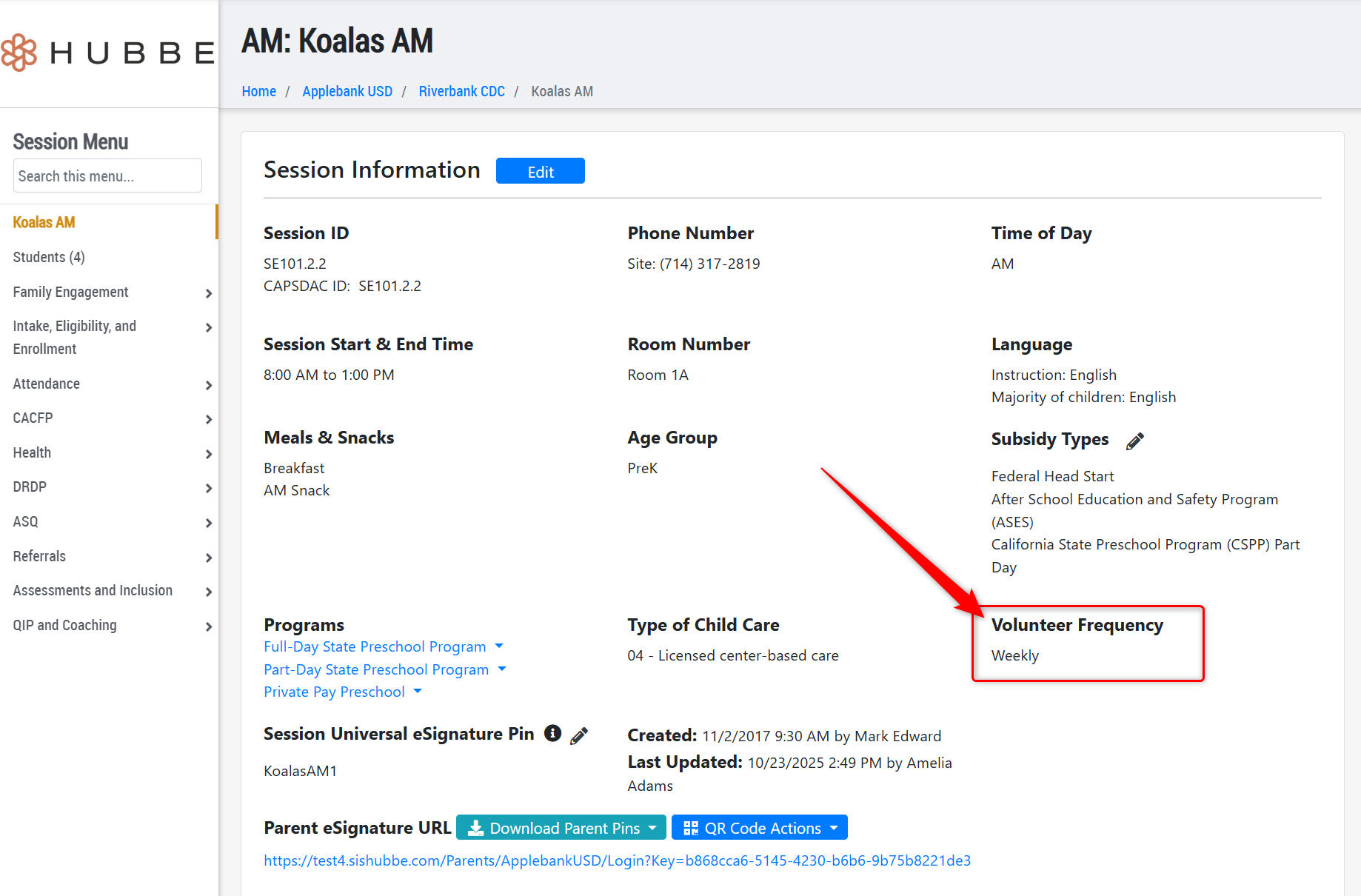
- Added a new field to the Session record that will be reported in the CAPSDAC 2.0. This field is labeled "Volunteer Frequency" and has the following options:
- Not Using - The classroom does not use volunteers in any capacity to take the place of a teacher/ aide when considering adult:child ratio calculations.
- Daily - The classroom uses at lease one volunteer on a daily basis to take the place of a teacher/ aide when considering adult:child ratio calculations.
- Weekly - The classroom uses at lease one volunteer on a weekly basis to take the place of a teacher/ aide when considering adult:child ratio calculations.
- Monthly - The classroom uses at lease one volunteer on a monthly basis to take the place of a teacher/ aide when considering adult:child ratio calculations.
- Quarterly - The classroom uses at lease one volunteer on a quarterly basis to take the place of a teacher/ aide when considering adult:child ratio calculations.
State Reporting Updates
- CAPSDAC 1.0 Report Updates
- Child Data - Updated the "CalWORKS Recipient" column in the report to look to the recently added "CalWORKS Recipient?" field in the household record, available on the Certification Wizard (Family Menu > Enrollment > Subsidized Certification (CDE/CDSS) > Application for Services > Start Certification). Users can click the "CalWORKS Recipient" cell in the CAPSDAC Report for any child to edit the family's selection right from the grid. The options and their applicable codes are as follows:
- Adult(s) and Child(ren) Cash Aid - 1
- Child(ren) Cash Aid - 2
- Diversion Services - 3
- Not Applicable (or blank) - 4
- Child Data - Updated the "Eligibility Status" column of the CAPSDAC Report to allow users to click the cell and edit information for the family right from the grid.
- Child Data - Updated the code value that populates for the "Completed a Graduate Degree or Higher" selection for a parent's Education field to code 10.
- Staff Data - Updated the "Classroom Assignments" column of the CAPSDAC Report to ensure only the IDs of sessions that serve at least one CSPP child during the selected report period are listed.
- Child Data - Updated the "CalWORKS Recipient" column in the report to look to the recently added "CalWORKS Recipient?" field in the household record, available on the Certification Wizard (Family Menu > Enrollment > Subsidized Certification (CDE/CDSS) > Application for Services > Start Certification). Users can click the "CalWORKS Recipient" cell in the CAPSDAC Report for any child to edit the family's selection right from the grid. The options and their applicable codes are as follows:
- CDE CDMIS 801A Report Updates
- Updated the "CalWORKS Recipient" column in the report to look to the recently added "CalWORKS Recipient?" field in the household record, available on the Certification Wizard (Family Menu > Enrollment > Subsidized Certification (CDE/CDSS) > Application for Services > Start Certification). Users can click the "CalWORKS Recipient" cell in the CDE 801A Report for any child to edit the family's selection right from the grid. The options and their applicable codes are as follows:
- Adult(s) and Child(ren) Cash Aid - 01
- Child(ren) Cash Aid - 02
- Diversion Services - 03
- Not Applicable (or blank) - 04
- Updated the "CalWORKS Recipient" column in the report to look to the recently added "CalWORKS Recipient?" field in the household record, available on the Certification Wizard (Family Menu > Enrollment > Subsidized Certification (CDE/CDSS) > Application for Services > Start Certification). Users can click the "CalWORKS Recipient" cell in the CDE 801A Report for any child to edit the family's selection right from the grid. The options and their applicable codes are as follows:
Site and Session Admin Permissions
- We have added many new permissions settings for the roles of Site Admin and Session Admin as a way for users to customize their system's roles to fit their program needs, including:
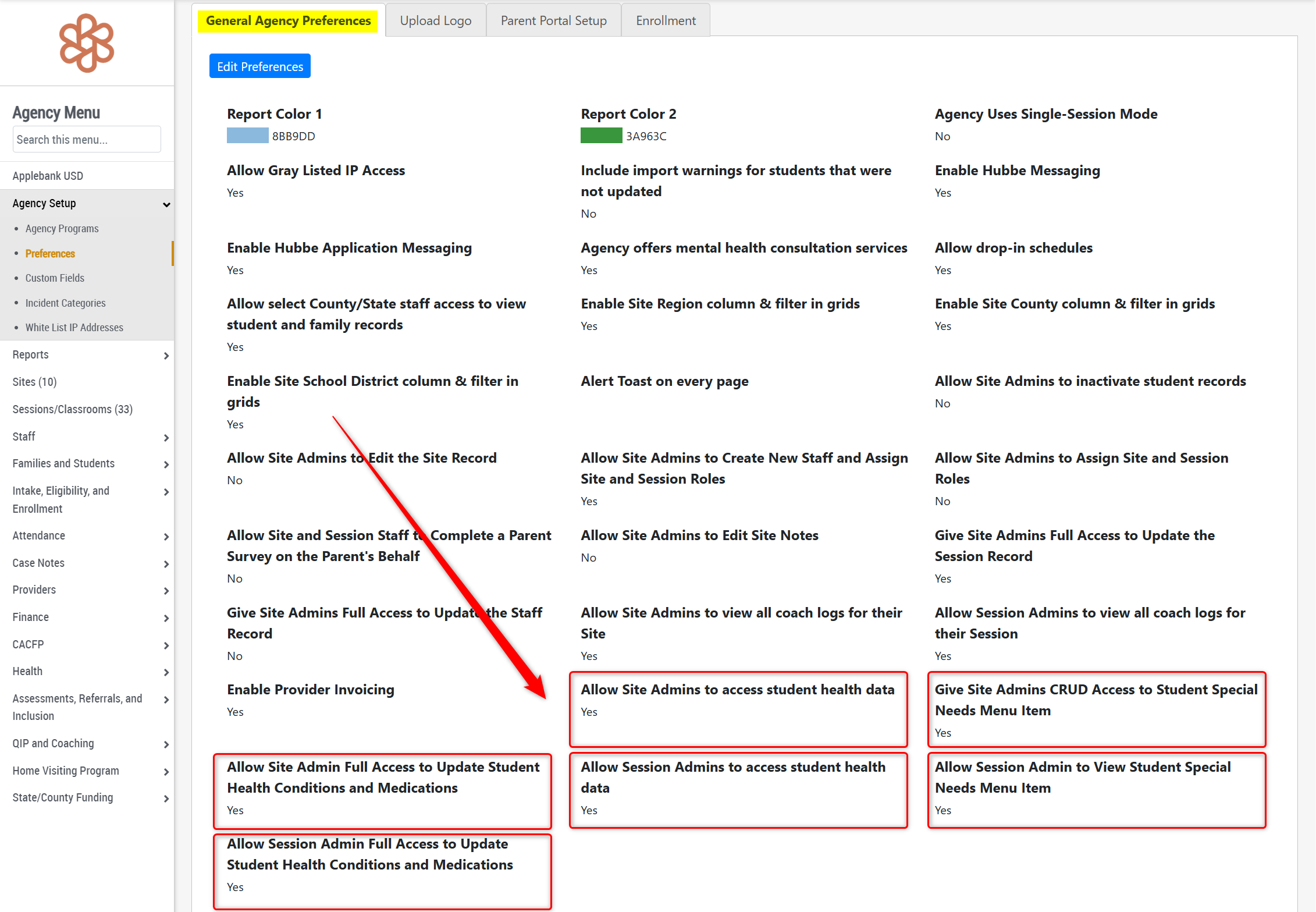
- Allow Site Admins to access student health data - This new setting can be found in Agency Menu > Agency Setup > Preferences > General Agency Preferences tab. This setting allows users to show/hide all student health-related records from Site Admins. If set to "Yes," then Site Admins will have access to the "Health" menu item in the Student Menu, Session Menu, and Site Menu, allowing them to view and/or edit student health data. These menu items will be removed from the Site Admin view if this setting is set to "No." This new setting will be set to "Yes" by default to align with previous system permissions.
- Give Site Admins CRUD Access to Student Special Needs Menu Item - This new setting can be found in Agency Menu > Agency Setup > Preferences > General Agency Preferences tab. When set to "Yes," users with the "Site Admin" role will be able to view, edit, and delete information within a student's "Special Needs" menu item, which houses information such as IFPS/IEPs, Homelessness, Foster Care, CPS/At-Risk statuses, custody arrangements, and more. If set to "No," then users with the "Site Admin" role will not even be able to view the record in the Student Menu or any information within it. Please note that this setting can only be set to "Yes" if its parent setting "Allow Site Admins to access student health data" is set to Yes." This new setting will be set to "Yes" by default to align with previous system permissions.
- Allow Site Admin Full Access to Update Student Health Conditions and Medications - This new setting can be found in Agency Menu > Agency Setup > Preferences > General Agency Preferences tab. When set to "Yes," users with the "Site Admin" role will be able to view, edit, and delete information within a student's "Current Health Conditions" record, including allergies, asthma, heart conditions, etc. This includes access to update medication data. If set to "No," users with the "Site Admin" role will still be able to view the record in the Student Menu and have view-only access to the information within the record. Please note that this setting can only be set to "Yes" if its parent setting "Allow Site Admins to access student health data" is set to Yes." This new setting will be set to "Yes" by default to align with previous system permissions.
- Allow Session Admins to access student health data -This new setting can be found in Agency Menu > Agency Setup > Preferences > General Agency Preferences tab. This setting allows users to show/hide all student health-related records from Session Admins. If set to "Yes," then Session Admins will have access to the "Health" menu item in the Student Menu and Session Menu, allowing them to view and/or edit student health data. These menu items will be removed from the Session Admin view if this setting is set to "No." This new setting will be set to "Yes" by default to align with previous system permissions.
- Allow Session Admin to View Student Special Needs Menu Item - This new setting can be found in Agency Menu > Agency Setup > Preferences > General Agency Preferences tab. When set to "Yes," users with the "Session Admin" role will be able to view, edit, and delete information within a student's "Special Needs" menu item, which houses information such as IFPS/IEPs, Homelessness, Foster Care, CPS/At-Risk statuses, custody arrangements, and more. If set to "No," then users with the "Session Admin" role will not even be able to view the record in the Student Menu or any information within it. Please note that this setting can only be set to "Yes" if its parent setting "Allow Session Admins to access student health data" is set to Yes." This new setting will be set to "Yes" by default to align with previous system permissions.
- All Session Admin Full Access to Update Student Health Conditions and Medications - This new setting can be found in Agency Menu > Agency Setup > Preferences > General Agency Preferences tab. When set to "Yes," users with the "Session Admin" role will be able to view, edit, and delete information within a student's "Current Health Conditions" record, including allergies, asthma, heart conditions, etc. This includes access to update medication data. If set to "No," users with the "Session Admin" role will still be able to view the record in the Student Menu and have view-only access to the information within the record. Please note that this setting can only be set to "Yes" if its parent setting "Allow Session Admins to access student health data" is set to Yes." This new setting will be set to "Yes" by default to align with previous system permissions.
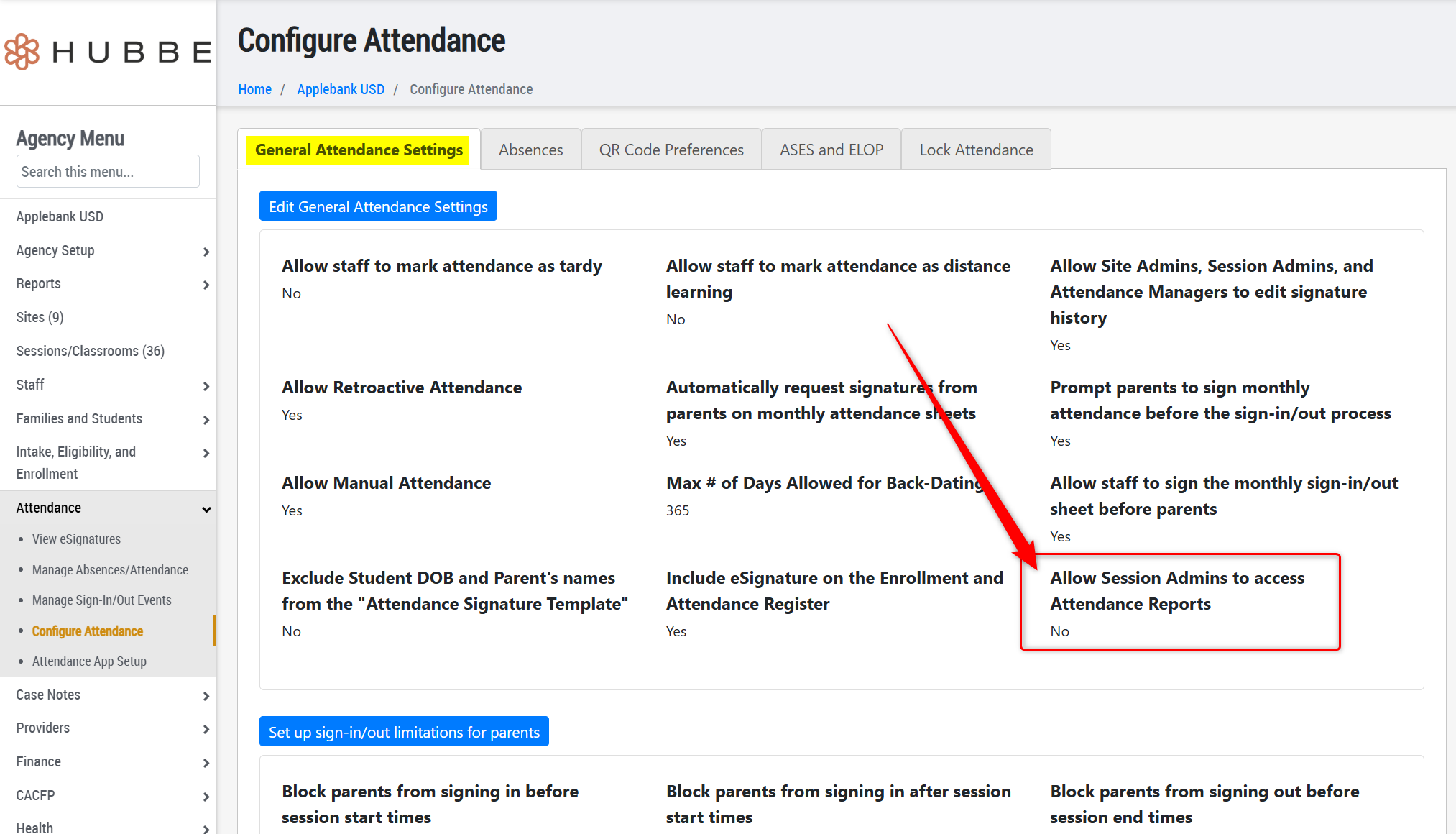
- Allow Session Admins to Access Attendance Reports - This new setting can be found in Agency Menu > Attendance > Configure Attendance > General Attendance Settings tab. When set to "Yes," users with the "Session Admin" role will be able to access the "Attendance Reports" menu item at the session level, which includes the following reports: Enrollment and Attendance Register (EAR), State-Subsidized Attendance Report, Expanded Learning Attendance Reports (if enabled in your system), and Chronic Absences Report. This new setting will be set to "No" by default upon release of this update.
- Allow Site Admins to access student health data - This new setting can be found in Agency Menu > Agency Setup > Preferences > General Agency Preferences tab. This setting allows users to show/hide all student health-related records from Site Admins. If set to "Yes," then Site Admins will have access to the "Health" menu item in the Student Menu, Session Menu, and Site Menu, allowing them to view and/or edit student health data. These menu items will be removed from the Site Admin view if this setting is set to "No." This new setting will be set to "Yes" by default to align with previous system permissions.
New Rule Type & Enhancements for "Manage Sign-In/Out Events" Grid
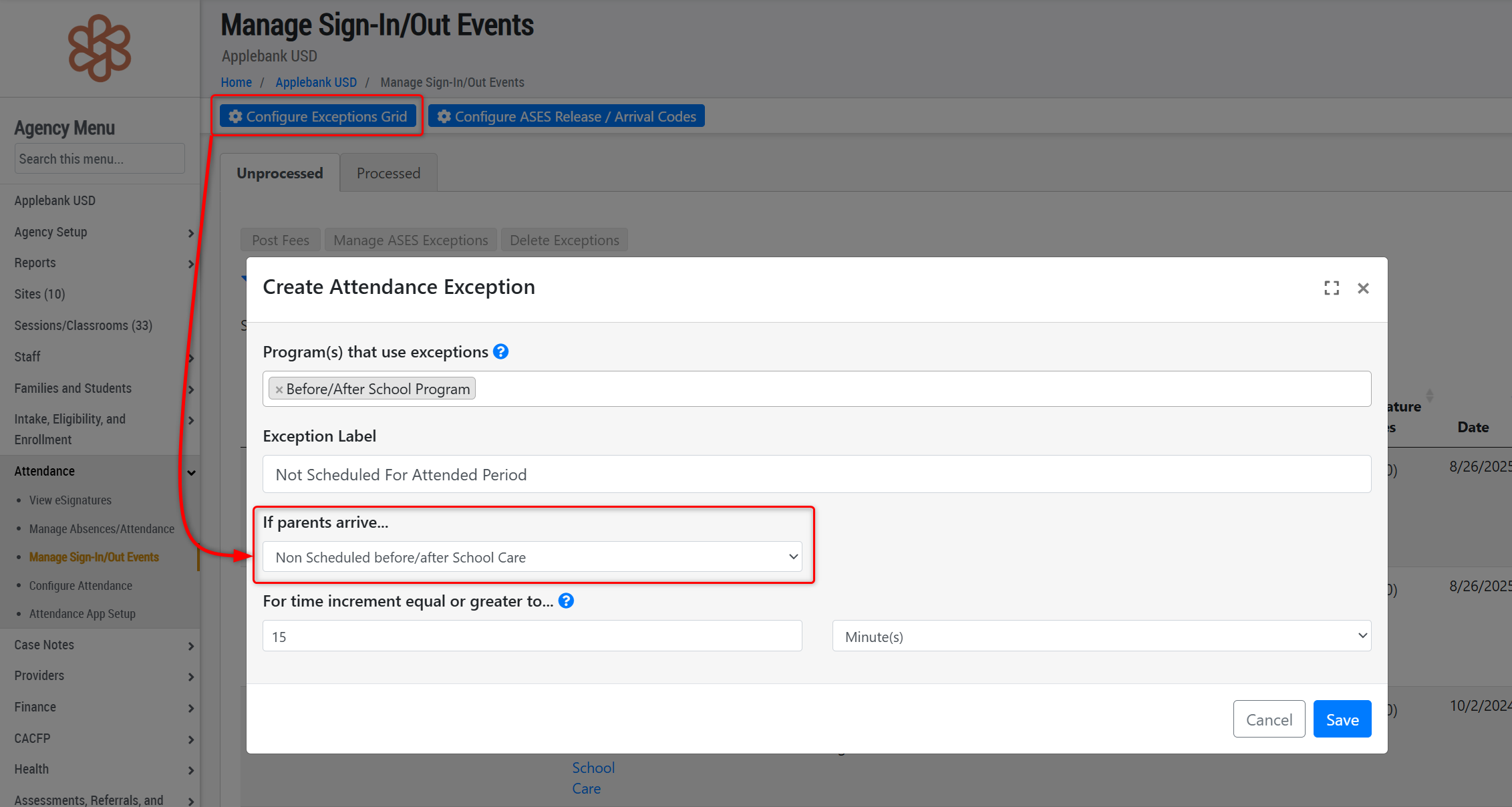
- We have created a new attendance exception type within the "Manage Sign-In/Out Events" grid to capture scenarios where a child attends a before or after-school time block that they aren't scheduled for. The new exception type is labeled "Not Scheduled before/after School Care." To configure this, follow the steps listed below:
- Click "Configure Attendance Exceptions" at the top of the record
- Add the new rule with "Not Scheduled before/after School Care" with the selected time increment
- Once configured, any student who meets the following criteria will have an attendance exception created:
- The student is scheduled to the Agency Program(s) selected in the rule.
- The student is only scheduled during a before-school or after-school time block.
- The student is signed in for the minimum number of minutes set in the exception rule, and their attendance doesn't overlap with their schedule's before-school or after-school times (see screenshot below).
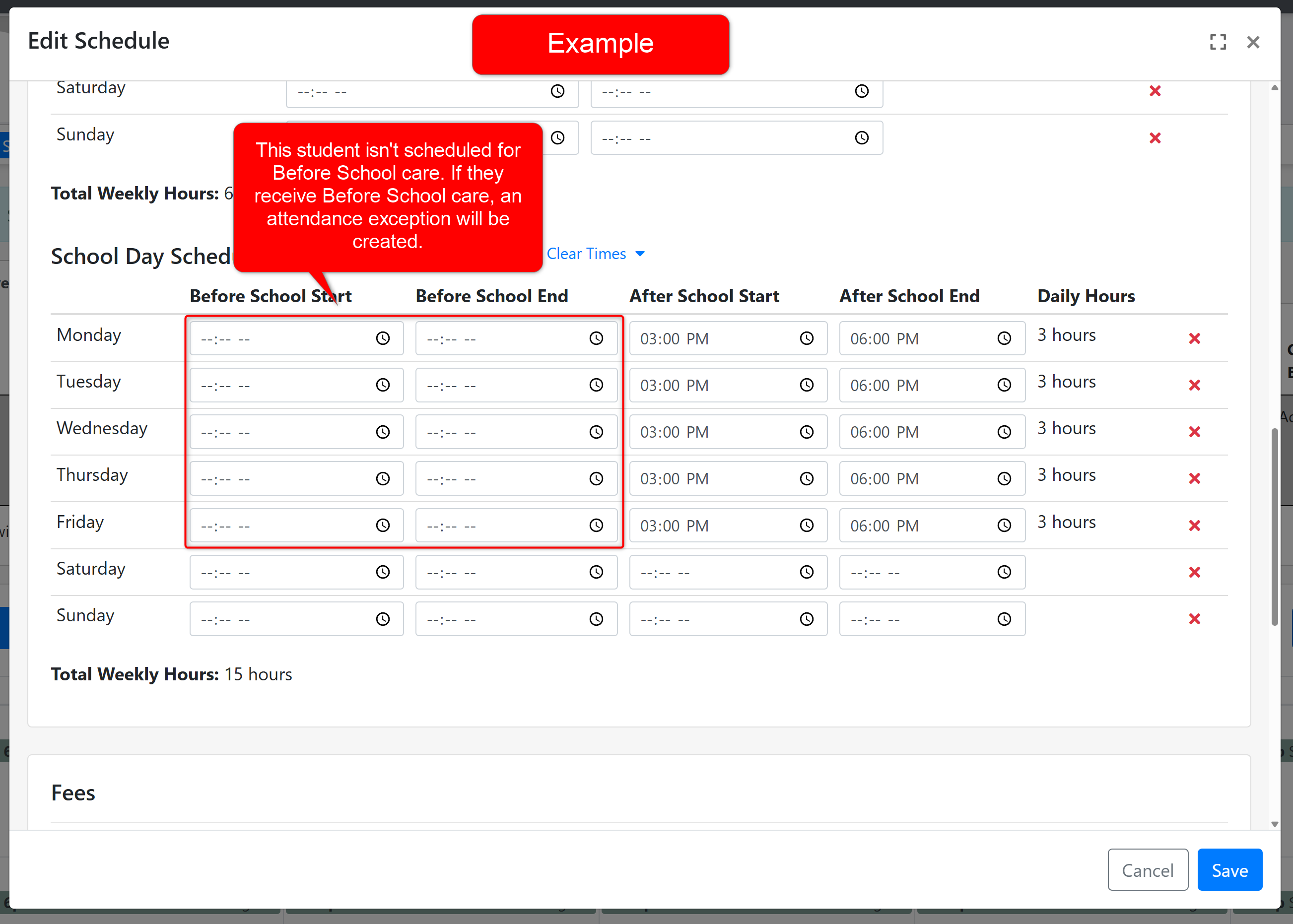
- When processing these attendance exception records, you also have the option to post a fee to the family's ledger to reflect the extra service charge.
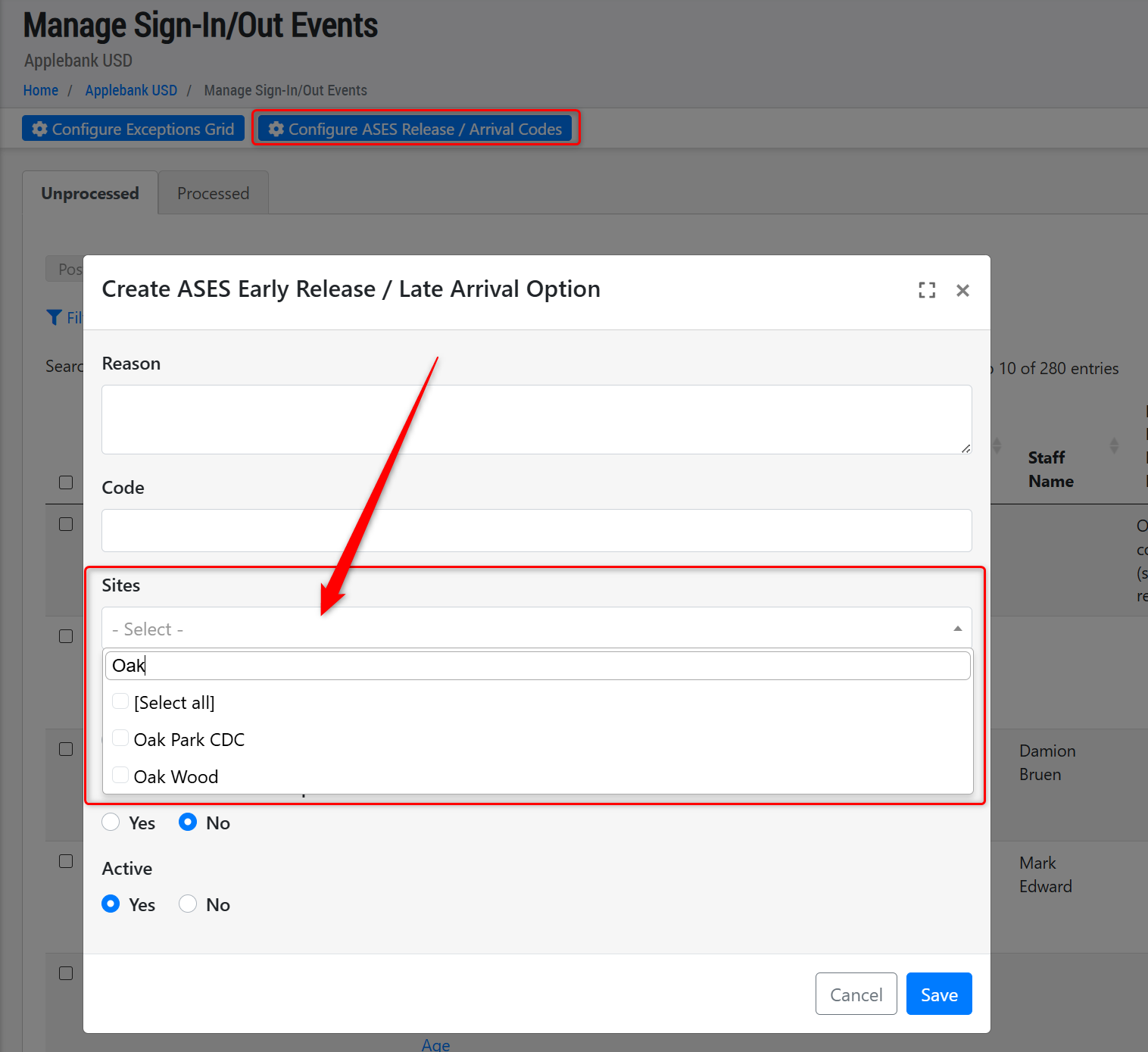
- In the "Manage Sign-In/Out Events" record, we allow staff to add custom codes for Early Release and Late Arrival reasons for ASES & ELOP programs. To make the drop-down list more user-friendly, we have updated the "Sites" field in the "Create ASES Early Release/ Late Arrival Option" by alphabetizing the list and adding a "search" field. Please note this feature must be enabled in Agency Menu > Attendance > Configure Attendance > ASES and ELOP tab by setting "Yes" for "Enable Early Release/Late Arrival Setup by Session."
CACFP Enhancements
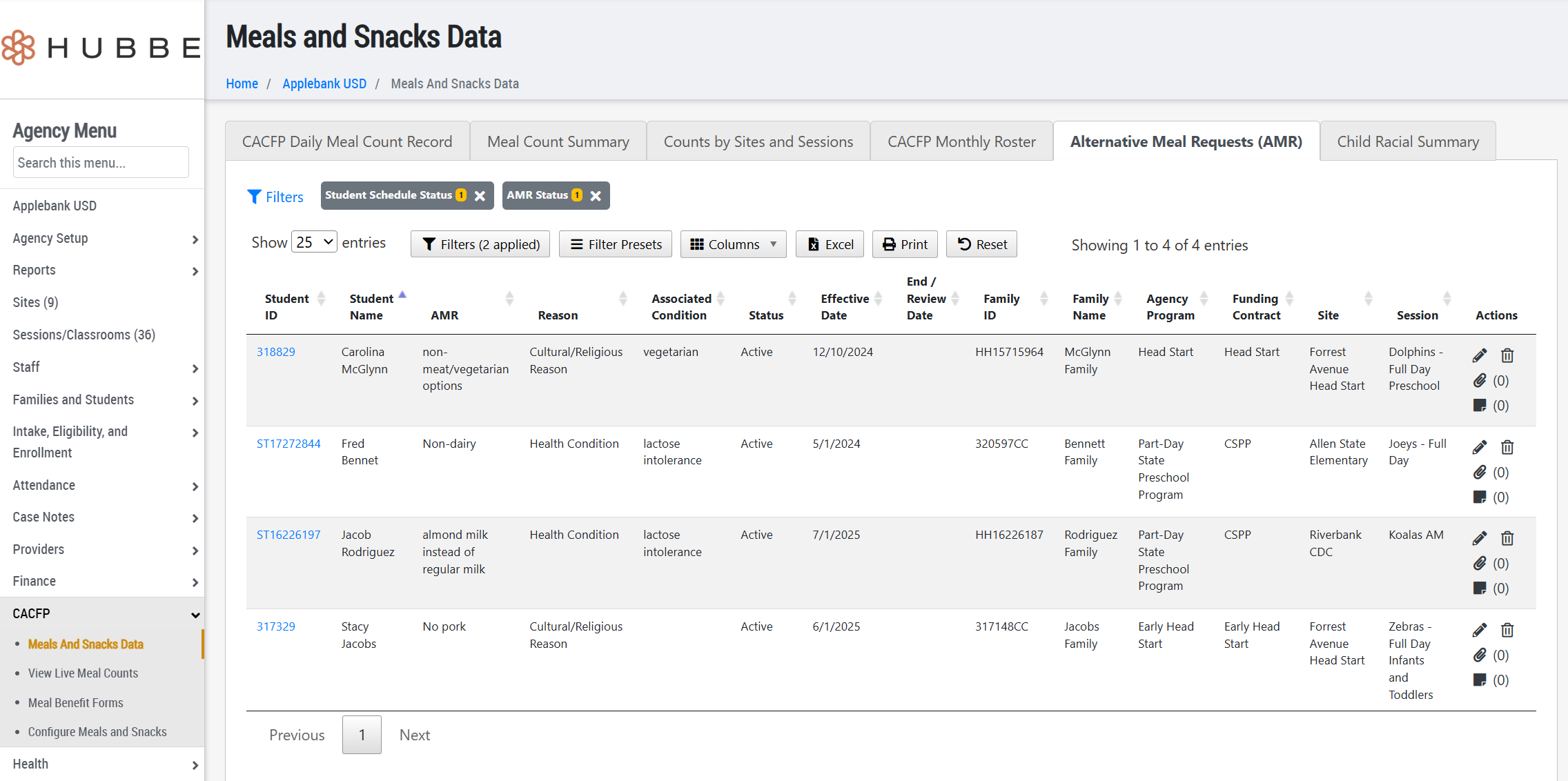
- We previously released a new feature called "Dietary Accommodations" that we have now relabeled to "Alternative Meal Requests" (AMR). This feature can be found in a student's "Current Health Conditions" record and allows staff to enter alternative meal requests for students being served meals.
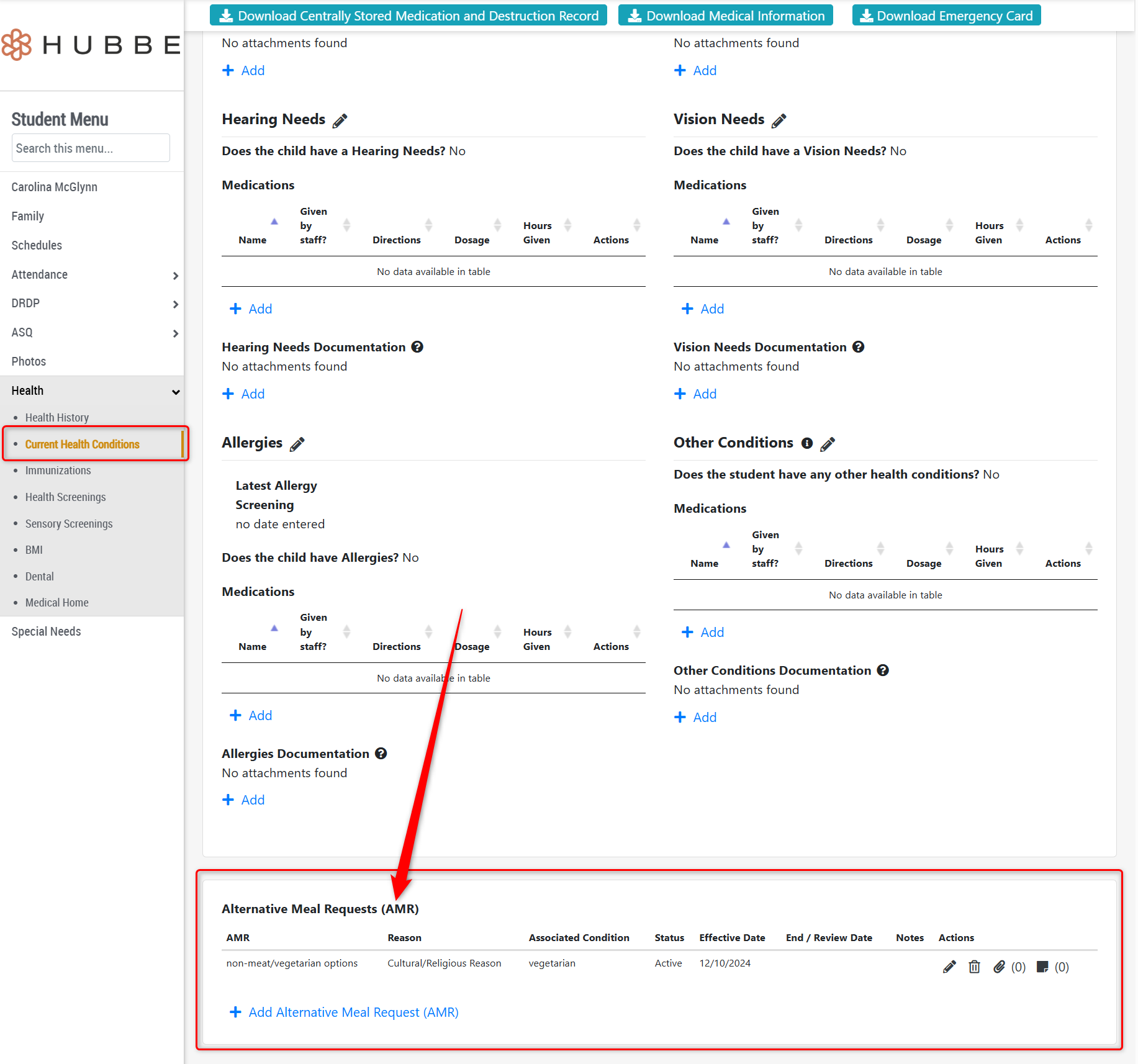
- We have added a new roll-up grid for all Alternative Meal Requests (AMR) that have been created for any student record, available within the "Meals and Snacks Data" menu item as a new tab at the agency level and site level. This new grid is designed to assist CACFP staff with preparing meals for children with AMRs. The grid offers many filters, export options, and allows users to edit the AMRs right from the grid.
- We have made two exciting updates to the Meal Benefit Forms management grid:
- When creating Meal Benefit Forms (MBF) from this grid, a Parent Portal account will be automatically created for any parent who doesn't have one. These parents will be sent a verification link along with their MBF notification. Please note that if a parent does not yet have an email address listed in their parent record, then no portal account will be created.
- When batch creating MBFs from this grid, users have reported a validation message that at least one of the selected families already has an active Meal Benefit Form. We have updated this validation to only look for active MBFs in the selected "Program Year" and to continue creating MBFs for every other family missing an active MBF for the selected "Program Year."
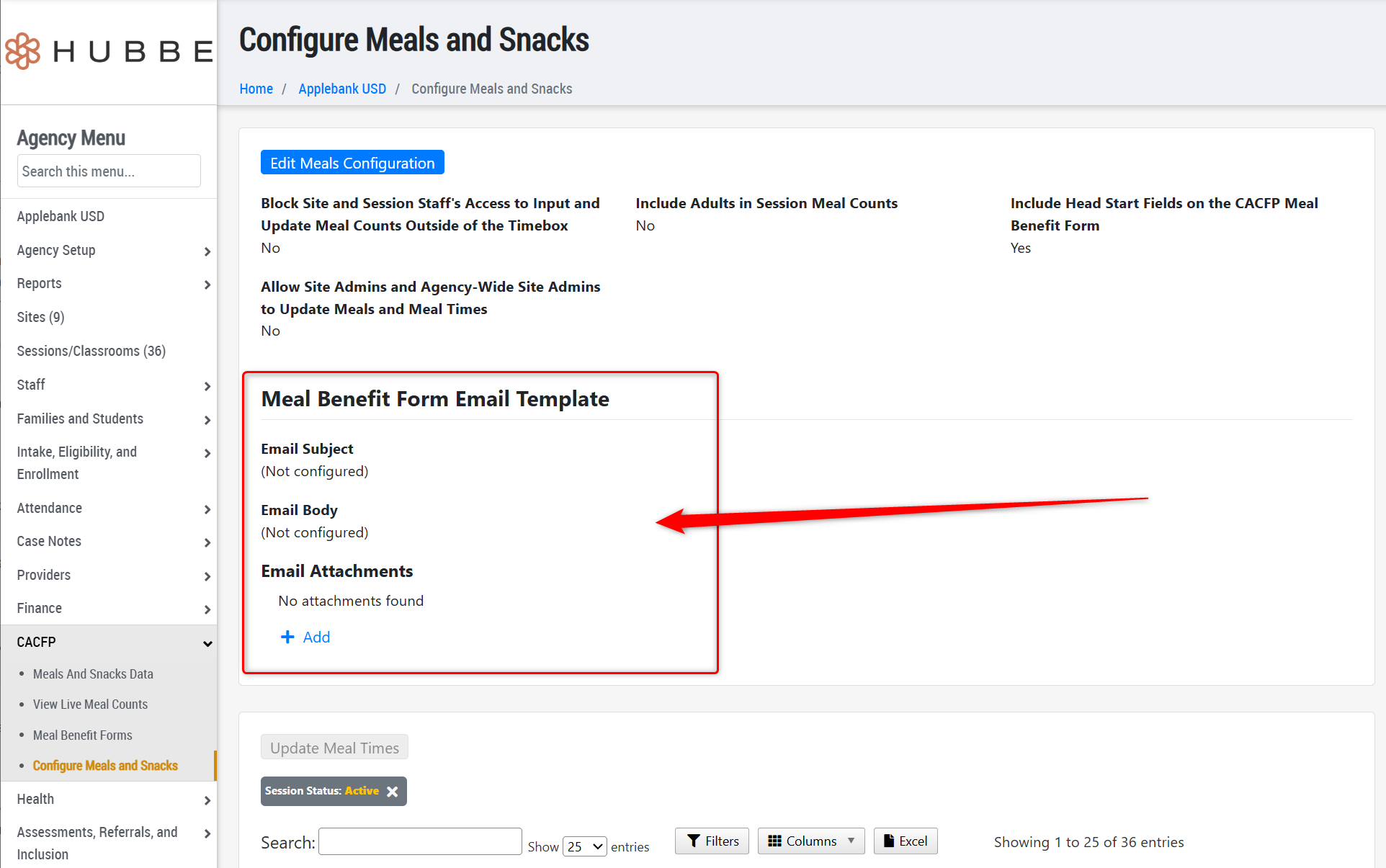
- We added a new Meal Benefit Form email template tool to the "Configure Meals and Snacks" menu item that can be used to set a custom email message with attachments. Users can update this template from their Agency Menu by clicking on CACFP > Configure Meals and Snacks.
Provider Invoicing Enhancements
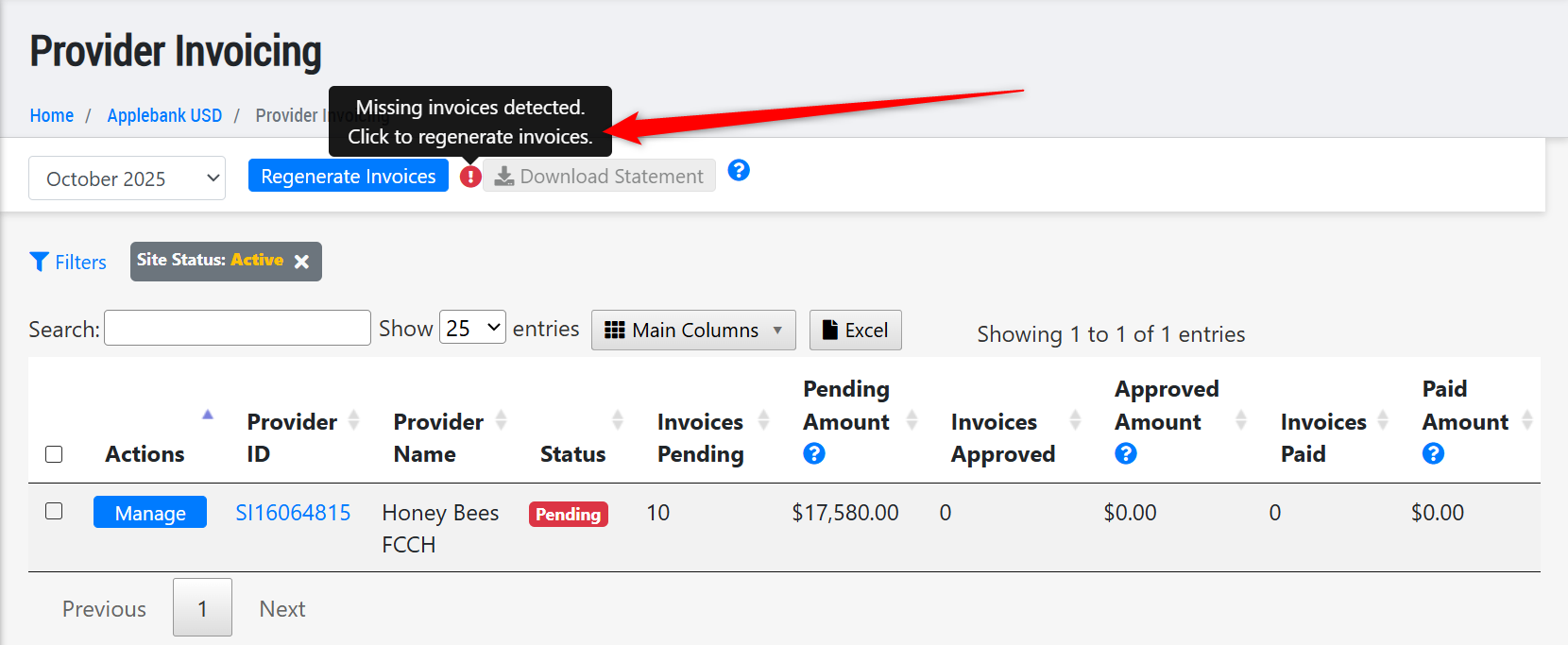
- Last week, we released several updates to the Provider Invoicing feature, including the release of the "Provider" menu item at the site level. We have also implemented a new detection tool for missing invoices in an invoicing period. The grid will now start without any data. Once a FCCHEN manager generates provider invoices, those providers will show in the grid with the number of pending invoices that were generated. If a FCCHEN manager adds a new provider or enrolls a new child after generating invoices, a red exclamation point icon will appear beside the "Regenerate Invoices" button, indicating that invoices are missing. Thank you to our FCCHEN partners who recommended this update!
Messaging Enhancements
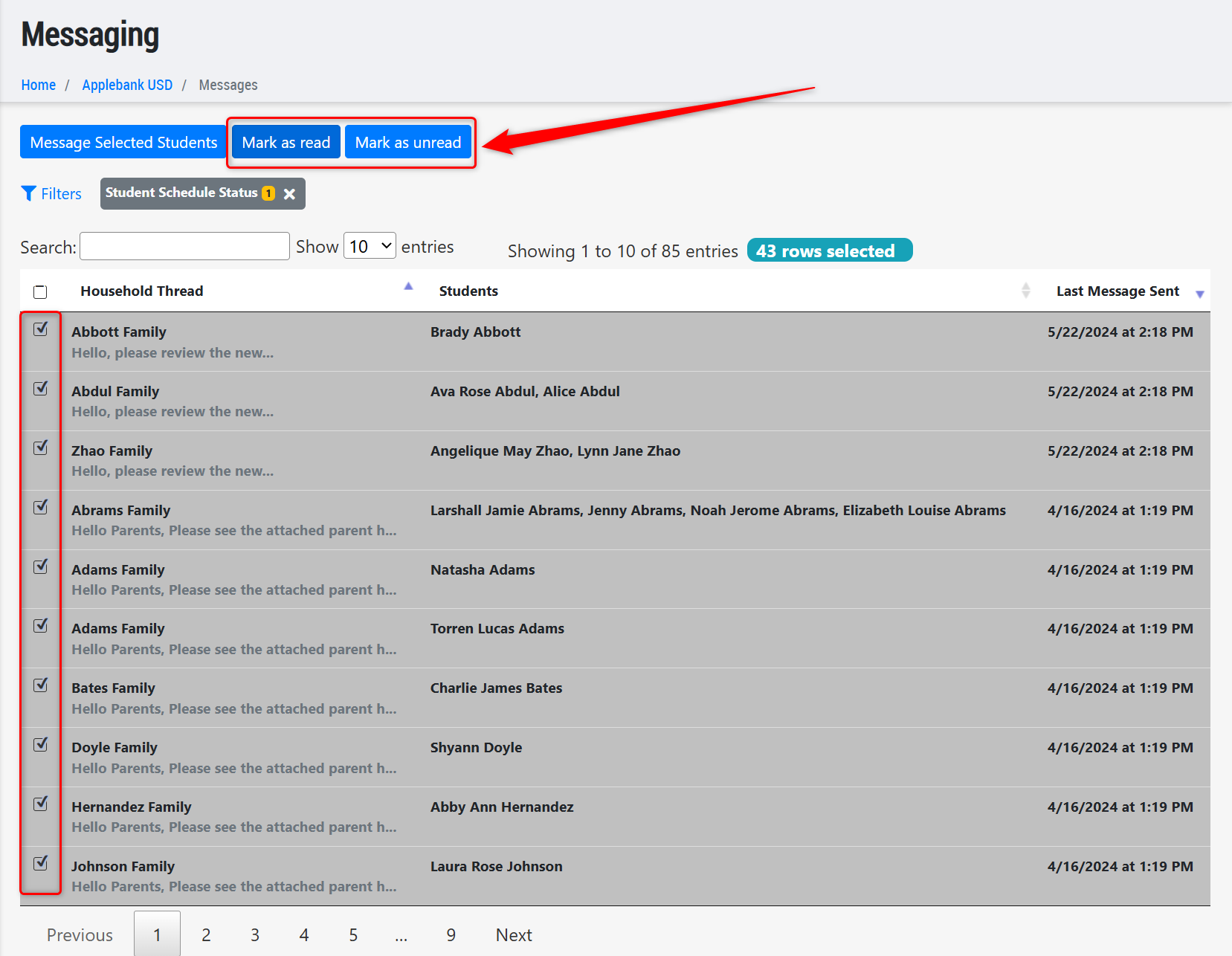
- We have added new "Mark as Read" and "Mark as Unread" actions to all Messaging grids. Now users can batch select messages and mark them as "read." Users who mark a message as read will see that message disappear from the count of unread messages at the top-right corner of their screen. Note that these new buttons will be available to users from their Messaging grid on the Agency, Site, and Session levels, as well as their Staff Menu "Messaging" page.
Finance Enhancements
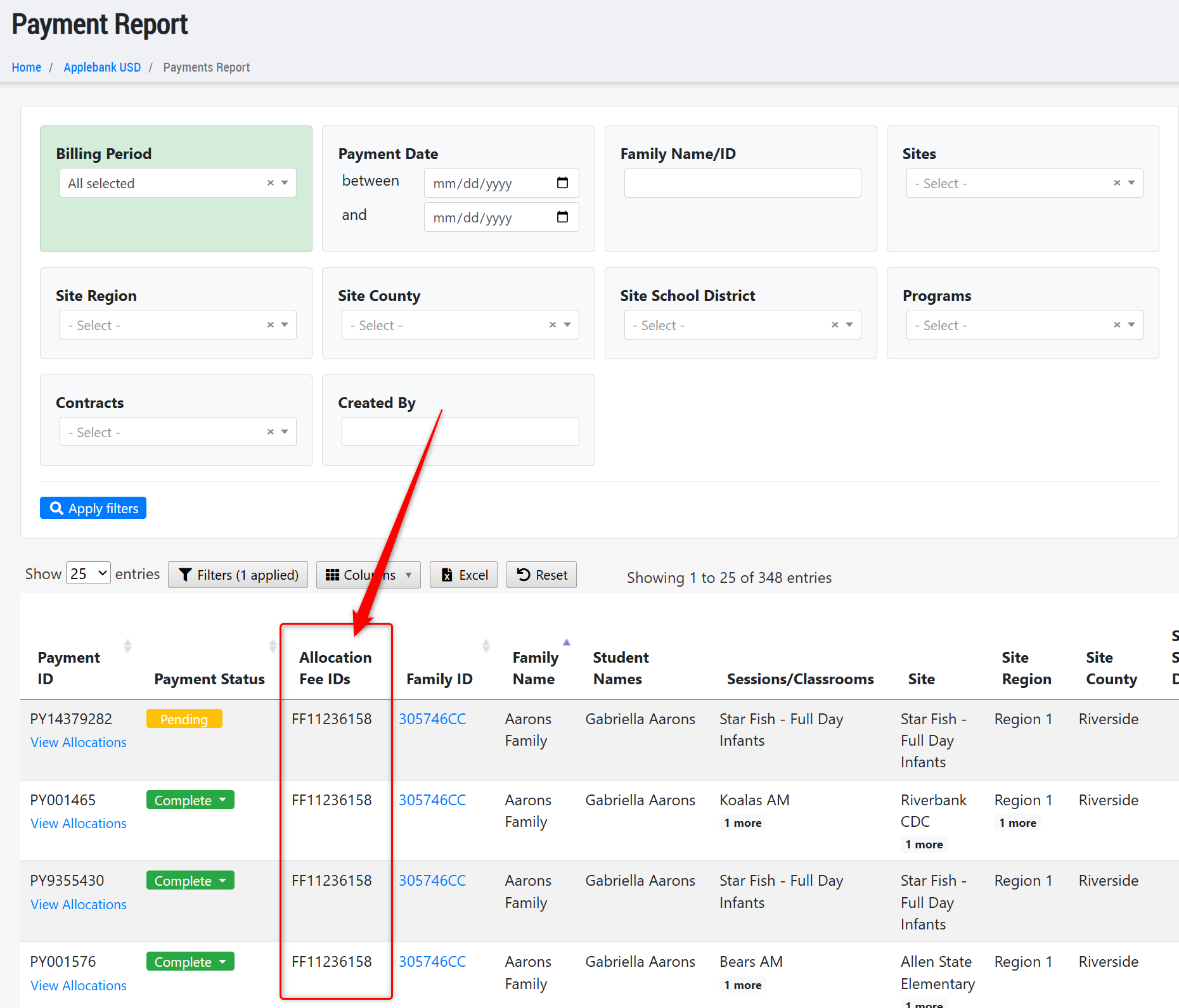
- We have added a new column to the General Ledger (at the agency level only) and the Payments Report (at Agency Level, Site Level, and Family Level) labeled "Allocation Fee ID." This column will include the fee IDs where a payment has been allocated. For example, if a payment is allocated to a fee with an ID of FF001234, then this ID will be listed under the "Allocation Fee ID" column in both reports listed above.
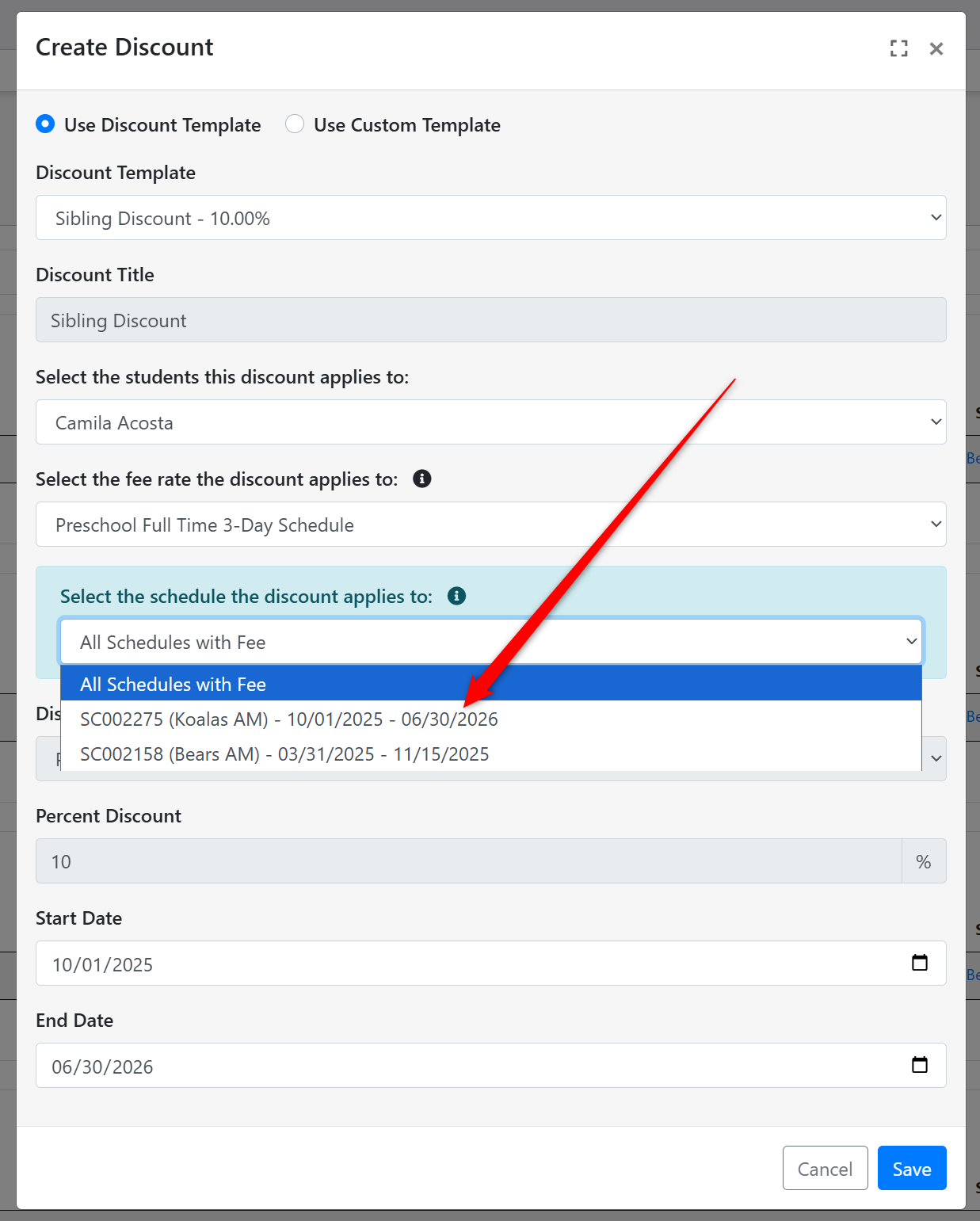
- Updated the Discounts modal in the Family Fee Plan to improve the description of schedules in the drop-down list when a selected fee rate is in more than one of the student's active schedules. Now, users will be able to view the Schedule ID, Scheduled Session, and Scheduled Date Range for each schedule to assist with selecting the correct one for discounts.
General Enhancements
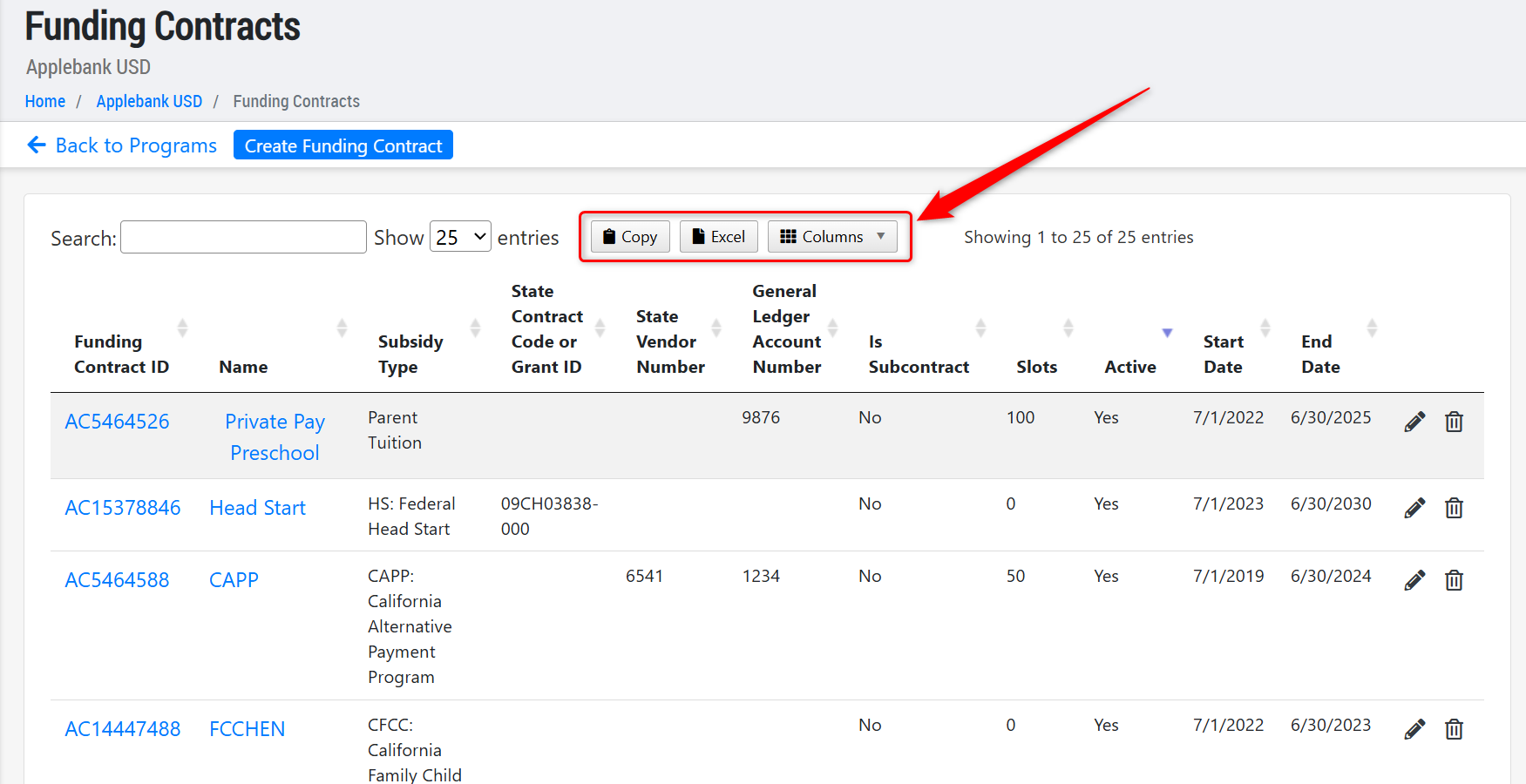
- Added more grid tools to the Funding Contracts record, including "Excel" export and column selection. To navigate to this record, from your Agency Menu, click on Agency Setup > Agency Programs > Configure Funding Contracts.
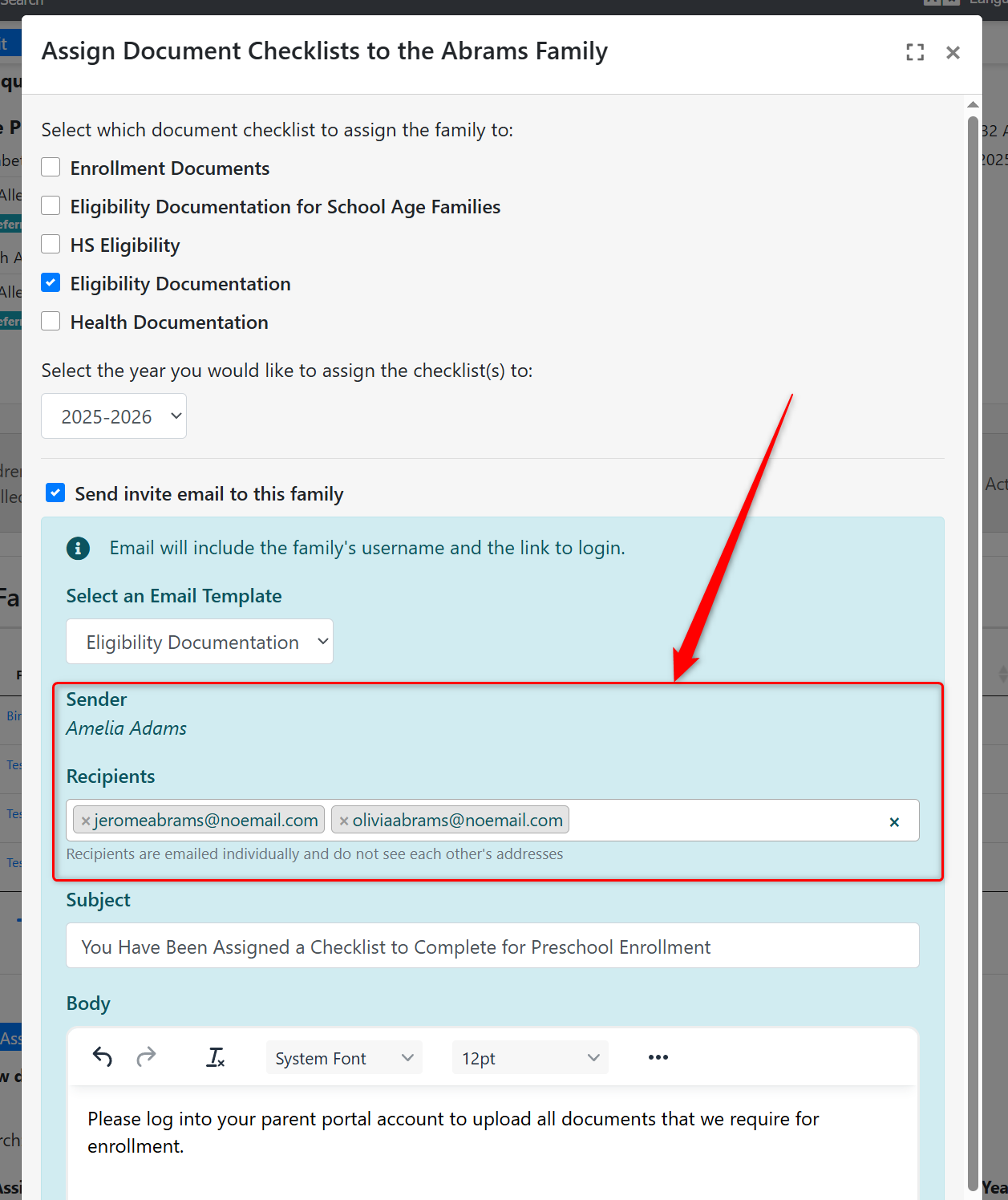
- Added more information to the "Assign Checklist" modal within a household's "Family Documents" tab. Now, when users click "Assign to Checklist" for a family, they will see all parent email addresses in the family in the "Recipients" field. We made this update to give users more control over which parent receives the document checklist notification.
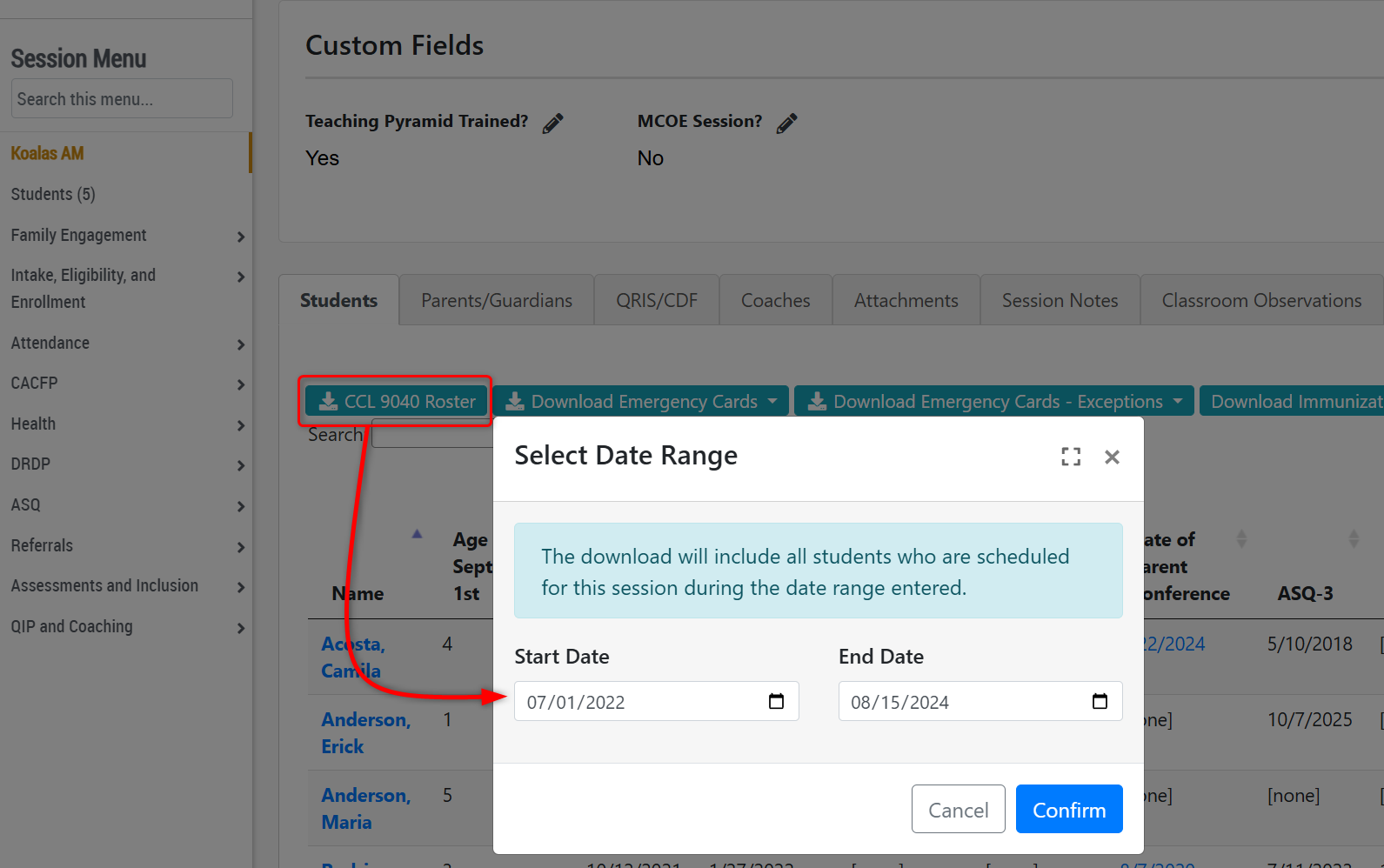
- We have updated the session-level download CCL 9040 Roster feature to allow users to select a date range before downloading the PDF. The roster will then include all students who were scheduled for that session during the date range entered. Previously, it could only be downloaded for currently enrolled students or currently enrolled and future enrolled students.
Parent Education Enhancements
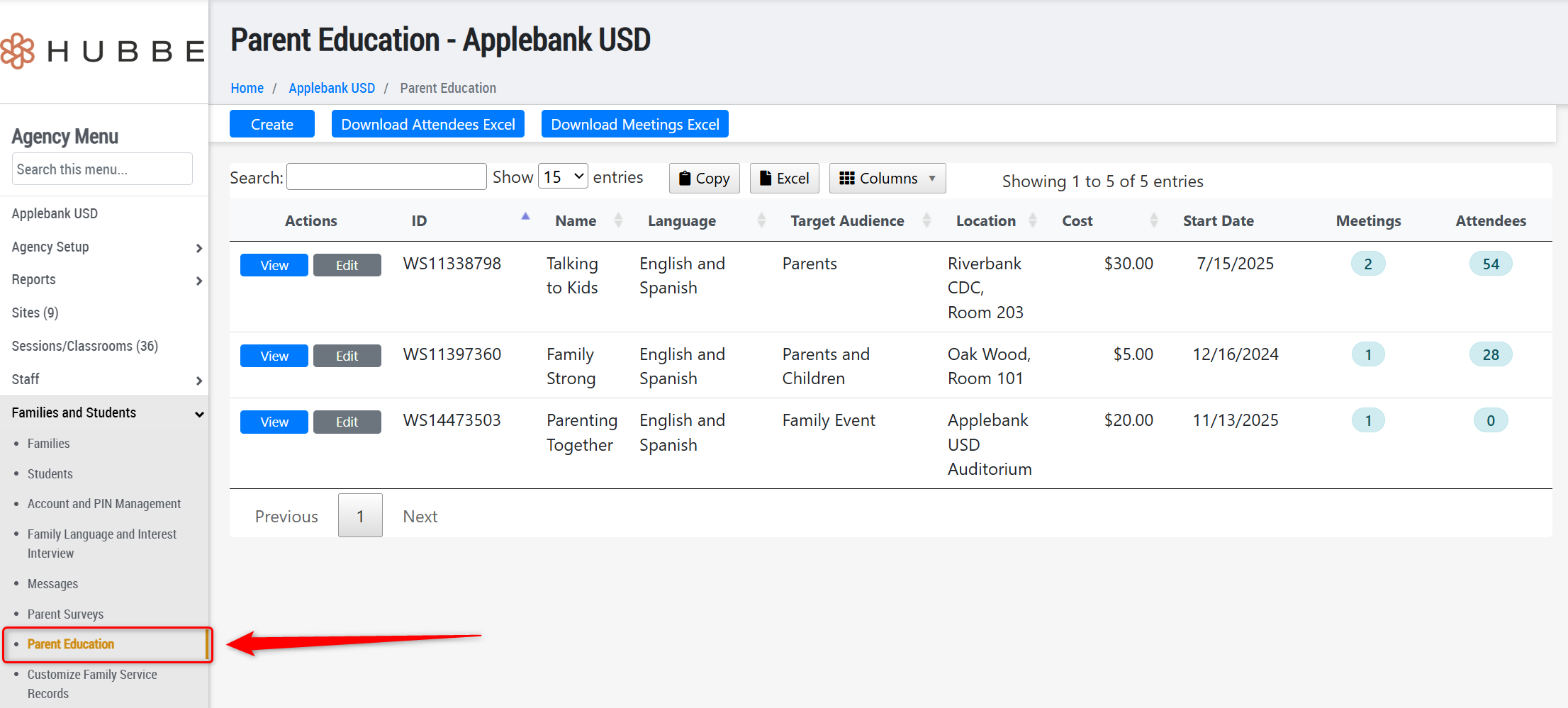
- We have updated the Parent Education feature within Hubbe to be more user-friendly and visually consistent with the other areas of the system. Now, select agency staff can more easily create, edit, and manage Parent Education events in Hubbe. To navigate to this area: Agency Menu > Families and Students > Parent Education - OR Site Menu > Families and Students > Parent Education. We hope you enjoy the newly improved Parent Education feature!
Fixes & Adjustments
- Fixed an issue reported by clients who were setting up GL Codes for the MySchoolBucks (MSB) SSO and Invoicing integration. We have updated the GL Code drop-down list to only include the GL Codes that match the selected "Provider ID" and "Sales Type."
- Added the following fields to the Session Import/Export file: Volunteer Frequency, Universal eSignature PIN, and Type of Child Care.
- Fixed an issue reported by users when trying to edit a student schedule's existing "Type of Child Care" code selection when "Copy the session's type of care code" option is selected originally.
- Removed the "Reason for Receiving Services" field in a household record's Subsidized Certification (CDE/CDSS) menu item. This field lived on the "Eligibility and Need" tab. The Reason for Receiving Services used to be a manually set field that would feed reports such as the 801A and CAPSDAC. We've updated this feature to automatically select the code based on each Parent's selected Need.
- Updated the way that staff names are stored in a DRDP Observation record to mark who made and edited the observation. Previously, the name came from the account username, but it now comes from the staff record's first and last name. This update resulted from reports of users who received errors trying to open and view observations that were created by users who had changed their username since creating the observation.
Was this article helpful?
That’s Great!
Thank you for your feedback
Sorry! We couldn't be helpful
Thank you for your feedback
Feedback sent
We appreciate your effort and will try to fix the article