TABLE OF CONTENTS
- CDF Enhancements
- Stipend Enhancements
- QIP Enhancements
- Coaching Enhancements
- General Enhancements
- Role Permission Updates
- Fixes & Adjustments
CDF Enhancements
- We have created a new role titled "CDF Manager" as a county role that can be assigned to users who need full access to the CDF feature, but should be limited elsewhere in the system. This new role features the following permissions:
- Full access to the following records: CDF Wizard Management*, CDF Data Management, CDF XML Report
- *Within the CDF Wizard Management record, the CDF Manager will be able to edit all values, assign wizards, assign CDF Managers, and manage site wizards. However, the "CDF Wizard Settings" tab will remain only accessible by users with the Funder Admin role, and will be restricted from this new role.
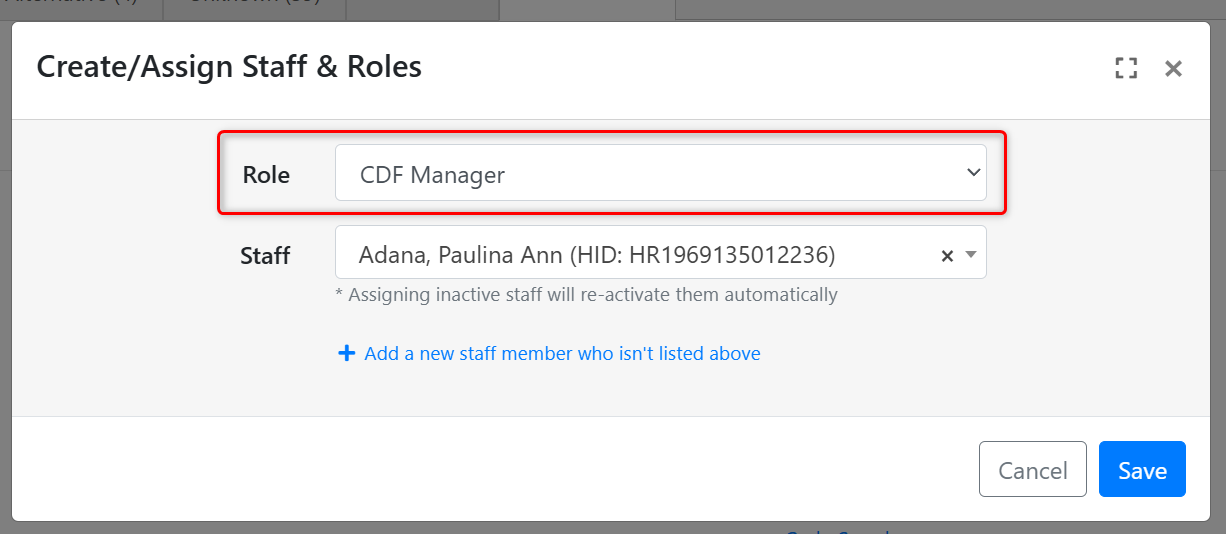
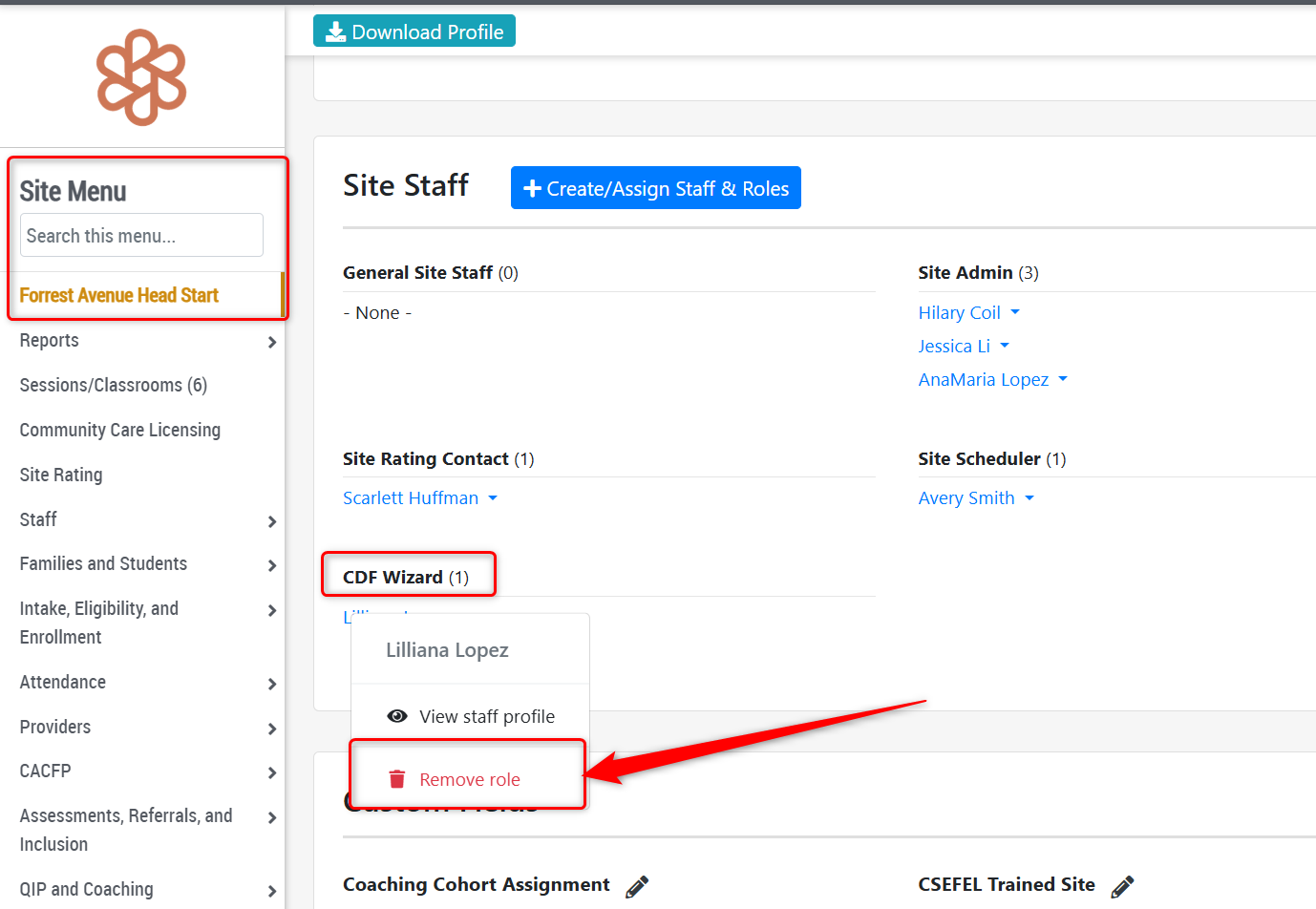
- Added a new column to the CDF Wizard Management grid titled "CDF Manager" that can be used to allocate site wizards to managers. Users with the role of Funder Admin or CDF Manager will be available as options to assign to this value for a wizard. There is also a new filter titled "CDF Manager" so users can filter the grid for their assigned caseload, for example.
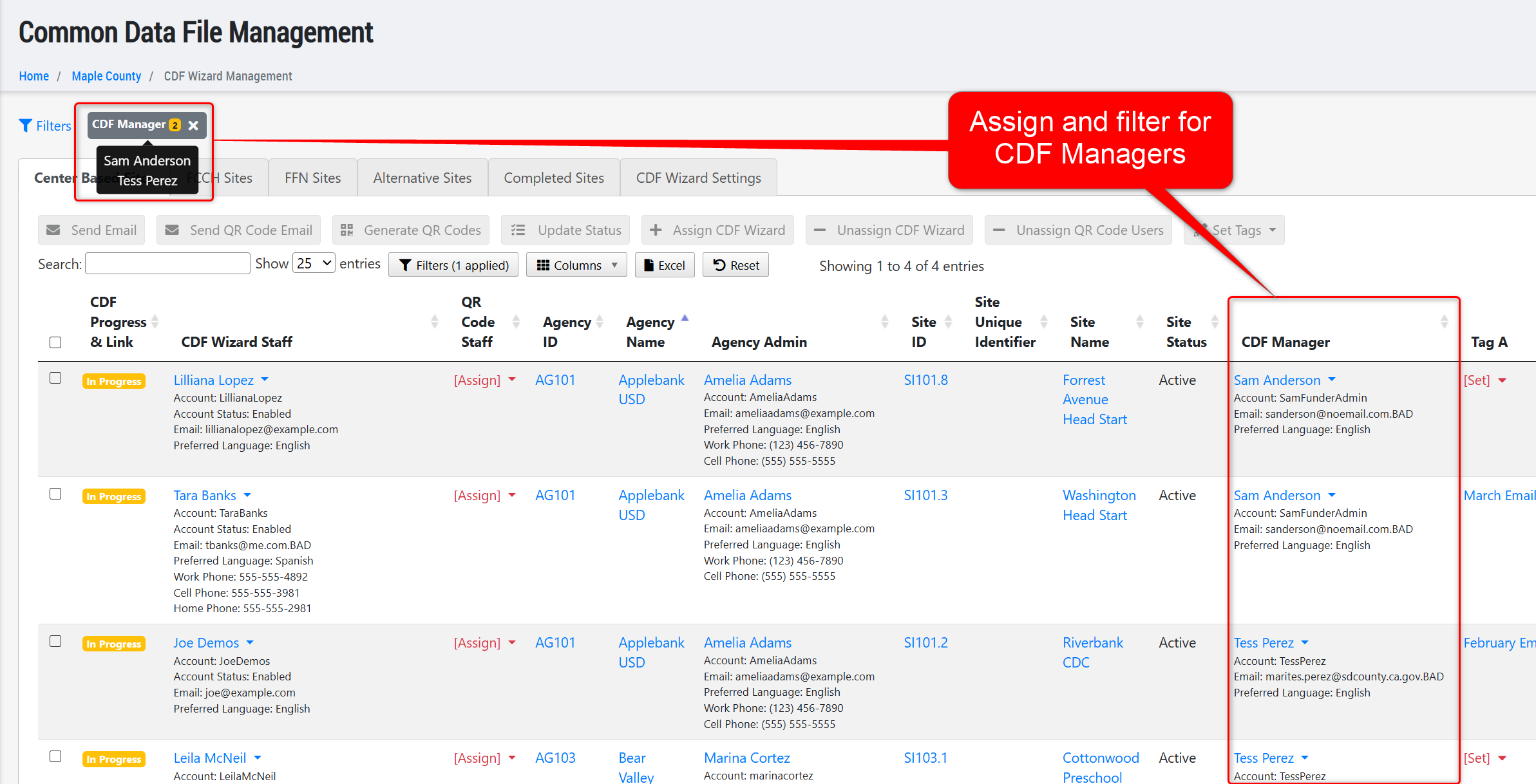
- Updated the "Tag" feature in the CDF Wizard Management grid to allow users to customize the title of the tag, rather than "Tag A" for example. Now, users can create, edit, disable, and remove customized tags by clicking the "Manage Tags" button at the top of the CDF Wizard Settings tab. We have also added a new column cluster in each tab that allows users to easily identify and show/hide the enabled tags in each tab's grid. We hope this helps you better manage your CDF Data Collection process from this record.
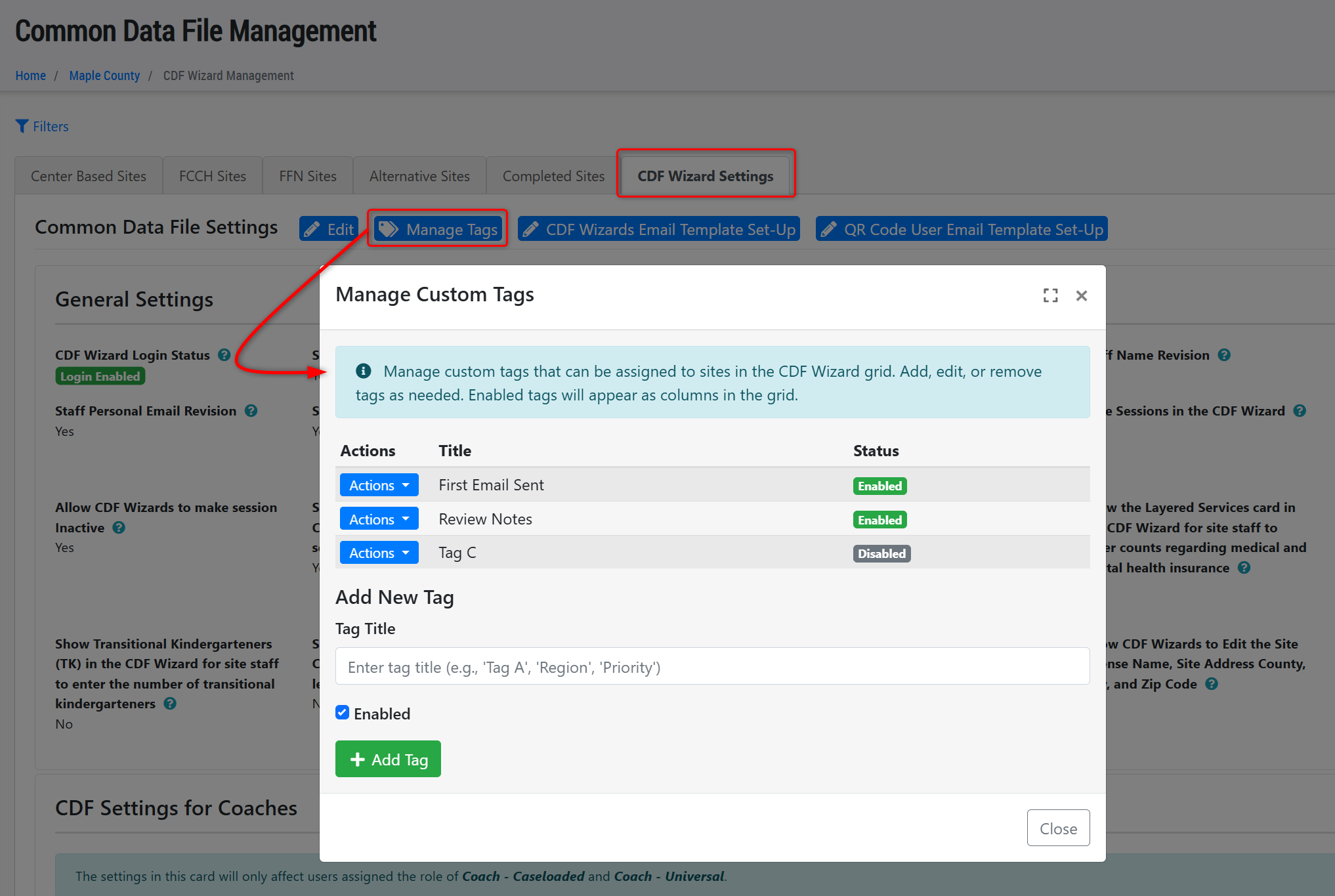
- Added the ability for users to assign/unassign the "CDF Wizard" role to staff accounts from the Site record's "Site Staff" card. Previously, the wizards assigned to the site were only shown in the site's staff card, but now the role can be assigned/unassigned from here, as well.
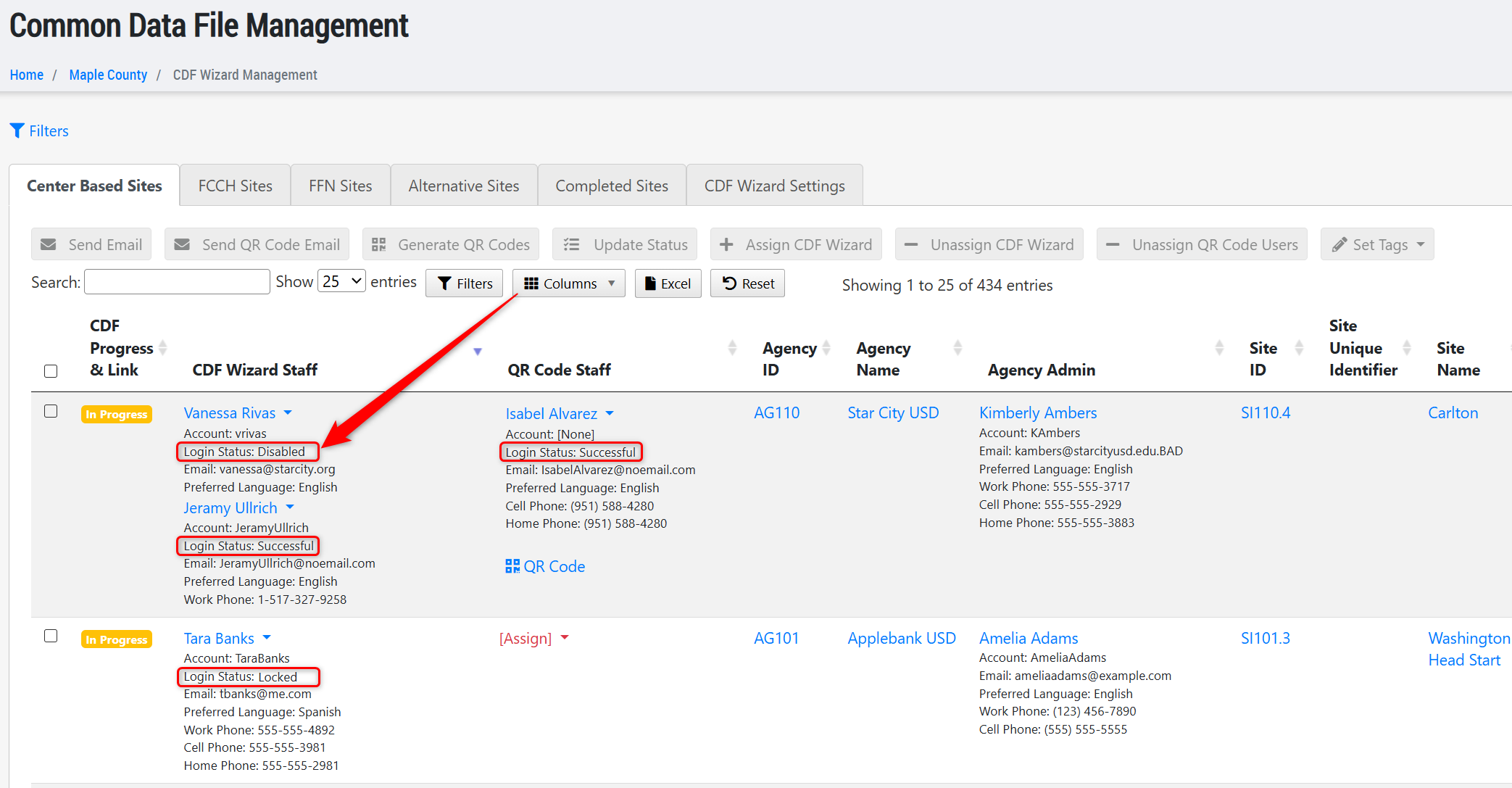
- Added a new value to the CDF Wizard Management grid within the "CDF Wizard Staff" and "QR Code Staff" columns titled "Login Status." This new value will display beneath the name of each assigned CDF Wizard and will signify the assigned staff's most current login status (Successful, Failed, Locked, or Disabled). For example, if a CDF Wizard has attempted to login using the wrong password five or more consecutive times, their account will become "Locked" for a period of time or even fully "Disabled" at fifteen consecutive attempts to login incorrectly - having this information on the grid will allow managers to unblock these users and get them into their CDF Wizard forms.
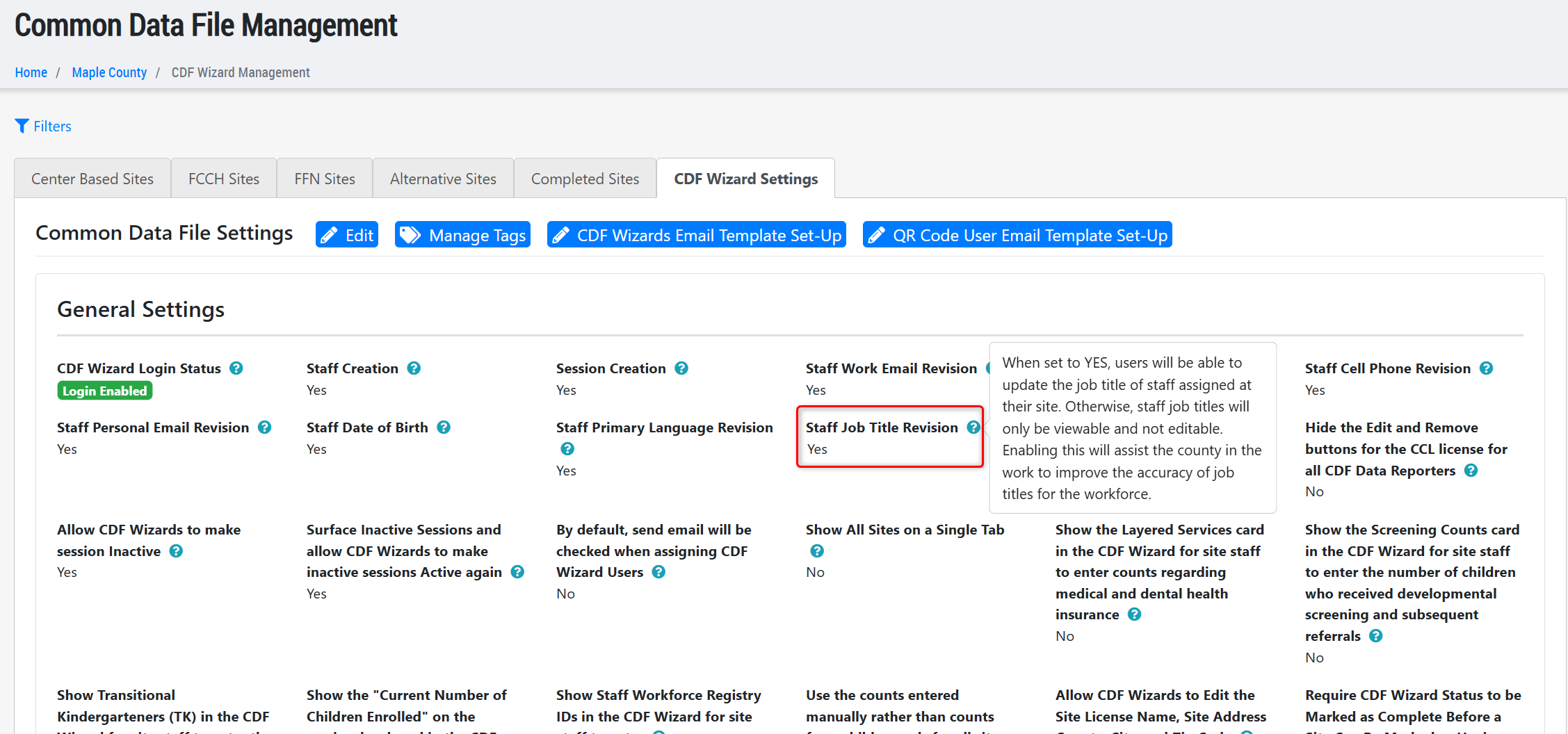
- Added a new setting to the CDF Wizard Management grid within the "CDF Wizard Settings" tab titled "Staff Job Title." This setting will be defaulted to "No" upon release of this update, which will simply display the Job Title of site and session staff within the wizard, but not allow data reporters to edit the job title. When set to "Yes" then data reporters will be able to add/update a "Job Title" to the site and session staff assigned to a site's wizard report.
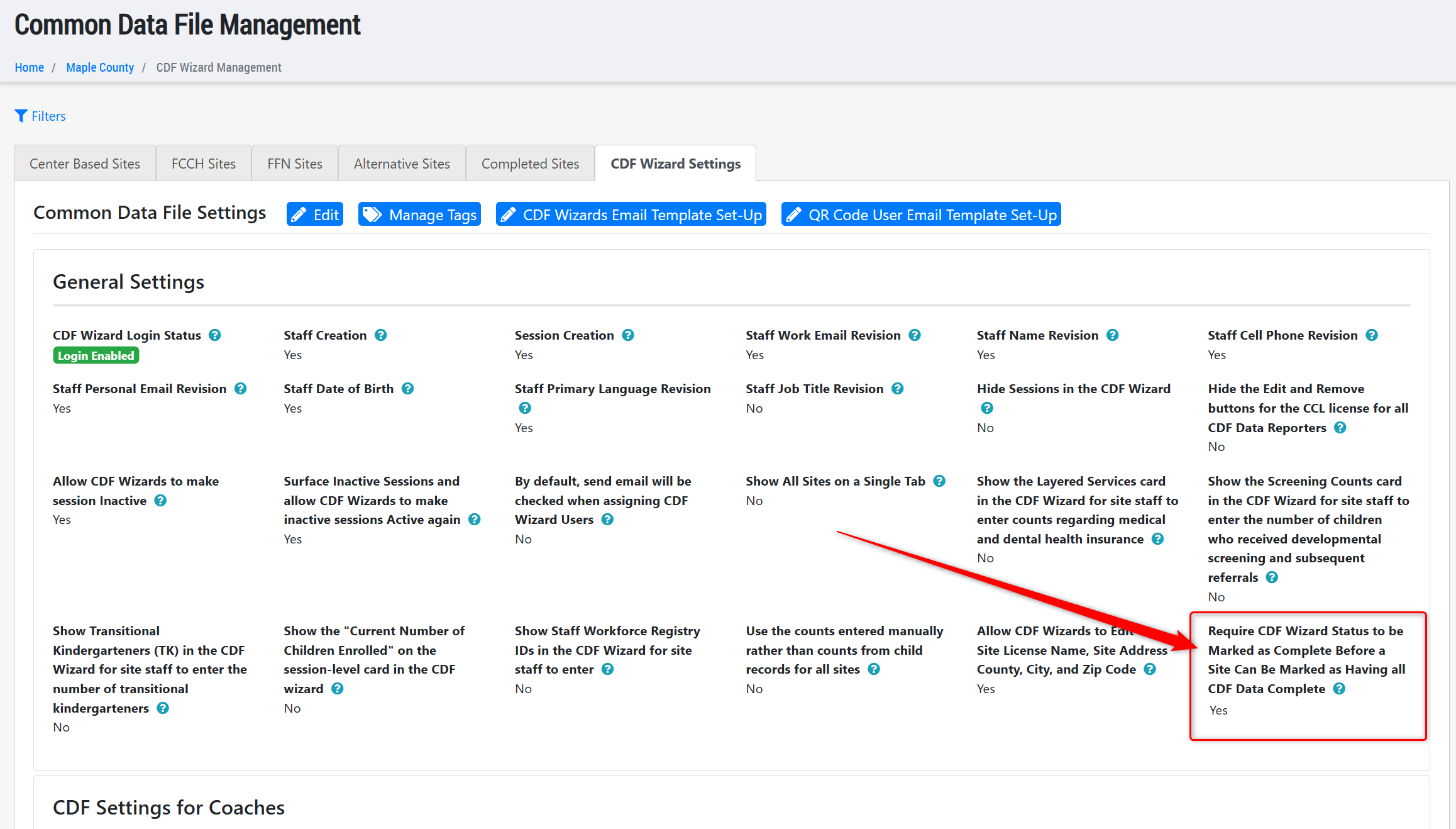
- Added a new setting to the "CDF Wizard Settings" tab of the CDF Wizard Management grid, titled "Require CDF Wizard Status to be Marked as Complete Before a Site Can Be Marked as Having all CDF Data Complete." When set to "No" then the CDF data completion process will operate is it did prior to this update, allowing the CDF Wizard to be completed prior to adding the site to the CDF XML Report, but not requiring the CDF Wizard to be completed in order to do so. Now, if this setting is set to "Yes" then a site cannot be added to the CDF XML Report until its wizard is marked as "Complete." This will ensure that all data on the CDF Data Management grid is complete and validated, and all the other information included in the CDF Wizard is recently updated based on the current program year.
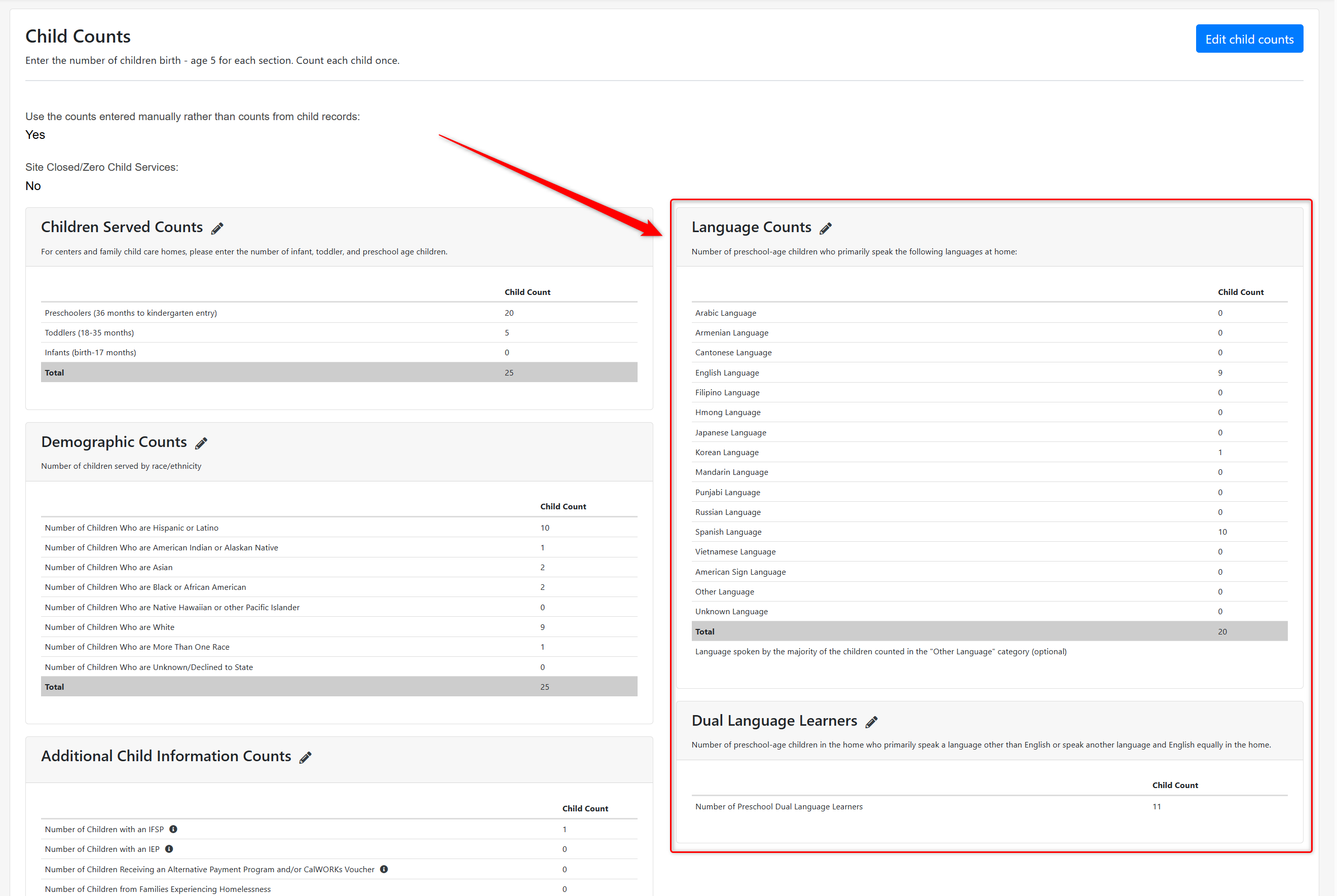
- In the CDF Wizard for a site, we have swapped the order of the "Dual Language Learners" and "Language Counts" cards within the "Child Counts" section, so that data reporters first enter the language counts before entering the dual language learner counts.
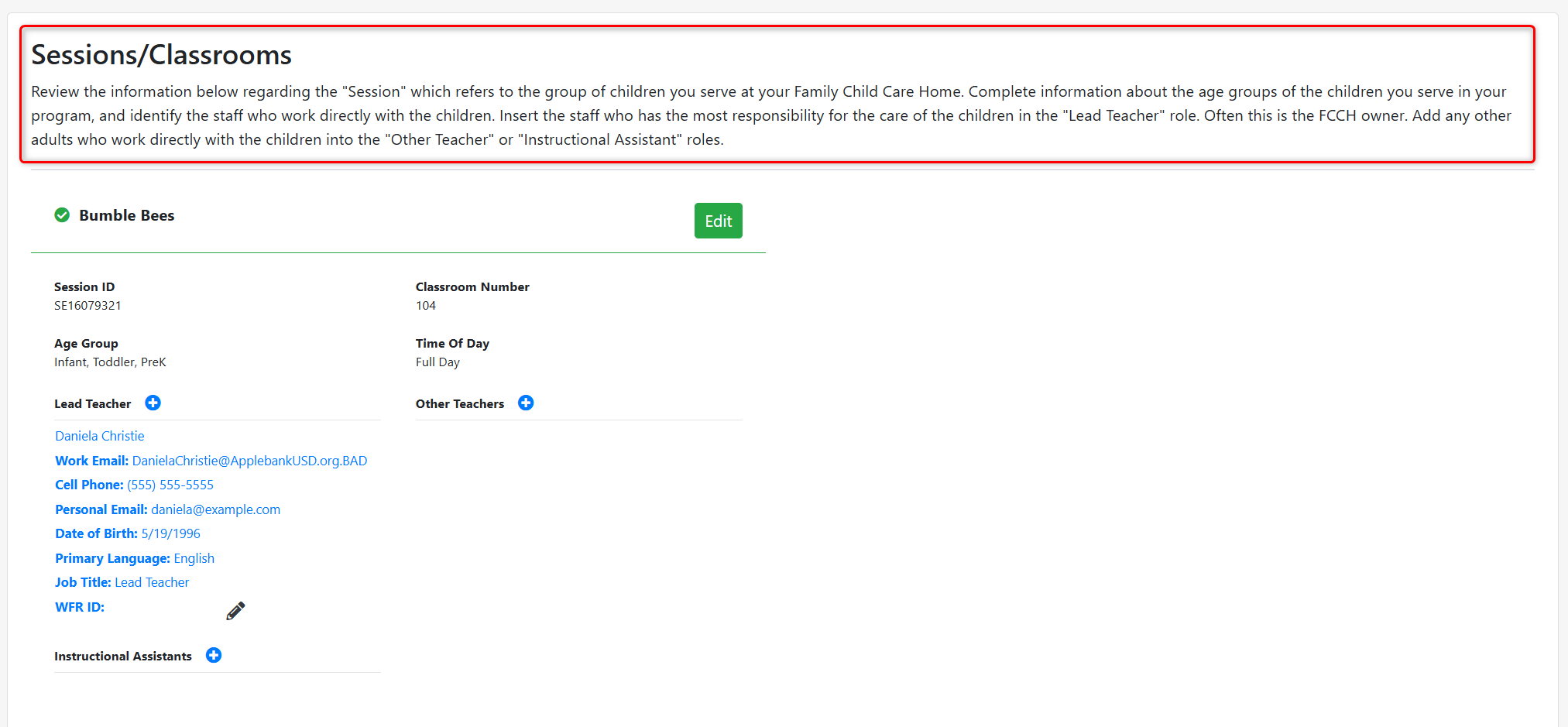
- Revised the description displayed within the "Sessions/Classrooms" section of the CDF Wizard for sites with an Early Learning Setting type of FCCH. Now, the description helps data reporters understand how to report session information specifically for FCCH sites.
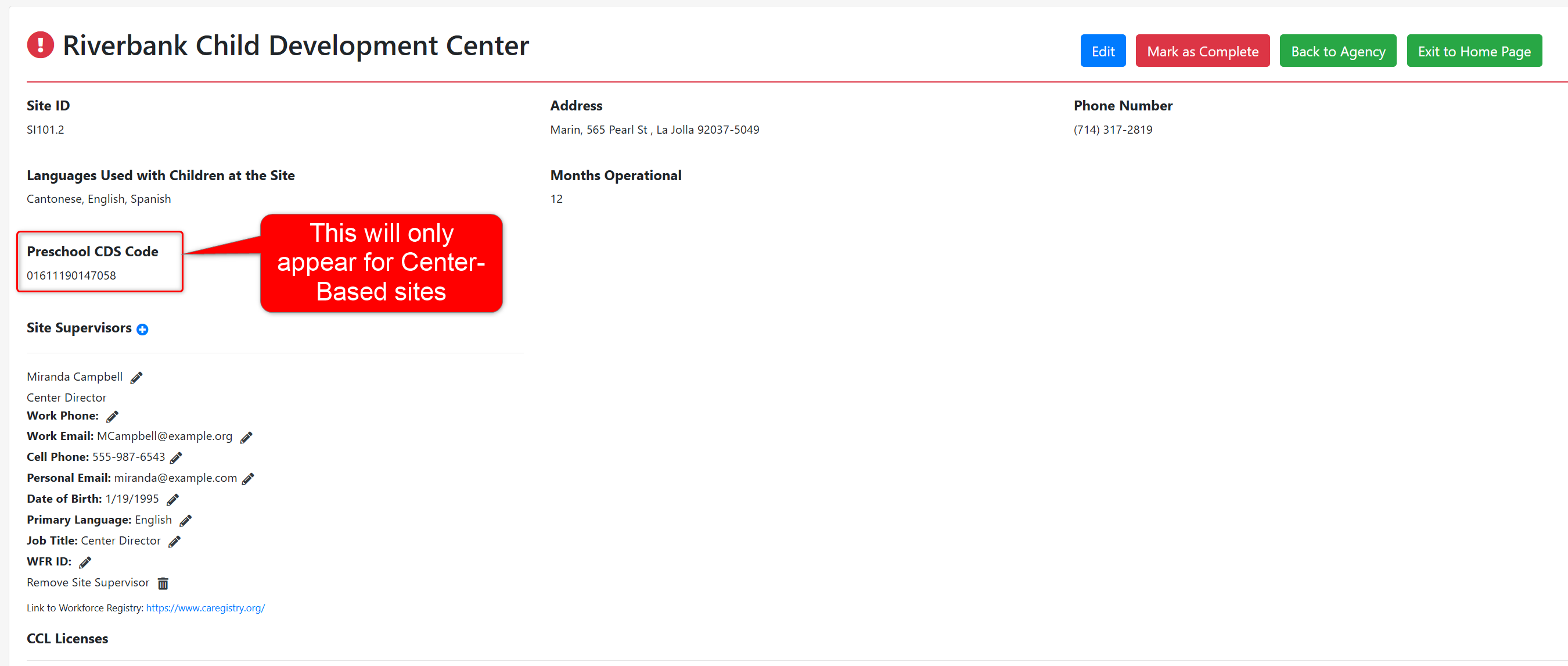
- Updated the CDF Wizard for a site so that the "Preschool CDS Code" field is only shown in the top information card for sites with an Early Learning Setting of Center-Based. All other types will no longer display this field, as it only pertains to center-based sites.
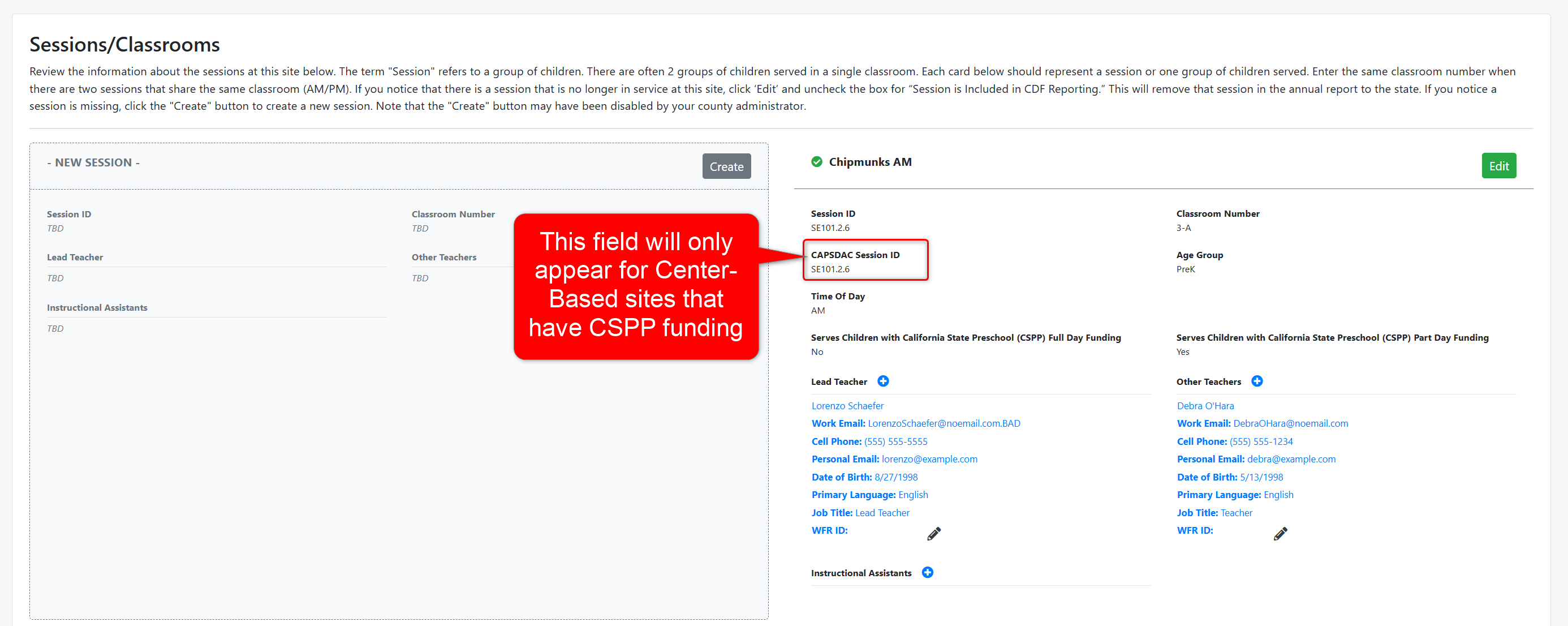
- Added a new field to the session card within a CDF Wizard form and QR Code form for CDF Data Collectors called "CAPSDAC Session ID (Only for CSPP-funded sessions at LEAs)." This field will only appear for sessions that are in a site with the following two conditions: (1) The site has an Early Learning Setting type of "Center-Based" and (2) The site has the Funding Type "California State Preschool Program (Title 5)” selected, meaning they receive CSPP funding. Otherwise, this new field will not appear in the CDF Wizard.
- Implemented new validation requirements to the CDF Wizard for a site, including:
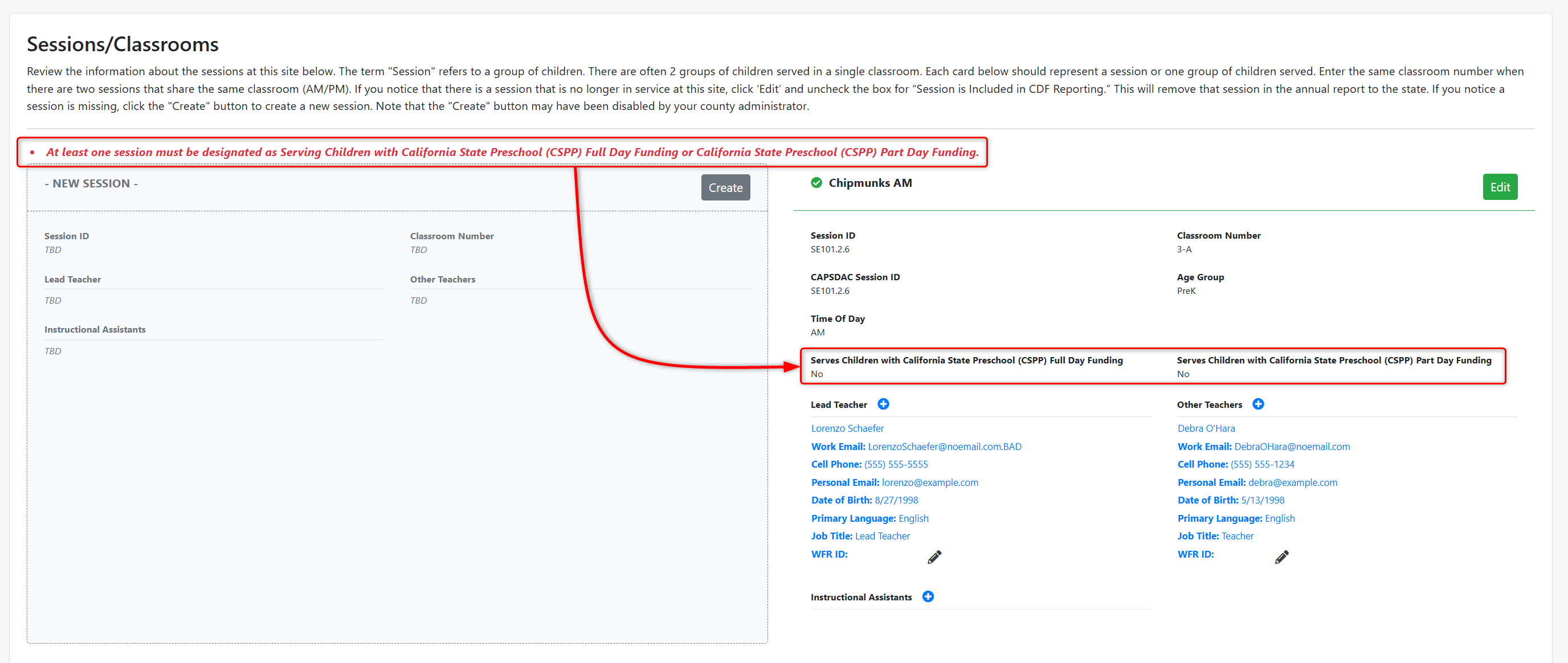
- For Center-Based sites only, if the funding type of "California State Preschool Program (Title 5)" is selected in the "Site Funding" card, then data reporters will not be able to complete the wizard until at least one session has either "Serves Children with California State Preschool (CSPP) Full Day Funding" or "Serves Children with California State Preschool (CSPP) Part Day Funding" selected.
- For Center-Based and FCCH sites only, data reporters will not be able to complete the wizard until at least one funding type is selected in the "Site Funding" card.
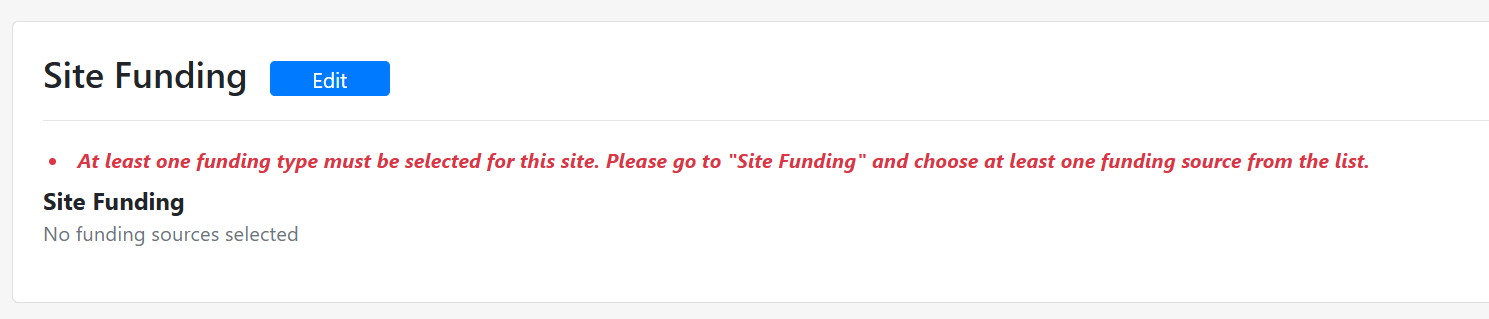
- For Center-Based sites only, if the funding type of "California State Preschool Program (Title 5)" is selected in the "Site Funding" card, then data reporters will not be able to complete the wizard until at least one session has either "Serves Children with California State Preschool (CSPP) Full Day Funding" or "Serves Children with California State Preschool (CSPP) Part Day Funding" selected.
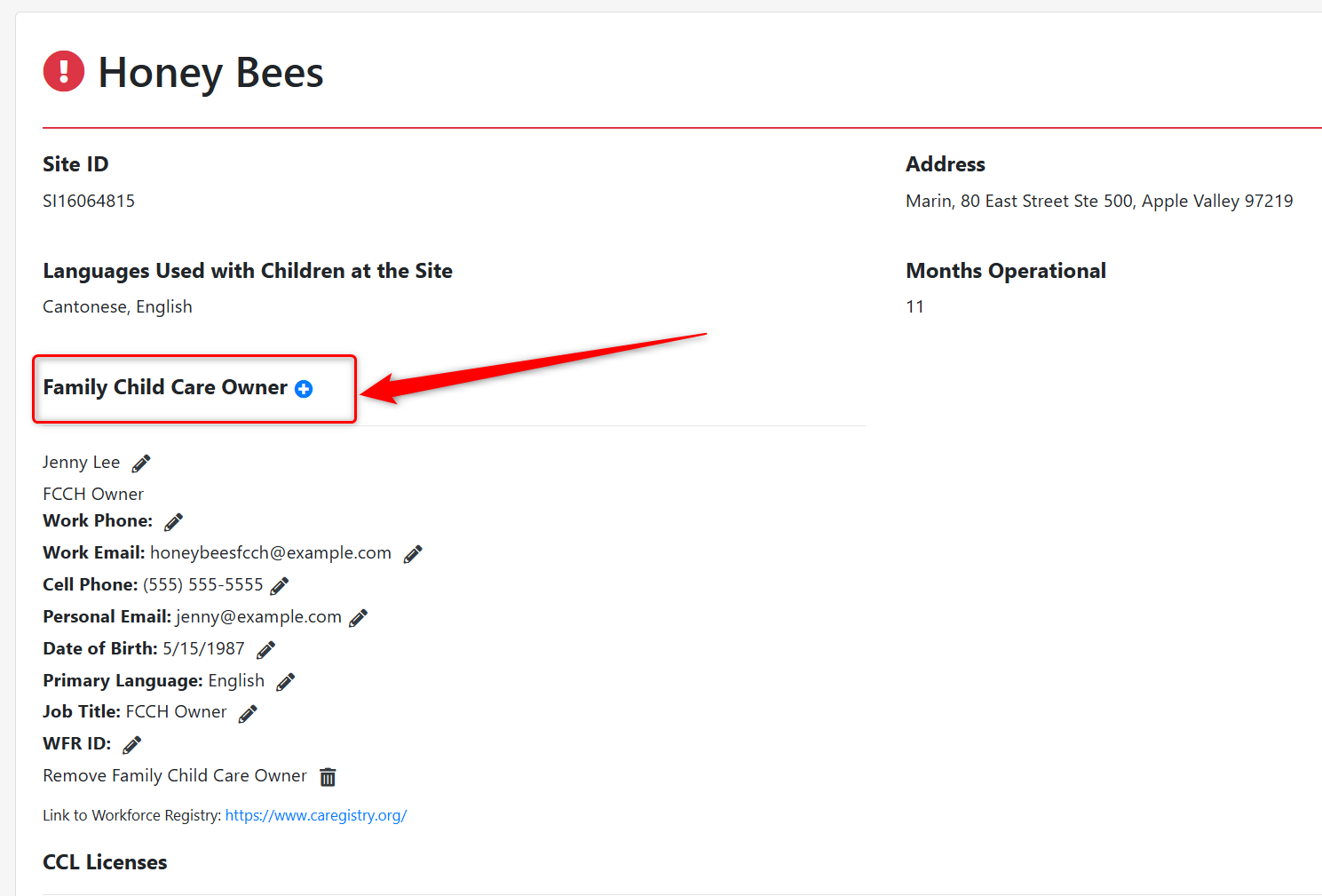
- Updated the label of the "Site Supervisor" field in the CDF Wizard for sites with an Early Learning Setting of FCCH, so that the field is now labeled "Family Child Care Owner" to align with the field's purpose.
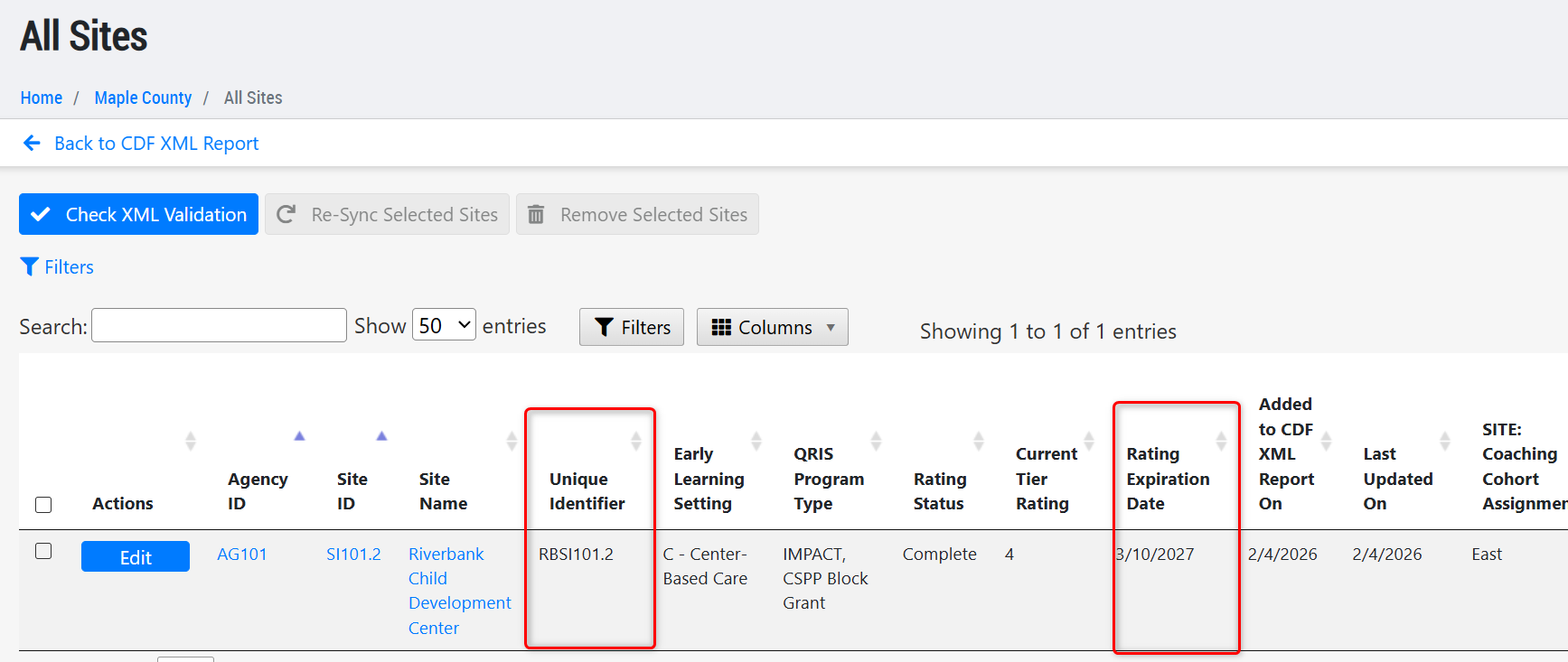
- Added the following two columns to the CDF XML grid and Excel export: Site Unique Identifier, Site Rating Expiration Date.
- Fixed an issue reported by the Email Template tool within the CDF Wizard Management grid when assigning Wizards and QR Code users to a site, specifically that the email template message was not appearing in some scenarios.
Stipend Enhancements
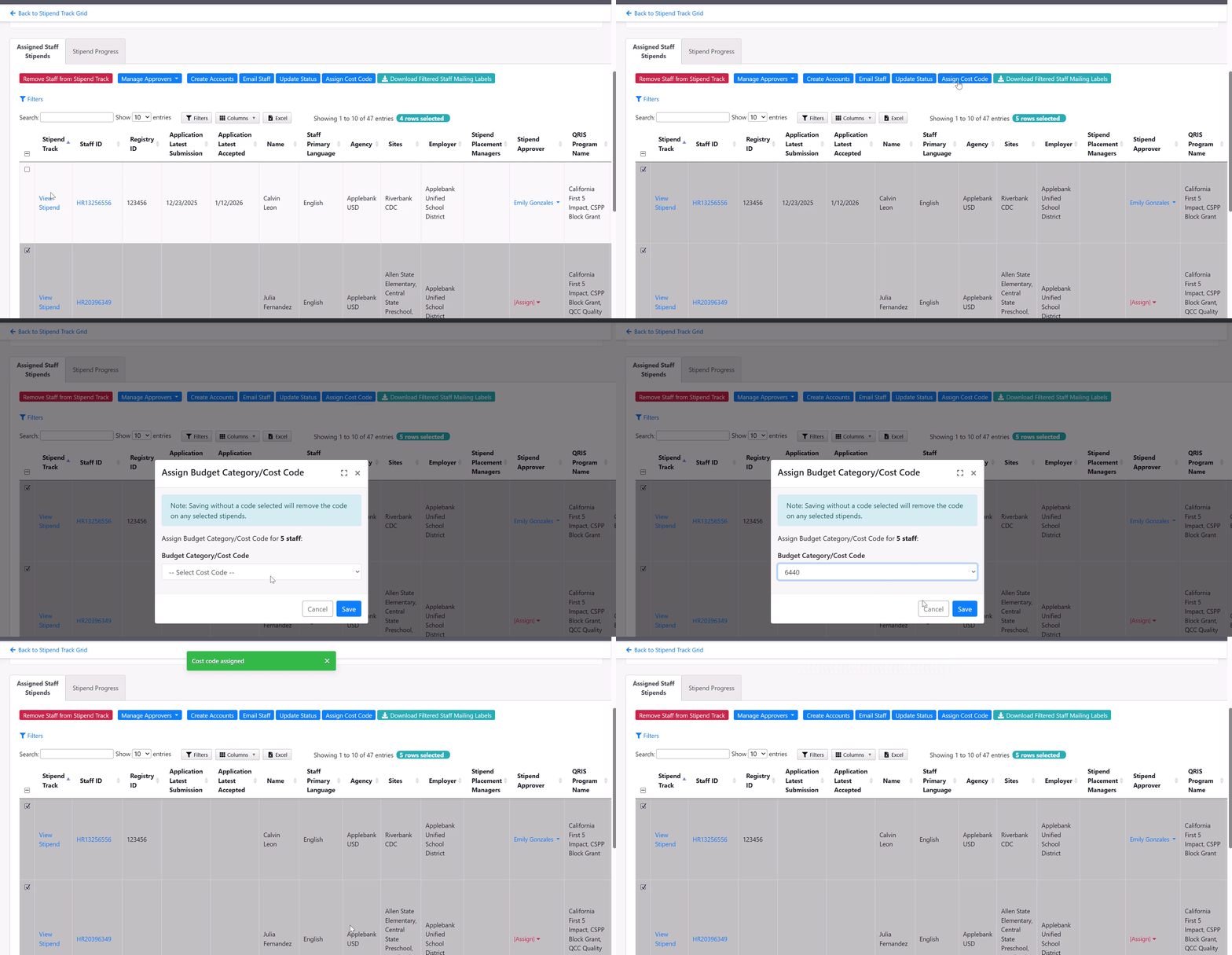
- Added a new "Add Cost Code" action button to the "Assigned Staff Stipend" tab within a Stipend Track that allows users to multi-select staff in the grid and assign a Budget Category/Cost Code to all staff selected in the grid at one time.
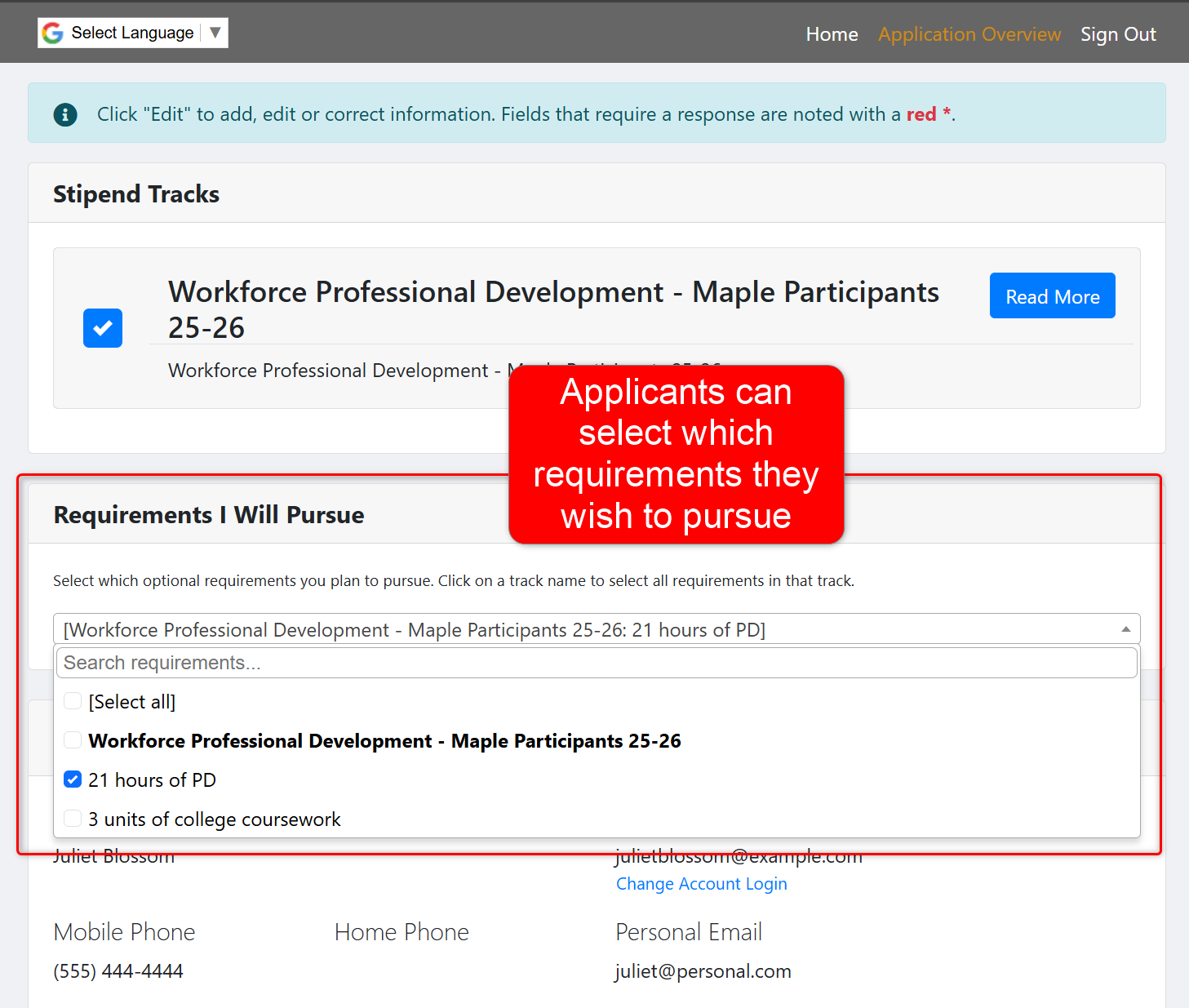
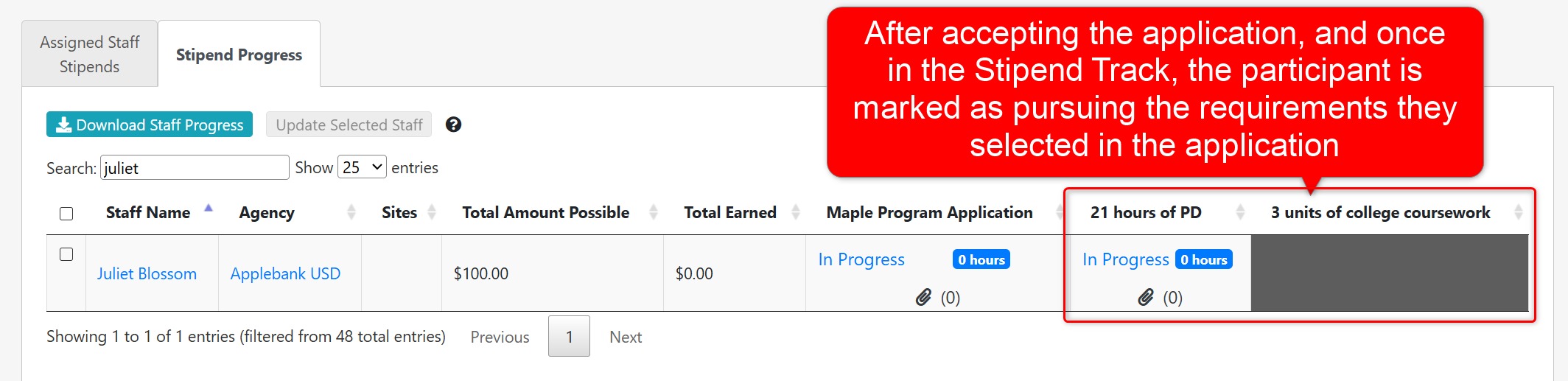
- Updated the Stipend Application process so that applicants can intentionally indicate which requirements they plan on pursuing, and having those selections transfer over to the Stipend Track upon intaking the application. To utilize this feature, the following must be configured:
- (1) The Requirements within a Stipend Track must have the following selected: "Grey out this requirement on the grid for all participants by default and allow stipend managers to mark this requirement as being 'pursued' by select staff."
- This will grey out the requirement for all participants by default, and will only mark the task as "pursuing" if the applicant selected it in their application.
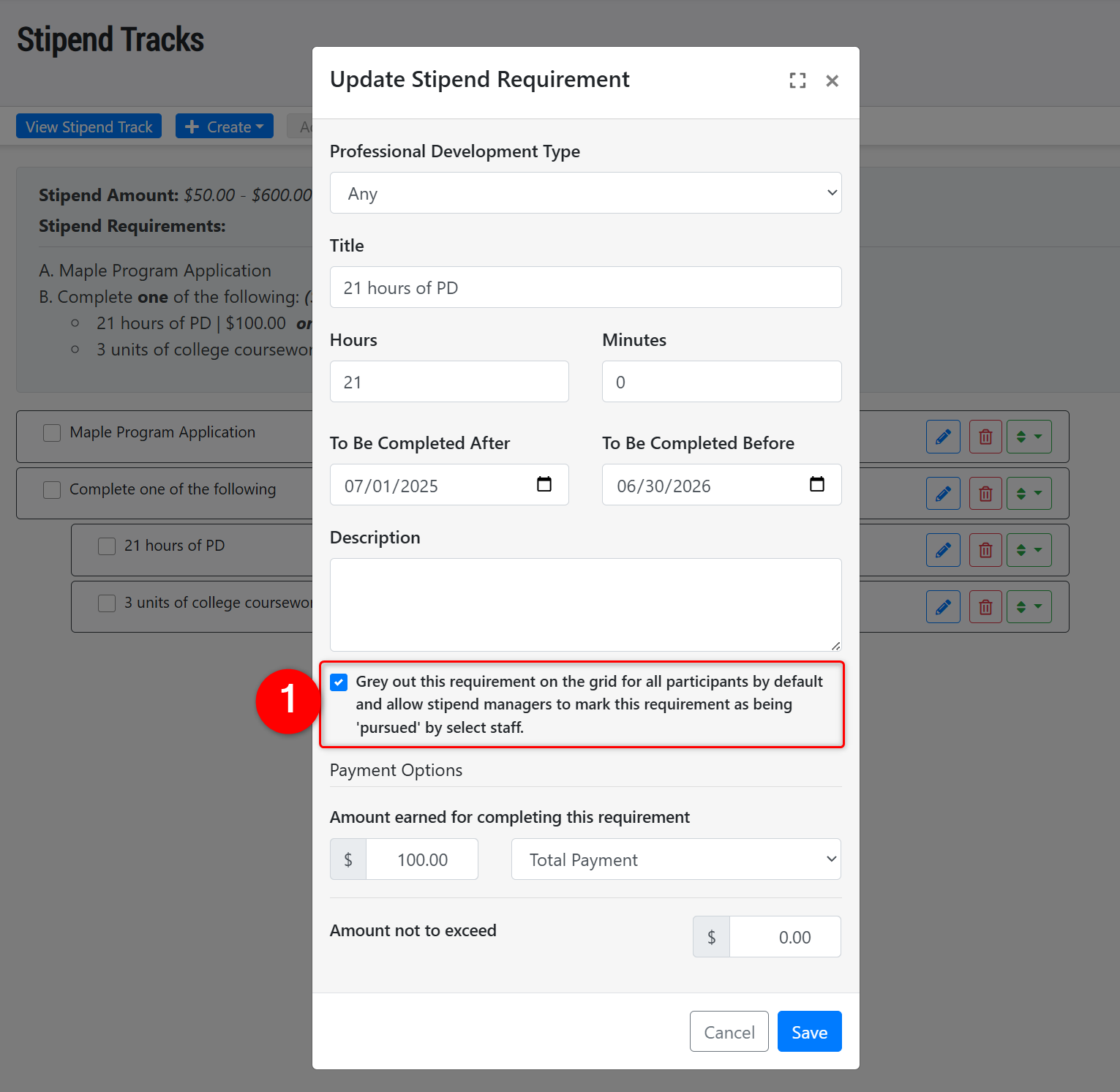
- This will grey out the requirement for all participants by default, and will only mark the task as "pursuing" if the applicant selected it in their application.
- (2) In the Stipend Application configuration, the setting "Allow Requirement Selection" must be set to "Yes."
- This will present a drop-down list of all requirements for any Stipend Track selected in the application that have been greyed out by default. Selecting the requirement in the application effectively marks the item as "pursuing" for the participant when they have been intaken into the Stipend Track.
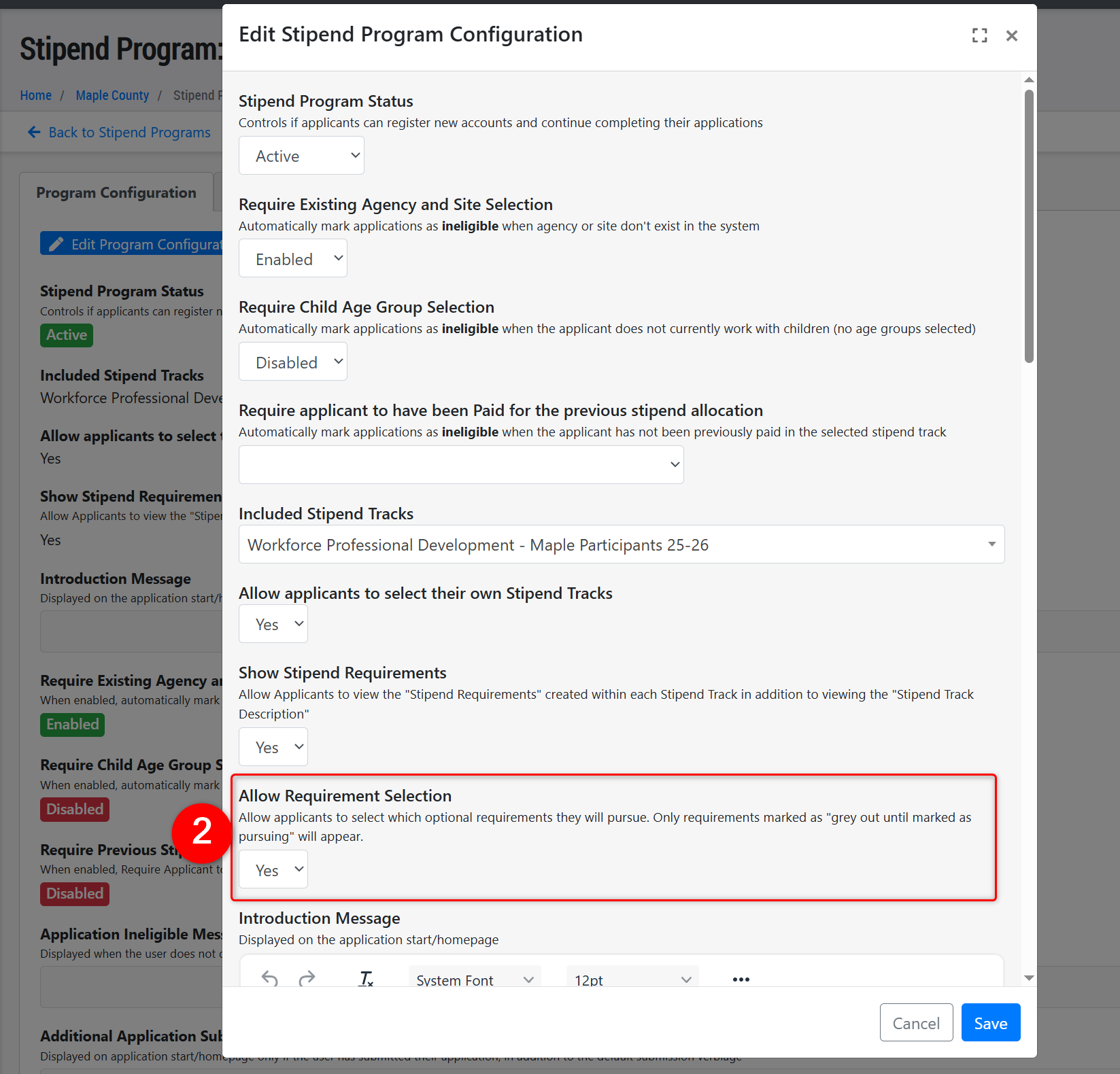
- This will present a drop-down list of all requirements for any Stipend Track selected in the application that have been greyed out by default. Selecting the requirement in the application effectively marks the item as "pursuing" for the participant when they have been intaken into the Stipend Track.
- (1) The Requirements within a Stipend Track must have the following selected: "Grey out this requirement on the grid for all participants by default and allow stipend managers to mark this requirement as being 'pursued' by select staff."
- Please note that any requirement that is not greyed out by default (selection indicated in the first step above), then it will be automatically marked as "pursuing" by the participant in the Stipend Track. In the example below, the "Maple Program Application" requirement was not greyed out, so was automatically marked as pursuing - whereas the other two requirements were greyed out and only the one the applicant selected was marked as pursuing.
This update is particularly useful for Stipend Tracks that have a variety of requirements the staff may be pursuing, such as varying levels of coursework. Allowing the participants to mark which item they plan to pursue can better help your team manage/plan your resources for the Stipend Track.
QIP Enhancements
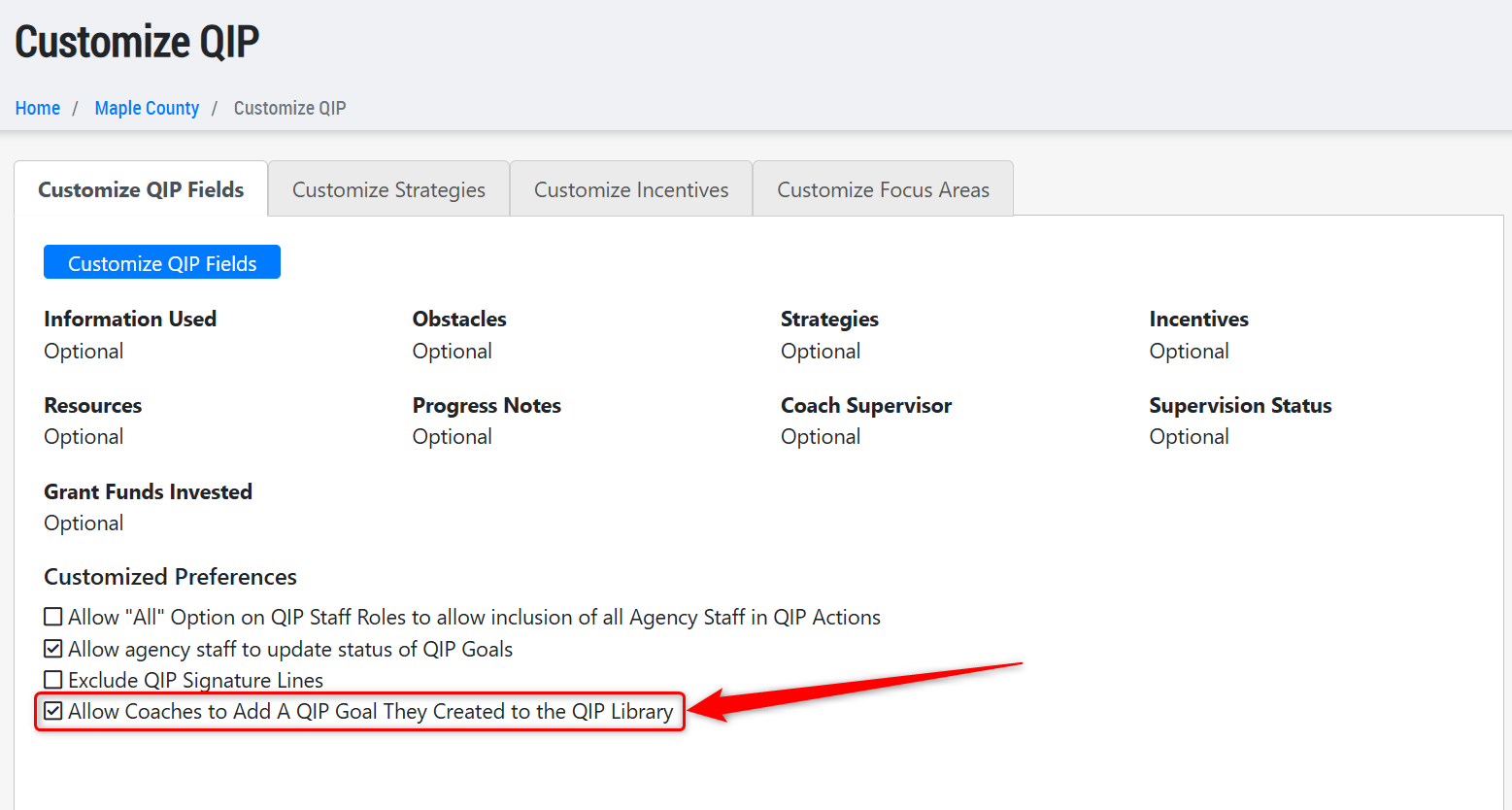
- Added a new setting to the Customize QIP record within the "Customize QIP Fields" tab titled "Allow Coaches to Add a QIP Goal They Created to the QIP Library." This will be defaulted to "Yes" upon release of this update, which will ensure your system will continue to operate as it did before, since Coaches have always been able to add QIP Goals to the QIP Library. With this new setting, users can now change it to "No" if they wish to prevent Coaches from being able to add QIP Goals to the QIP Library.
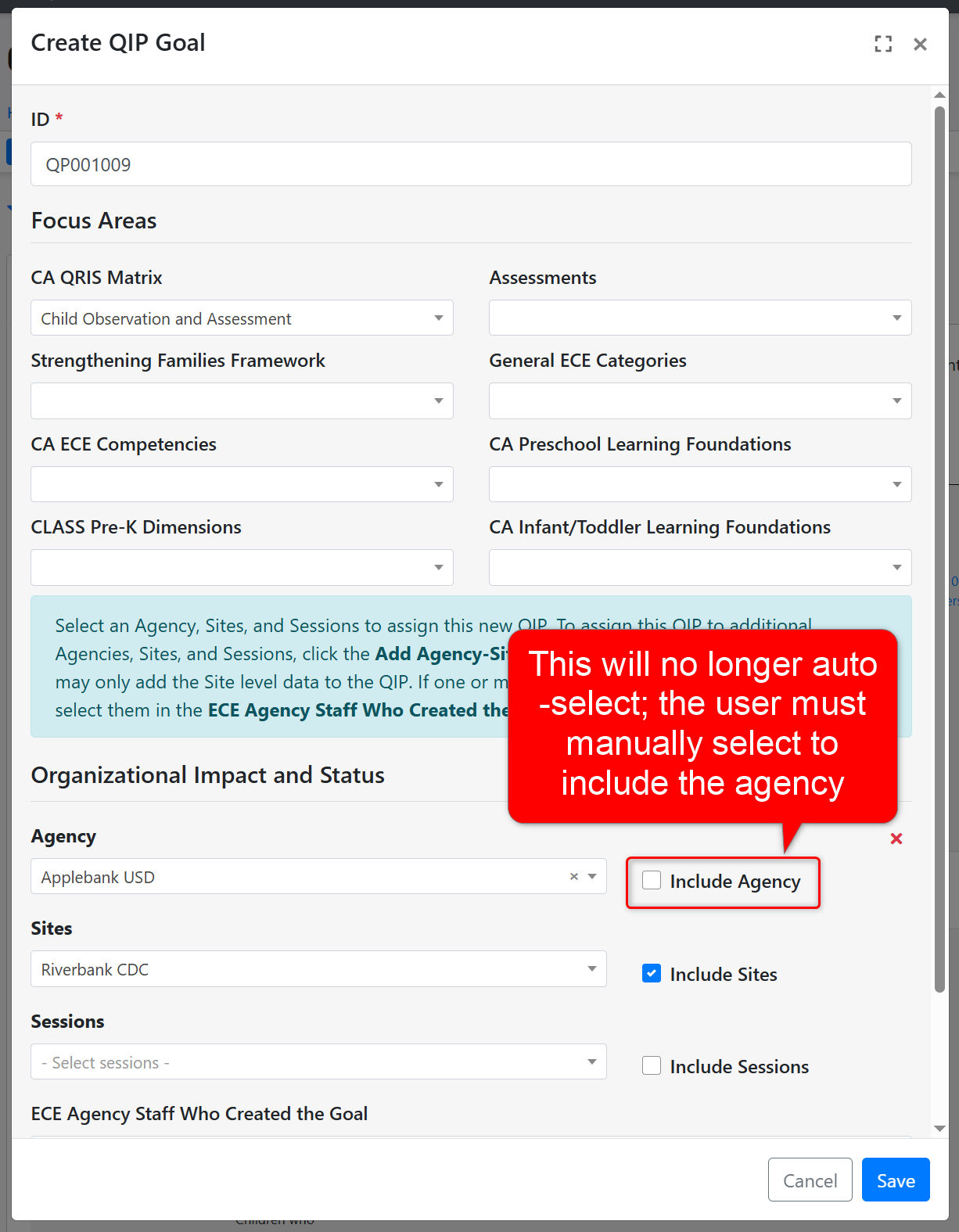
- Updated the "Create QIP" process to no longer default the agency level to be checked as "Included" in the QIP, and rather having the user intentionally select to include the agency in the QIP. This ensures each QIP created is manually configured by the user, selecting only the entities that are included in the QIP.
Coaching Enhancements
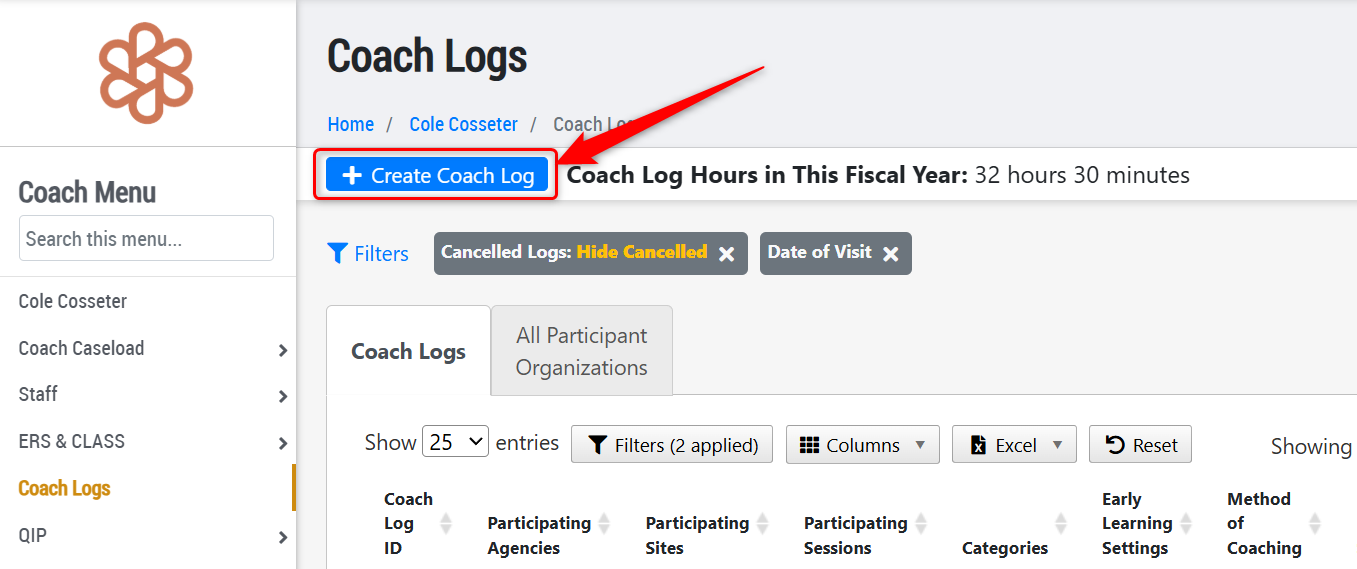
- Added a "Create Coach Log" button to the All Coach Logs grid for users with the Coach role.
General Enhancements
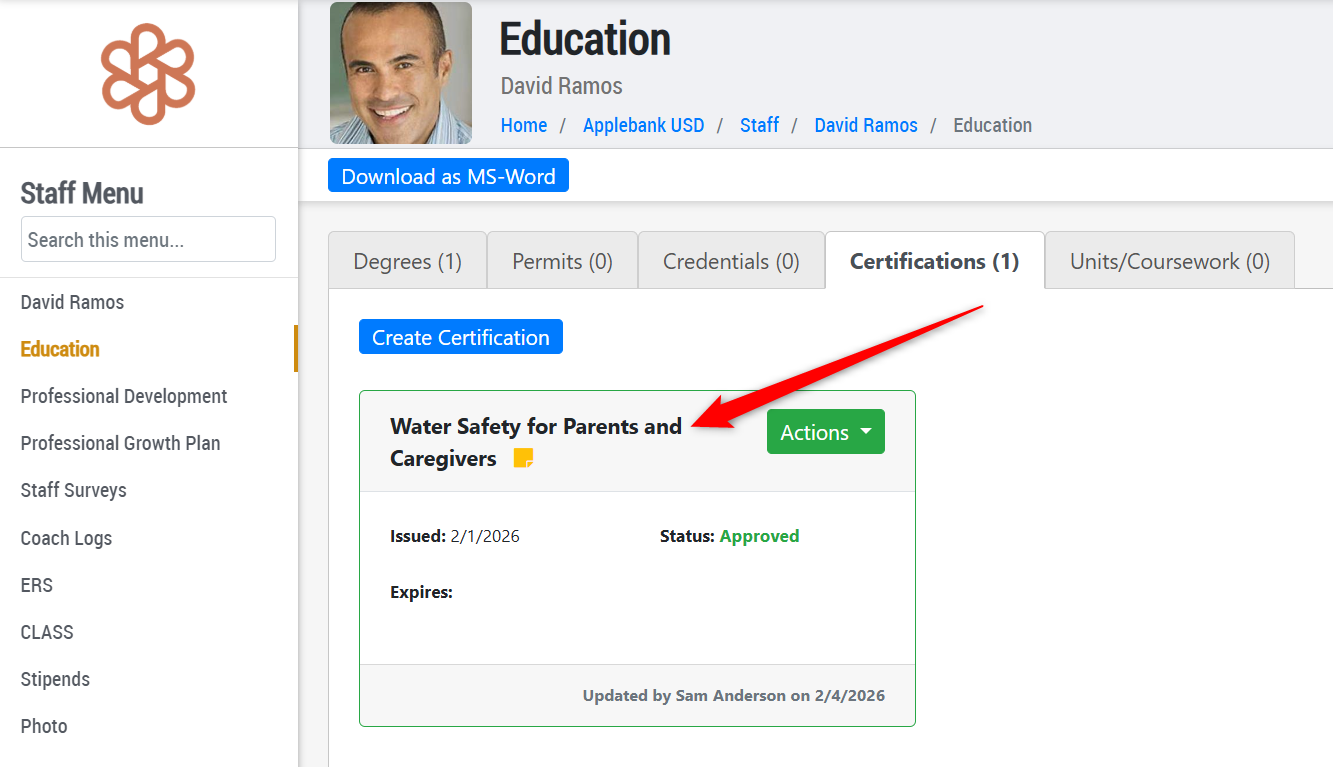
- Added a new "Certificate" type of "Water Safety for Parents and Caregivers" in the staff Education record. This addition was made in accordance with licensing requirements for staff certifications in safe water play if the center has water on playgrounds.
- Added helpful information to the "Account Status" section of a staff record, to explain the "Account Status" and "Login Status" fields and what each option will do.
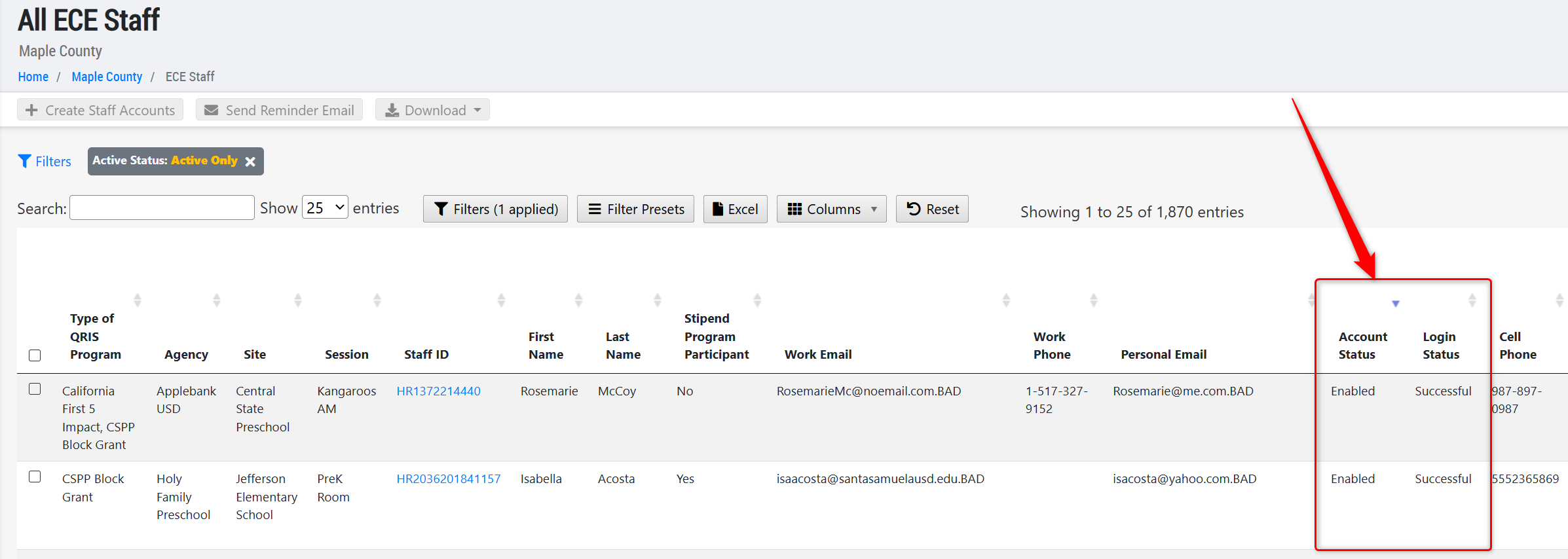
- Added two new columns to the All County Staff and All ECE Staff grids titled "Login Status" which will display the status of the staff's login attempts, and "Account Status" which will display the staff's access to their account, such as enabled or disabled. This may assist with identifying whether staff are locked out of their accounts due to too many incorrect login attempts.
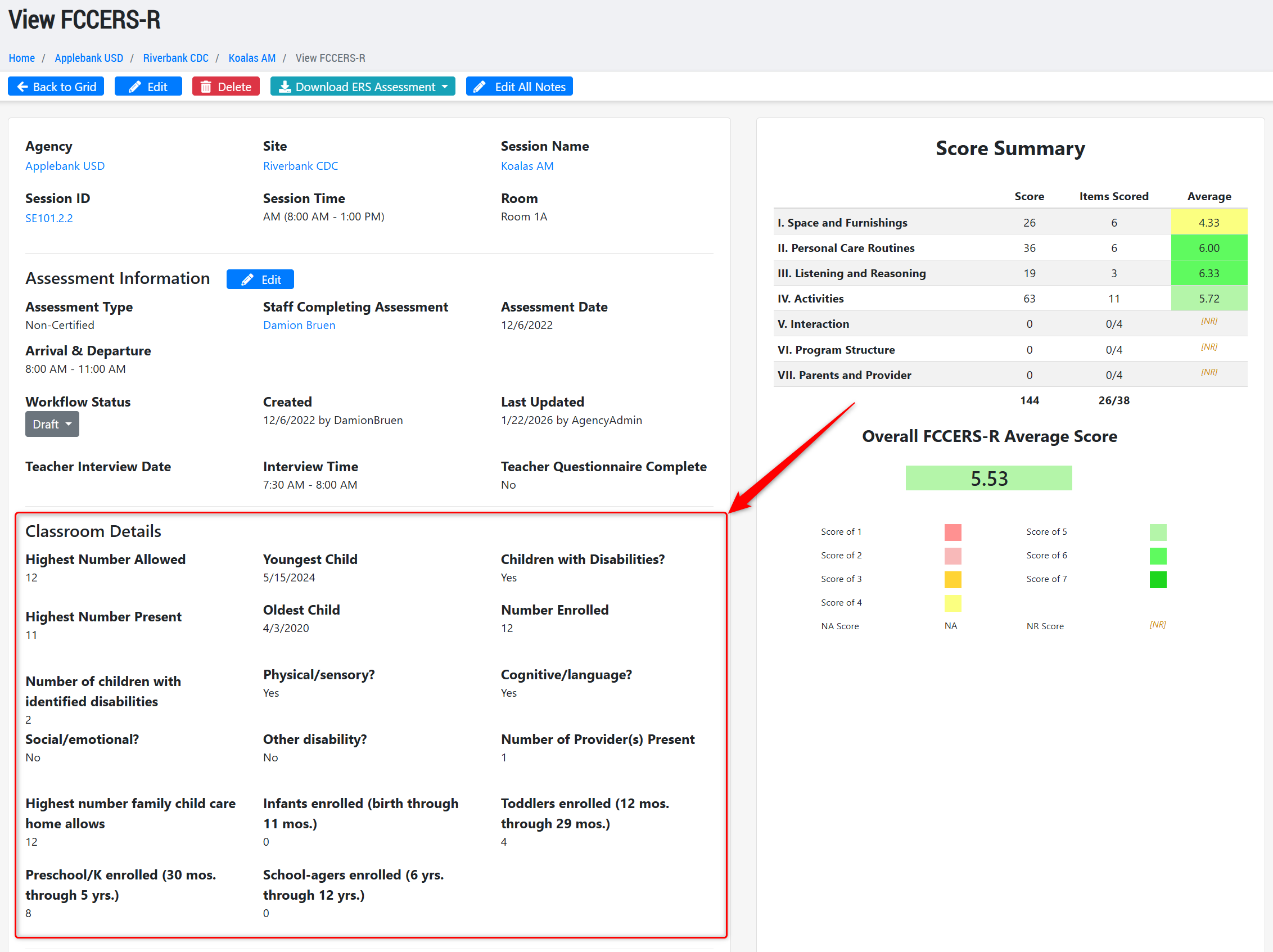
- Updated the FCCERS Assessment record to ensure it supports the newest (revised) version of the ERS Assessment for Family Childcare Homes, including the addition of ten new fields. Any FCCER records created prior to this update will be preserved, but will now have those ten additional fields to manage.
Role Permission Updates
- Updated the Funder Agency Admin role to have full create, edit, remove access to agency staff Professional Growth Plans.
Fixes & Adjustments
- Updated the QCC Workforce Pathways Report to ensure all stipend applications with the status of Approved/Completed, Payment Pending, and Paid are included in the report.
- Added the "Preferred Language for Messaging" field to the Staff export file so that users can export these values and/or import to update the field for staff.
- Fixed an issue reported by users with the Coach Manager role when trying to assign/caseload coaches to Coach Supervisors.
- Added two new language translation options for Turkish and Haitian-Creole in the Hubbe Staff Portal.
- Removed the role of Research Analyst from the list of available County-level roles. This role was not widely used in the field, and did not grant any individualized permissions or views to the staff account. Any staff account that had this role assigned previously will not experience any change in permissions within their account.
Was this article helpful?
That’s Great!
Thank you for your feedback
Sorry! We couldn't be helpful
Thank you for your feedback
Feedback sent
We appreciate your effort and will try to fix the article