TABLE OF CONTENTS
- Coach Log Enhancements
- Training Enhancements - Workshops
- Stipend Application Enhancements
- CDF Enhancements
- General Enhancements
Coach Log Enhancements
- We have made many updates to the Coach Log record so it is easier for coaches to manage. Previously, there was one large record with a single edit button, but we have now broken it up into multiple smaller edit cards so staff can edit portions at a time. Please refer to the list below for more details on the updates to Coach Logs:
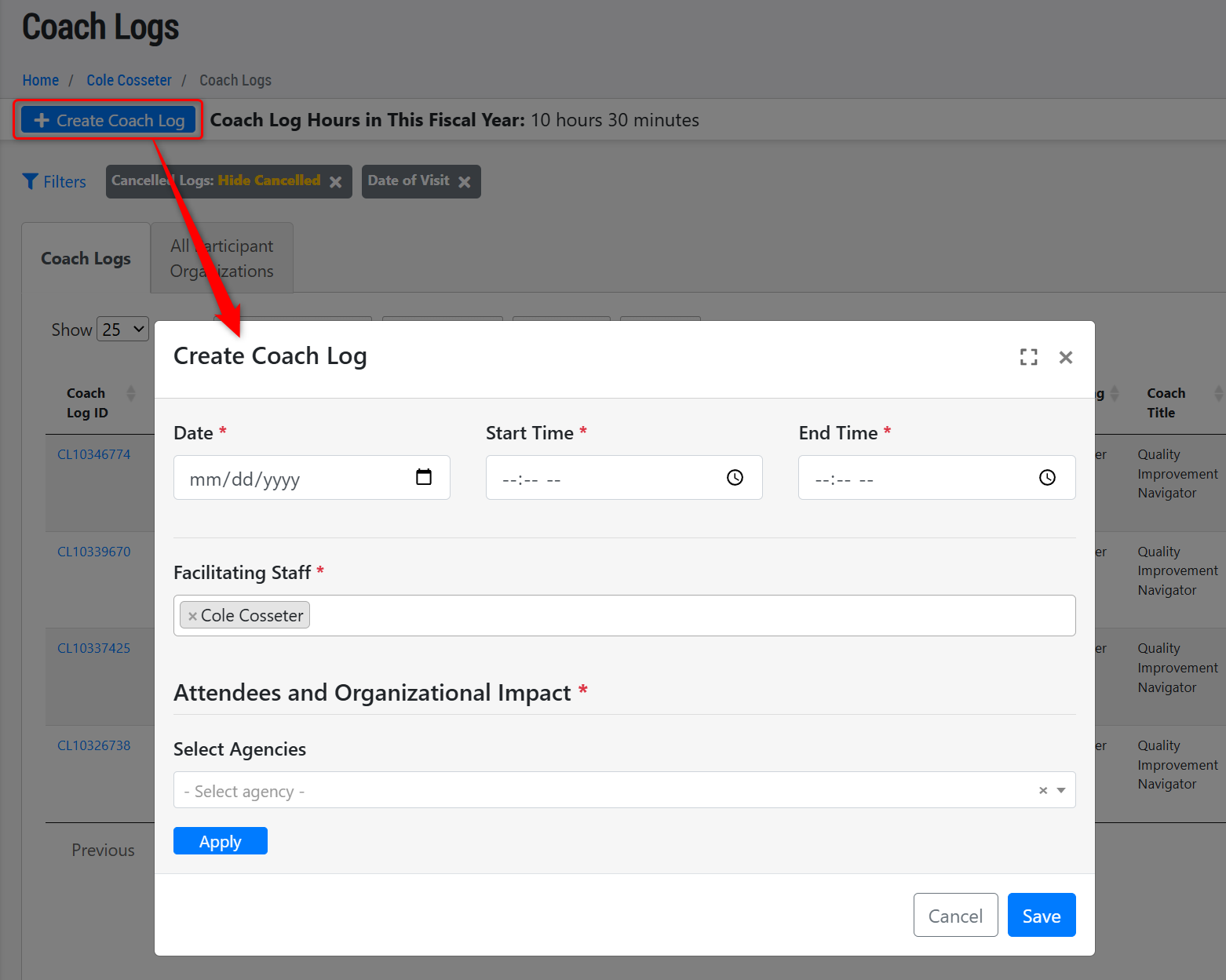
- Reduced the amount of fields presented in the "Create Coach Log" modal to only be: Date, Start Time/End Time, Facilitator, and Attendees & Organizational Impact. This reduces the amount of data required to initially create the coach log.
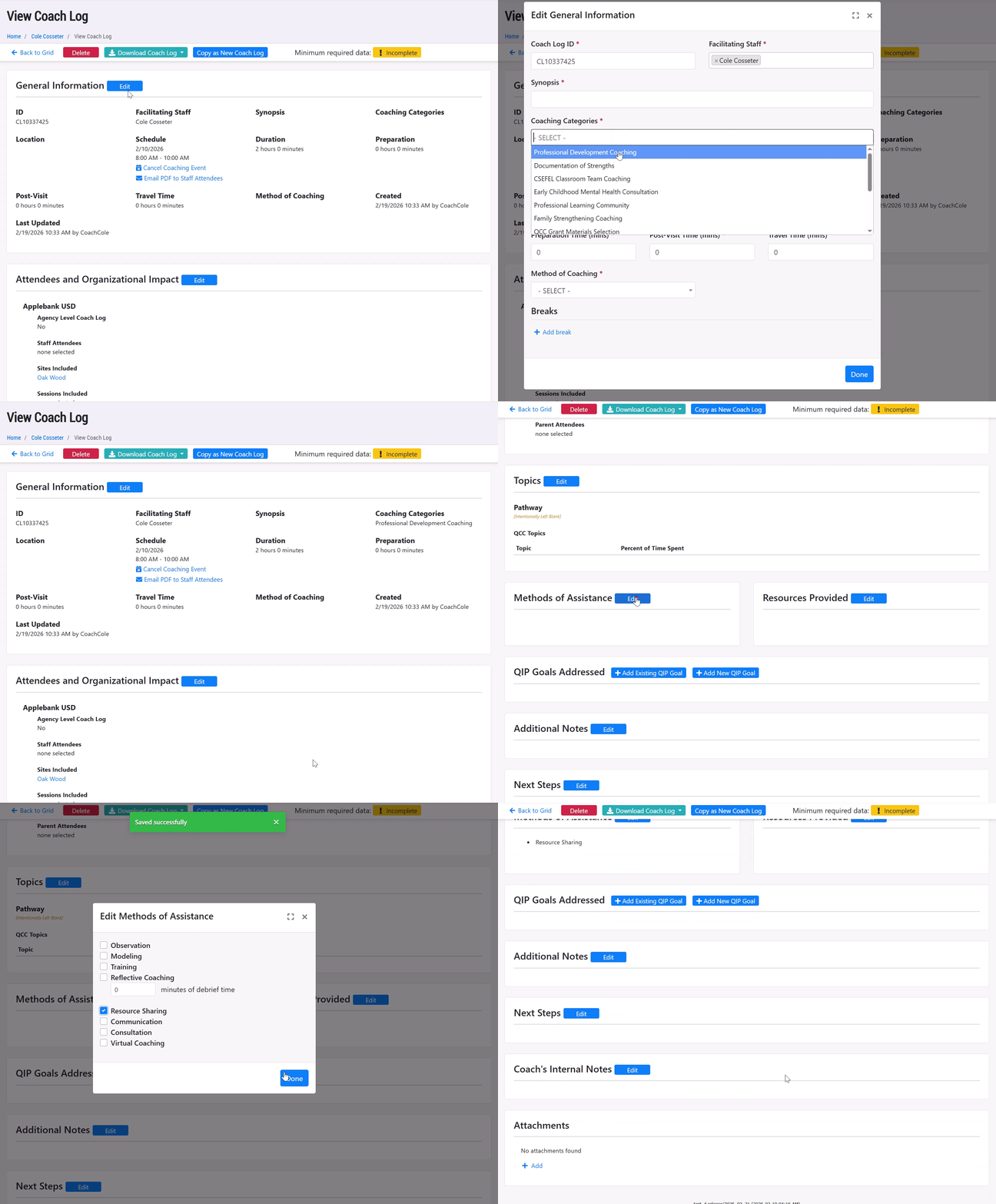
- Converted each section of the Coach Log to its own "Edit" modal, rather than having to click "Edit" for the entire page. Within the individual "Edit" modals, any changes made will be automatically saved, so users can simply click "Done" to exit the modal after making any changes.
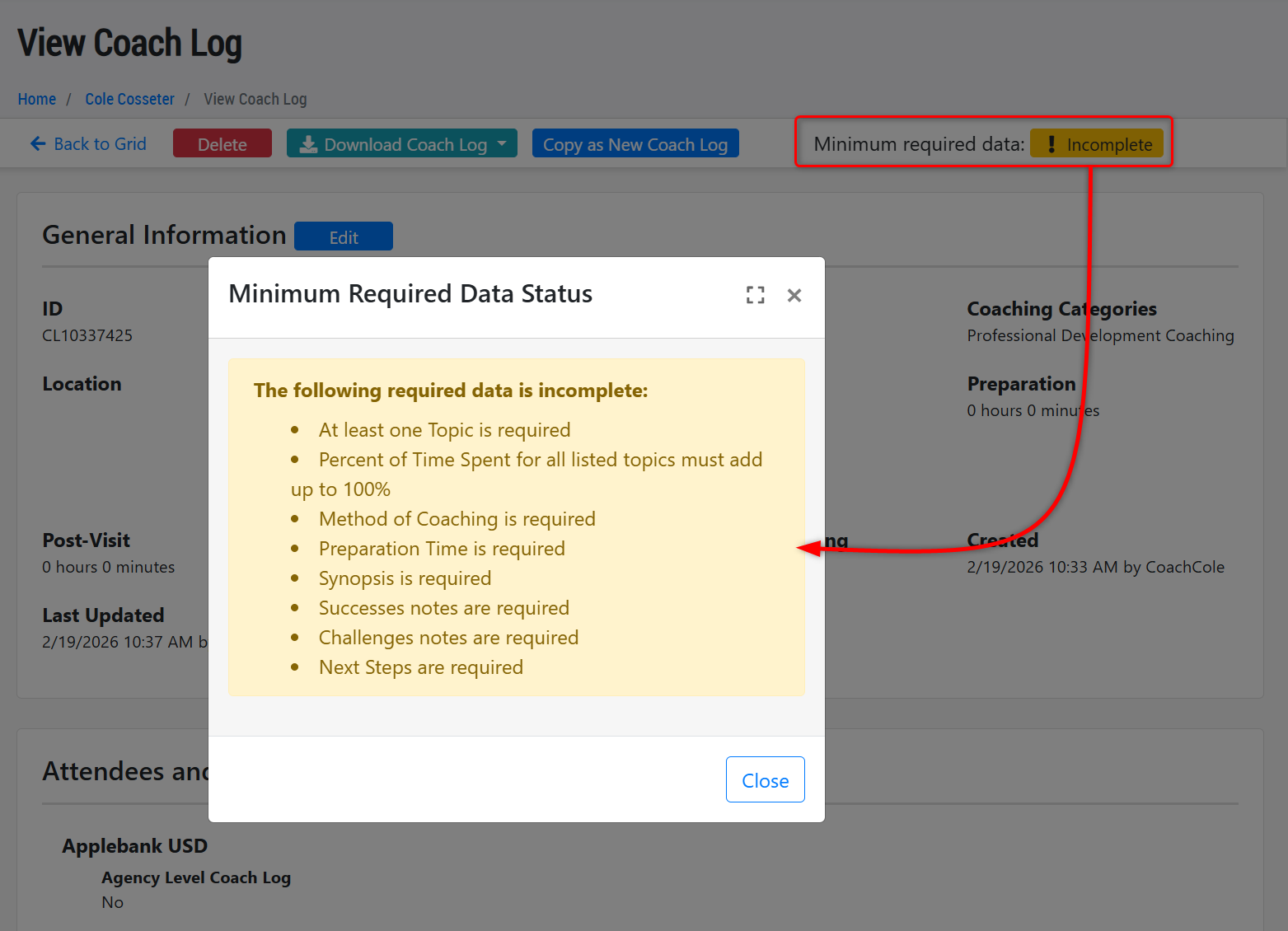
- On the view page where each section now has its own "Edit" button, there will also be the "Minimum required date" badge that shows "Incomplete" or "Complete" as the record's status.
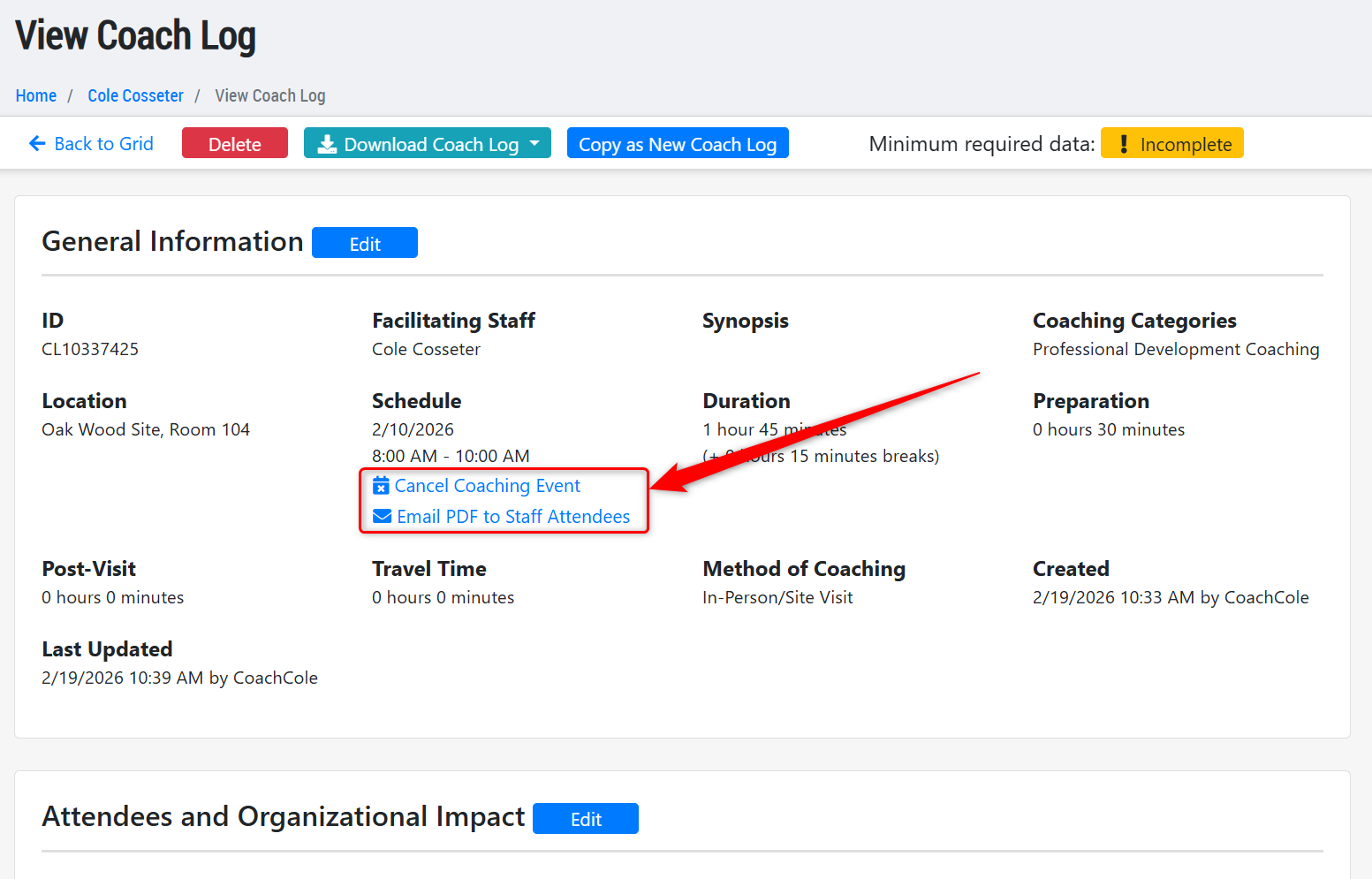
- Moved the "Cancel Coaching Event" and "Email PDF to Staff Attendees" options to below the Coach Log's "Schedule" date.
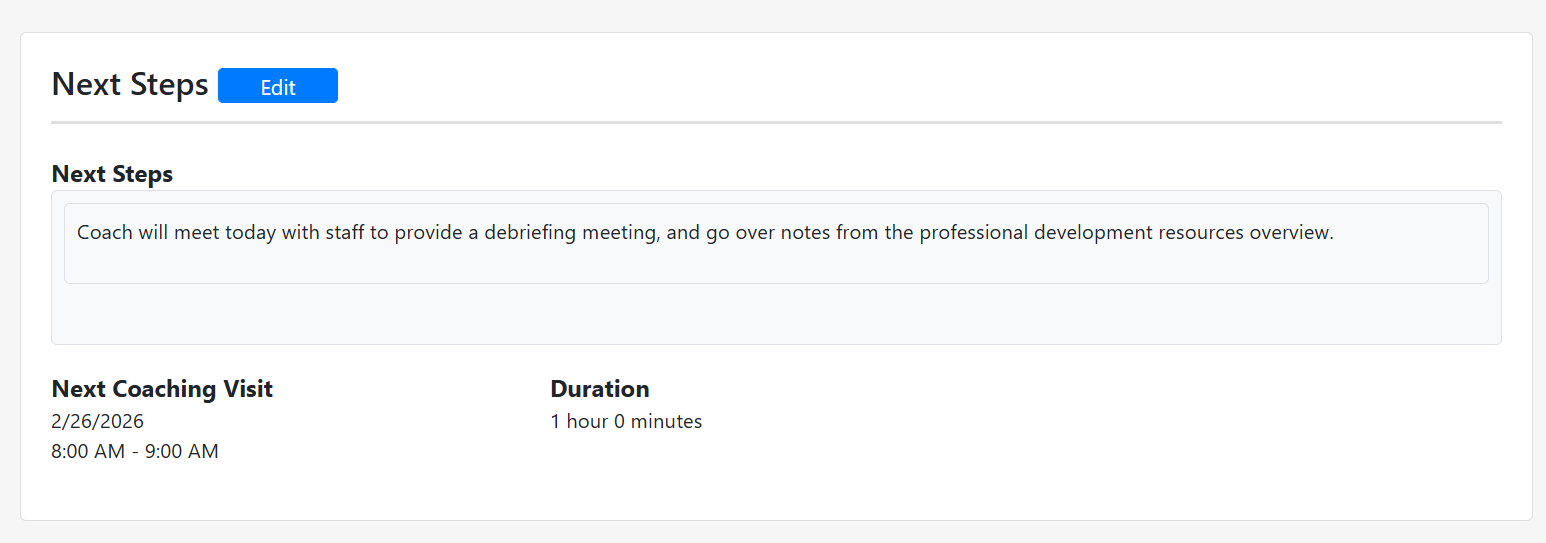
- Updated the "Future Activities" section to now be called "Next Steps." This section will still include a notes field and Next Visit Date/Time.
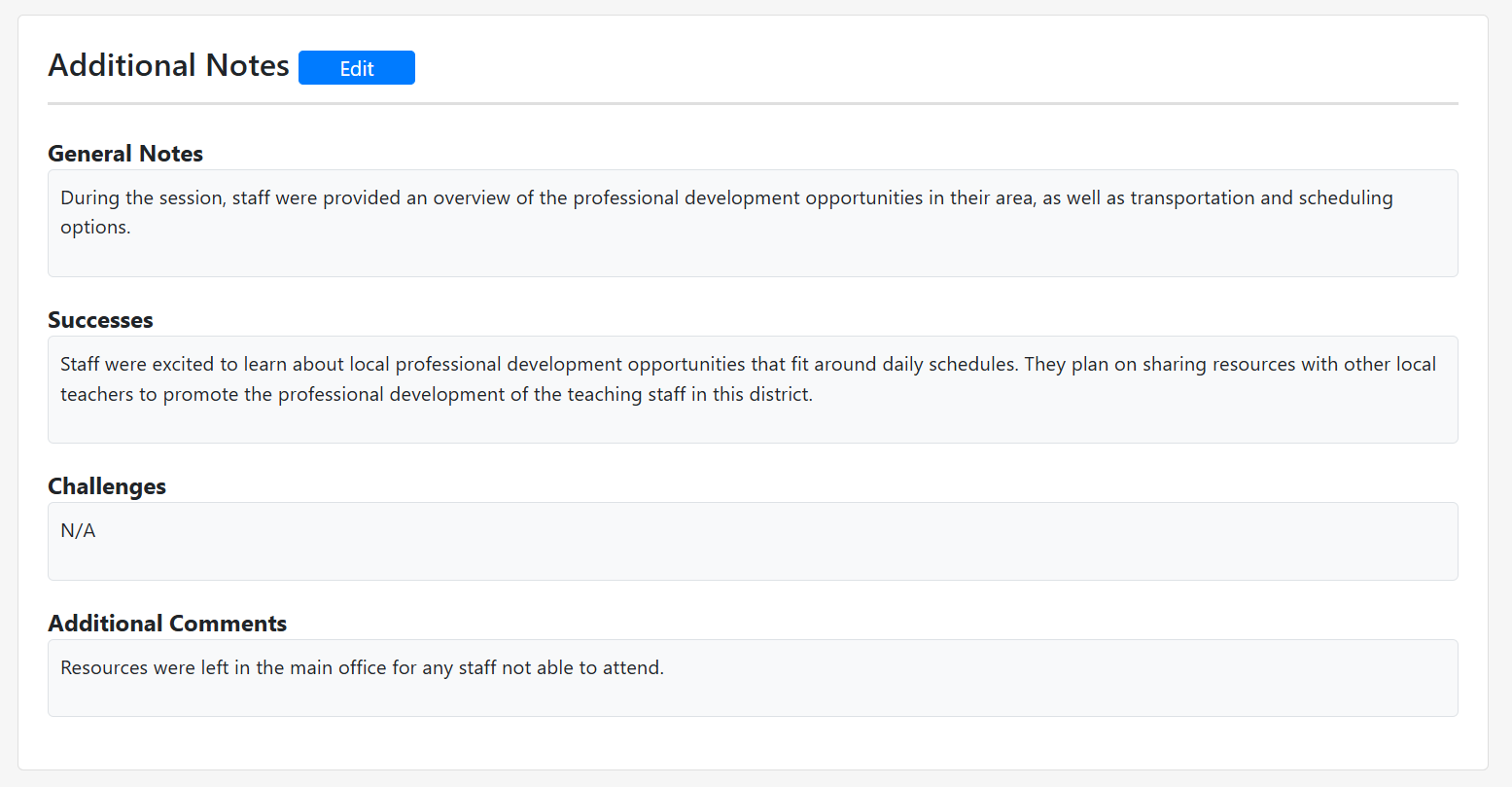
- Combined all the following note sections into one "Additional Notes" section: General Notes, Successes, Challenges, Additional Comments.
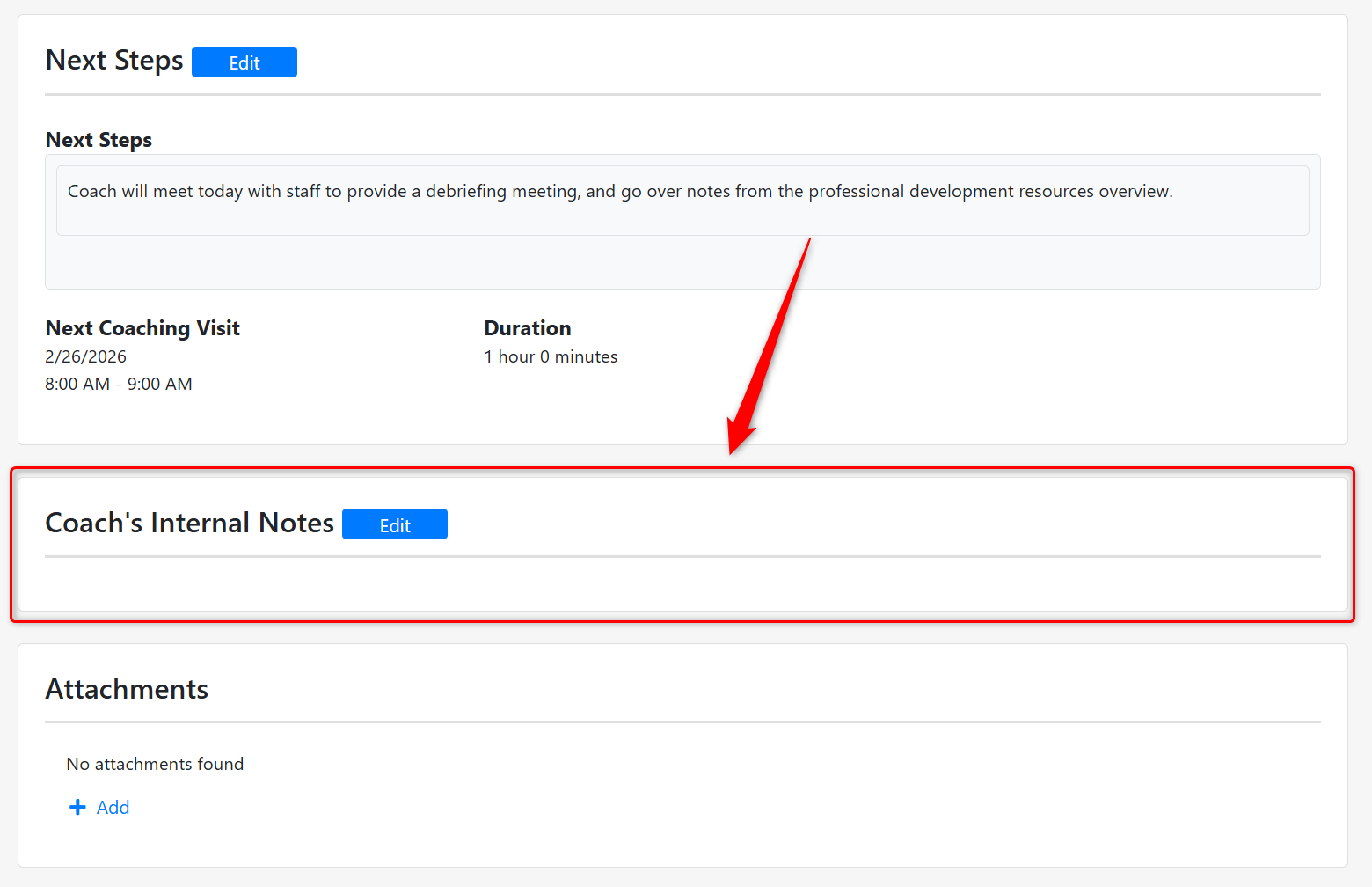
- Added a "Coach's Internal Notes" section to the view page where the facilitating staff can add notes that are viewable by only them.
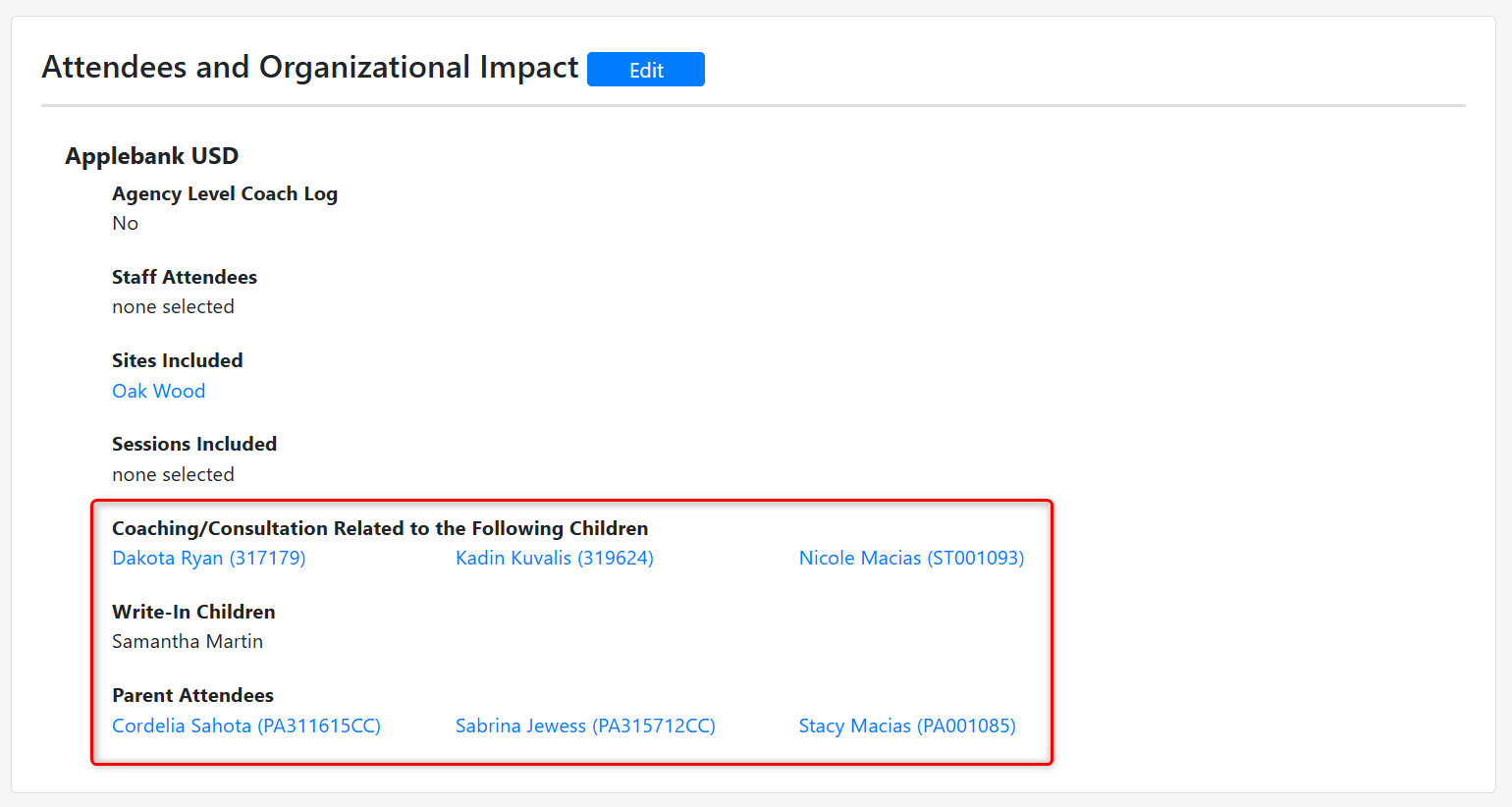
- Added new fields to the "Attendees and Organizational Impact" section to include "Children" and "Parent" fields. Some of our QRIS Counties are heavily invested in mental health consultation work. For these counties, there is a need to tag coach logs with children and/or parents. These are optional additions to the Coach Log record that can be managed at the county-level in the "Customize Coach Log" area. All "Children" and "Parent" fields will be "Hidden" by default for our QRIS County clients. You can enable them in your county if they are applicable to your work.
- Coaching/Consultation Related to the Following Children - If the Coach Log includes the agency, then all active students at the agency will appear as children available to assign to the Coach Log. If the Coach Log is not agency level and is only site and/or session level, then only students that are currently active or are enrolled to begin at a future date at the site/session will appear as children to add to the Coach Log.
- Write-In Children - This option allows users to add children who are not already created in the linked agency, site, or session as related to the Coach Log.
- Parent Attendees - This field will only display parents of children selected in the "Coaching/Consultation Related to the Following Children" field above. If no children have been selected, then no parents will appear.
- Removed the "Matrix Element" field within the Topics section of for any newly created Coach Log, since this is no longer included in the Site Rating Matrix. Any pre-existing Coach Log will continue to surface this field and preserve any selection made.
- Reduced the amount of fields presented in the "Create Coach Log" modal to only be: Date, Start Time/End Time, Facilitator, and Attendees & Organizational Impact. This reduces the amount of data required to initially create the coach log.
- Updated many places across the system where the "Total Coach Log Hours" were including Coach Logs that were cancelled, such as the "Coach Log Hours in This Fiscal Year" field above the Coach Log grid for Coaches.
Training Enhancements - Workshops
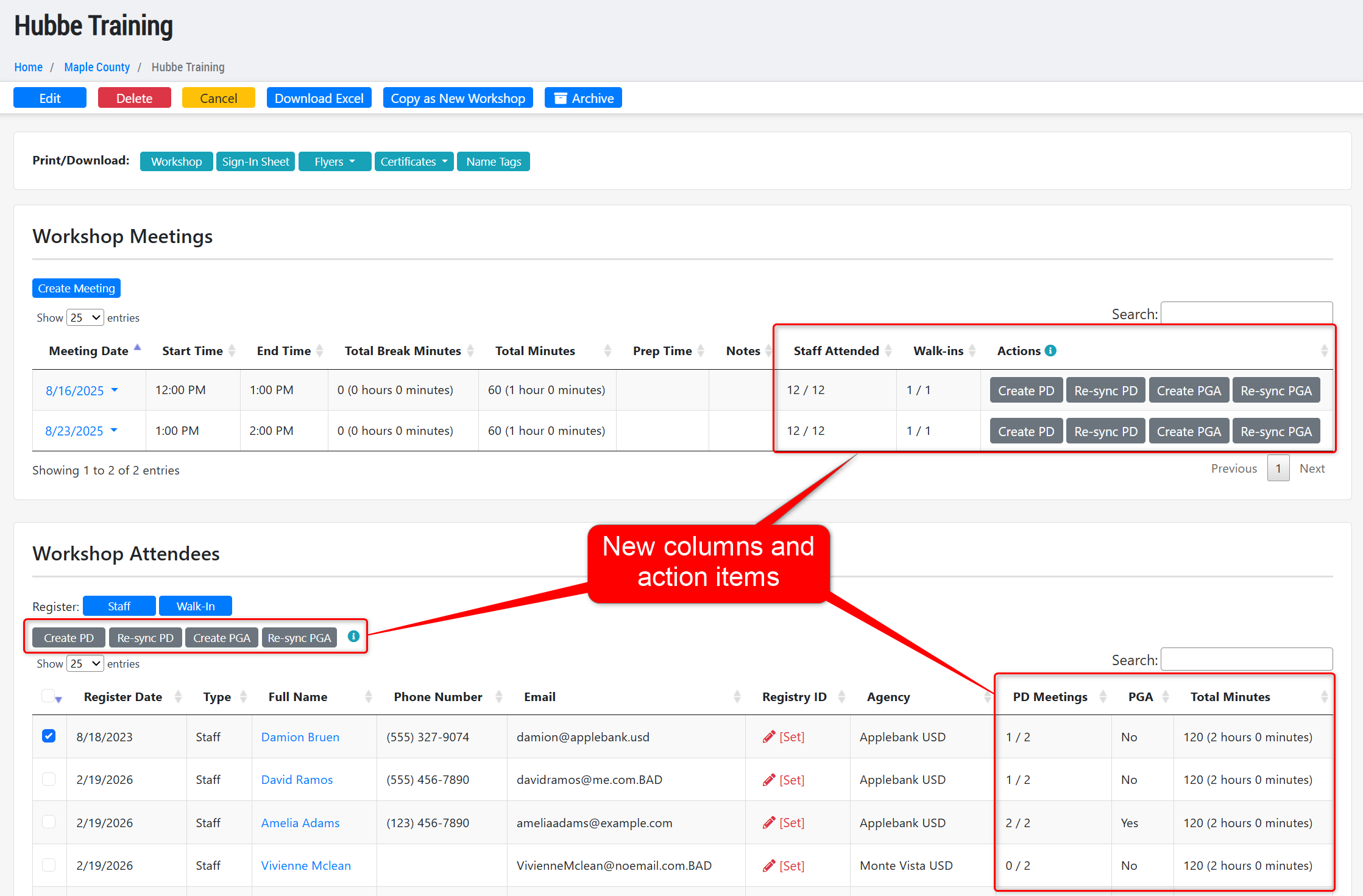
- We have updated the way in which PD and PGA records are created and re-synced from with a Workshop record for attendees. The two buttons at the top of the record for "Update PD" and "Update Professional Growth Plan" have been removed and new action buttons and columns within the "Workshop Meetings" and "Workshop Attendees" sections have been added, as follows:
- Workshop Meetings:
- Staff Attended - This column will show the ratio of attendees who have attended this event out of the total attendees registered for the workshop. For workshops that have "Treat Registration as Attendance" set to "Yes" then this will always show all attendees as present for the workshop.
- Walk-Ins - Similar to the "Staff Attended" column, this column will show the ratio of individuals registered as "Walk-Ins" that have been marked as present for the meeting.
- Actions:
- Create PD - Clicking this action button will create a Professional Development (PD) record (Workshop) for each attendee who is marked as present for that meeting, not including Walk-Ins. This button will only be enabled once an attendee has been marked as present. If registration for the workshop is treated as attendance, then all registered Staff attendees will get PD records created.
- Re-sync PD - Clicking this action button will update any PD record(s) that have already been created for attendees with any changes made to the Workshop's title, meeting date, or total minutes. This button will only be enabled once at least one PD record has been created for the meeting.
- Create PGA - Clicking this button will create a Professional Growth Activity (PGA) record for each attendee who is marked as present for that meeting, not including Walk-Ins. This button will only be enabled once an attendee has been marked as present. If registration for the workshop is treated as attendance, then all registered Staff attendees will get PGA records created.
- Re-sync PGA - Clicking this action button will update any PGA record(s) that have already been created for attendees with any changes made to the Workshop's title, start date, end date, or total minutes. This button will only be enabled once at least one PGA record has been created for the workshop.
- Workshop Attendees:
- PD Meetings - This column will show the ratio of PD records that the attendee has had created out of the total possible PD records that could be created from the workshop. Each meeting for the workshop is eligible for one PD record.
- Total Minutes - This column will show the cumulative hours/minutes that the attendee has been marked as present for from the workshop's meetings. If registration for the workshop is treated as attendance, then each attendee will have all meeting minutes added to this count.
- Actions:
- Create PD - Clicking this action button will create a Professional Development (PD) record (Workshop) for each attendee selected in the grid, so long as the selected Staff attendee is present for at least one workshop meeting. If the selected attendee is either not present for any meeting yet, or already has their PD record created for all meetings they have been marked as present for, then they will be skipped over in this action, preventing duplicate or non-applicable records to be created. This option is not available for Walk-Ins. This button will only be enabled once a meeting has been added to the workshop.
- Re-sync PD - Clicking this action button will update any PD record(s) for each attendee selected in the grid that have already been created. Field updates would include any changes made to the workshop's title, meeting date, or total minutes.
- Create PGA - Clicking this action button will create a Professional Growth Activity (PGA) record for each attendee selected in the grid, so long as the selected Staff attendee is present for at least one workshop meeting. If the selected attendee is either not present for any meeting yet, or already has their PGA record created for the workshop, then they will be skipped over in this action, preventing duplicate records to be created. This option is not available for Walk-Ins. This button will only be enabled once a meeting has been added to the workshop.
- Re-sync PGA - Clicking this action button will update any PGA record(s) for each attendee selected in the grid that have already been created. Field updates would include any changes made to the workshop's title, start date, end date, or total minutes.
- Workshop Meetings:
Stipend Application Enhancements
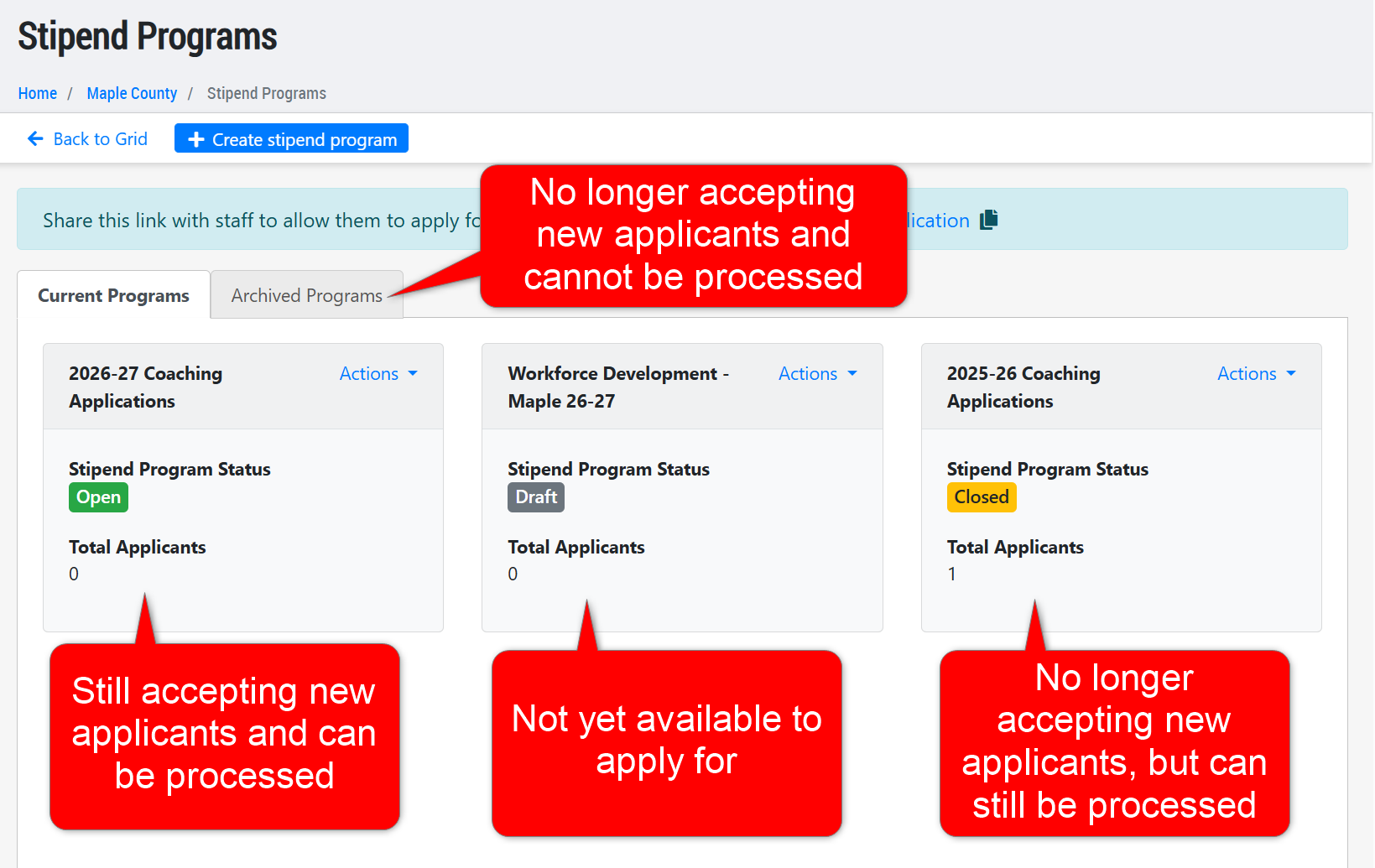
- Added a new status to the Stipend Program Application for "Closed." This new status will allow managers to continue processing applications for the Stipend Program, but stop receiving new applications. To support this update, we have also updated the previous statuses. The available Stipend Program statuses are as follows:
- Active Programs:
- Draft - This status remains unchanged. When a Stipend Program is still being set up, it will be in "Draft." A program can no longer be set to "Draft" after it is opened to applicants.
- Open - This status was previously titled "Active." Once a Stipend Program is ready to receive applicants, it can be set to "Open." New applicants can be received, and applications can be processed in this state. These applications will be shown by default in the grid.
- Closed - This is a new status option. Once a Stipend Program is ready to stop receiving new application but is still being managed, it can be set to "Closed." This means no new applicants can apply, but any applicant who submitted the application prior to closing can be processed and accepted. These applications will be shown by default in the grid.
- Archived Programs:
- Archived - This status was previously titled "Completed." Once a Stipend Program is completely done being managed, it can be set to "Archived." This means no new applications can be submitted, and no applications can be edited. These applications will not be shown by default in the grid.
- Active Programs:
CDF Enhancements
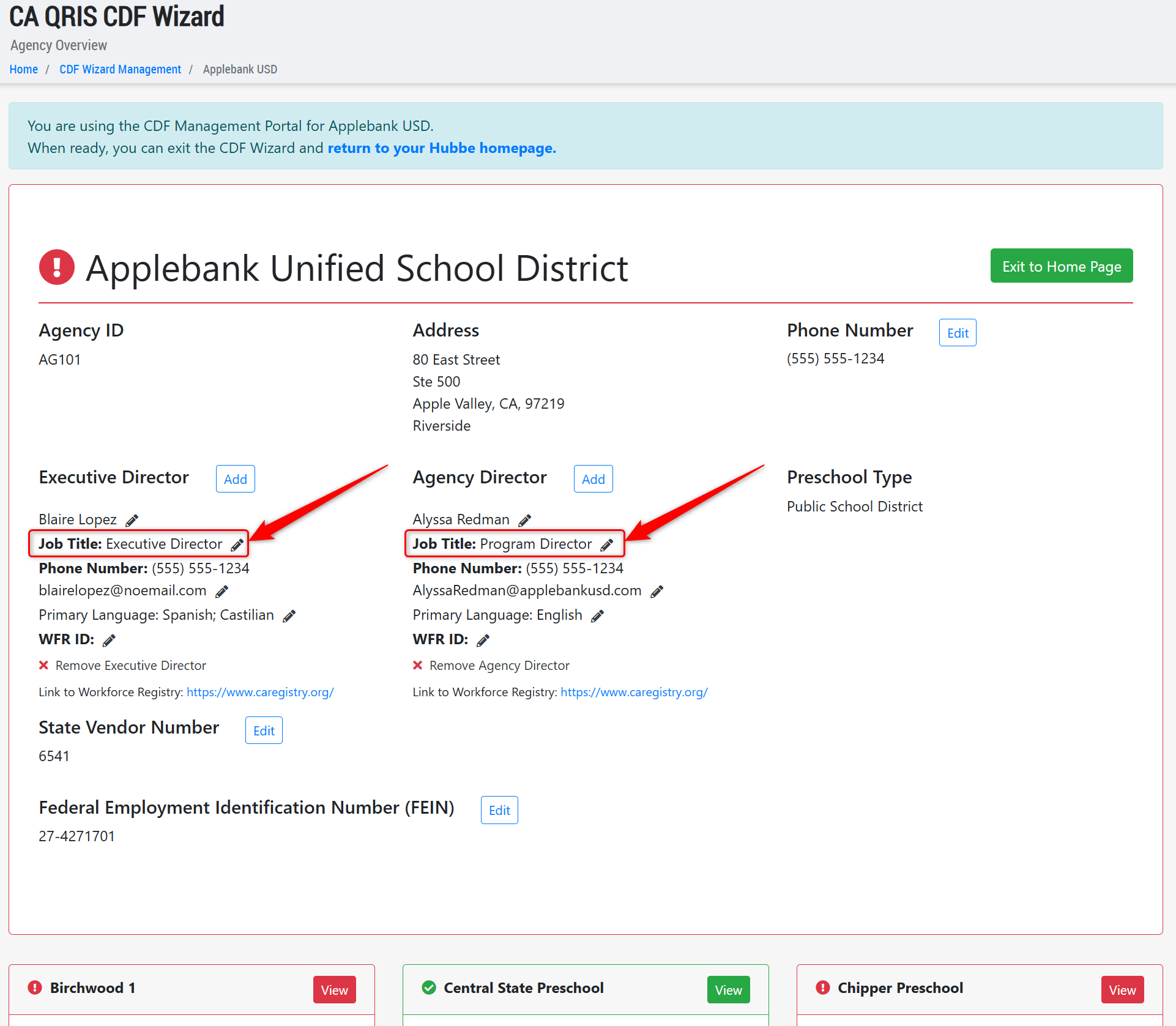
- In the CDF Wizard portal, we have added the "Job Title" field to the Agency Executive Director and Agency Program Director role assignment fields within the agency-level view. We have also moved the "Job Title" field above a few other fields for assigned staff, so it is now the first field underneath the staff's name.
- Updated the CDF Wizard portal validation to ensure the "Time of Day" field for Classrooms/Sessions is required in order to complete the wizard, if set to "required" in CDF Wizard Settings.
- Updated the Session record within the CDF Wizard so that the "Name" field for a session is re-titled to "Classroom Name" to better match the purpose of the field for data reporters.
- Fixed an issue reported by users within the CDF Wizard portal to ensure the "Edit" modal always matches the view page within the "Child Counts" section.
General Enhancements
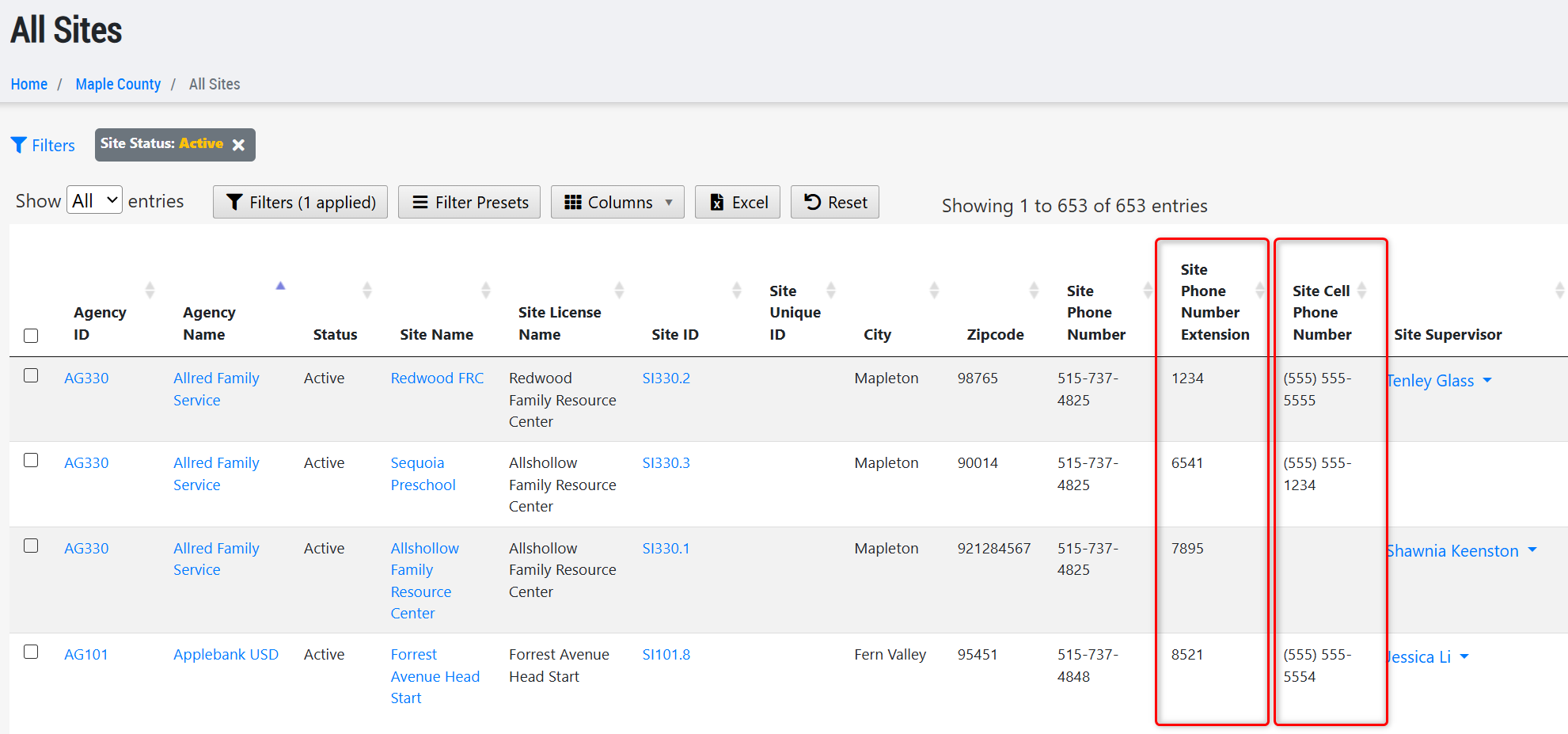
- Added the "Site Cell Phone Number" (hidden by default) and "Site Phone Number Extension" (shown by default) to the All Sites grid.
Was this article helpful?
That’s Great!
Thank you for your feedback
Sorry! We couldn't be helpful
Thank you for your feedback
Feedback sent
We appreciate your effort and will try to fix the article