TABLE OF CONTENTS
- NEW CAPSDAC 2.0 Report (Beta)
- Updates to Support the Upcoming CAPSDAC 2.0 Report
- Family Language Instrument Survey for CDE and CDSS Program Updates
- Attendance Exception Enhancements
- CACFP Enhancements
- Head Start Enhancements
- General Enhancements
- Role Permission Updates
- Important Hubbe Email Communication Updates and Information
- Staff Account Updates and Information
- Fixes & Adjustments
NEW CAPSDAC 2.0 Report (Beta)
Tomorrow, we're releasing the new CAPSDAC 2.0 Report (Beta) to allow school districts, county offices of education, and charter schools that signed up to participate in the Beta testing process to test the file upload process using their data in Hubbe. The new CAPSDAC 2.0 Report (Beta) will be available on your Agency Menu under Reports > State Reports.
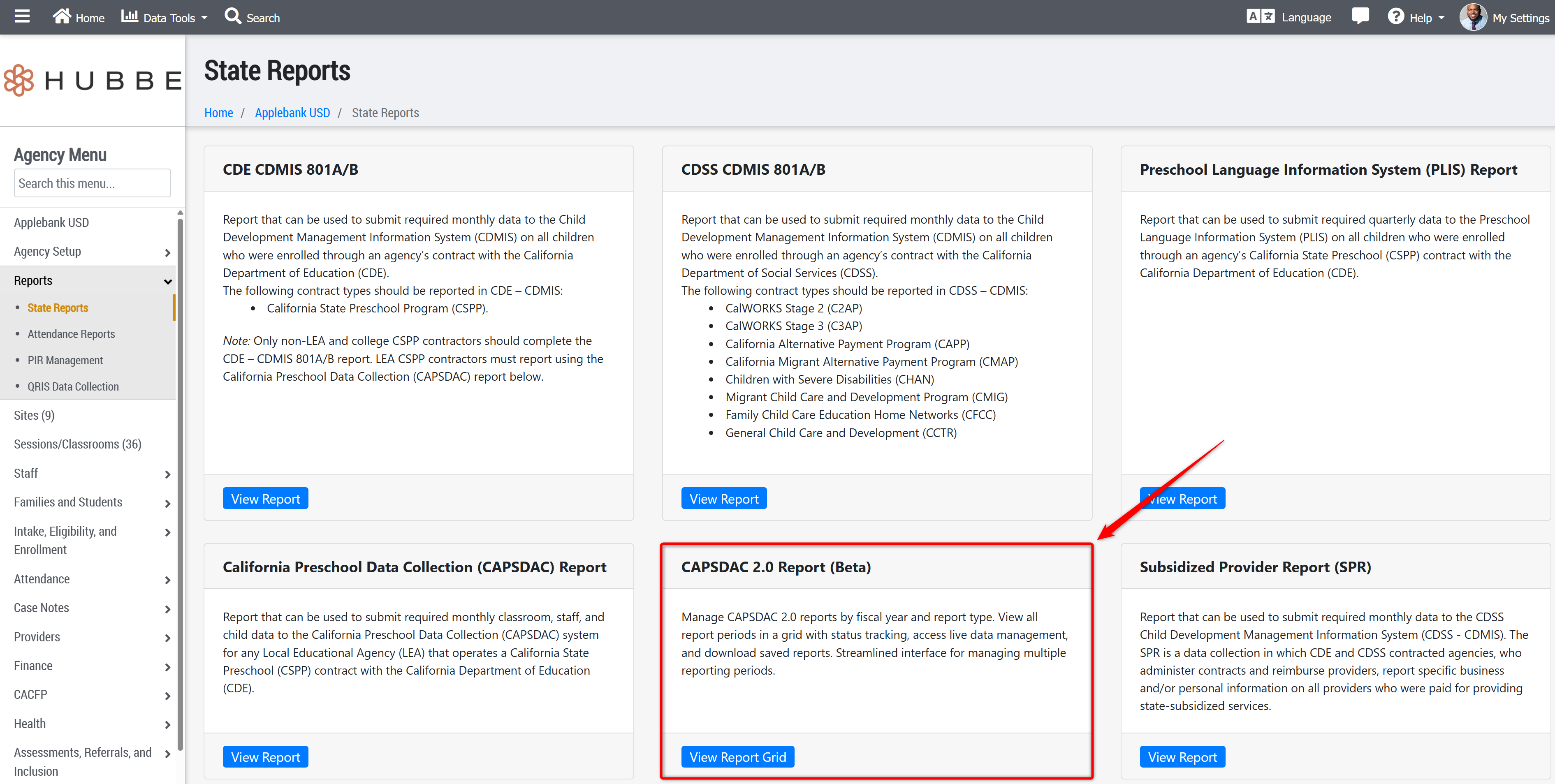
Please see the video below for instructions on how to use the new CAPSDAC 2.0 Report (Beta) feature to download your data and test the file upload process. Additionally, we'll be hosting CAPSDAC 2.0 office hours on Monday (11/24) and Tuesday (11/25) for users who are participating in the beta testing process to ask questions or report issues they're experiencing with the Hubbe CAPSDAC 2.0 Report (Beta) feature. See links to register for one of these office hour sessions below.
If you have trouble opening the video above in full screen, you can access the video using the link below:
https://drive.google.com/file/d/1ohvOQFTtjIyEF4tyIS7YgOhg9vKh-nGT/view?usp=sharing
Office Hours Opportunities
| Date | Time | Link to Register |
|---|---|---|
| 11/24/2025 | 12:00 PM - 1:00 PM | https://us02web.zoom.us/meeting/register/sW3RvmblSiStjy0k2BjJjg |
| 11/24/2025 | 2:00 PM - 3:00 PM | https://us02web.zoom.us/meeting/register/dEytM5GlSA6JxUx0AJ1hdg |
| 11/25/2025 | 10:00 AM - 11:00 AM | https://us02web.zoom.us/meeting/register/y3luk-64RAK-5PwmtpxKlg |
Updates to Support the Upcoming CAPSDAC 2.0 Report
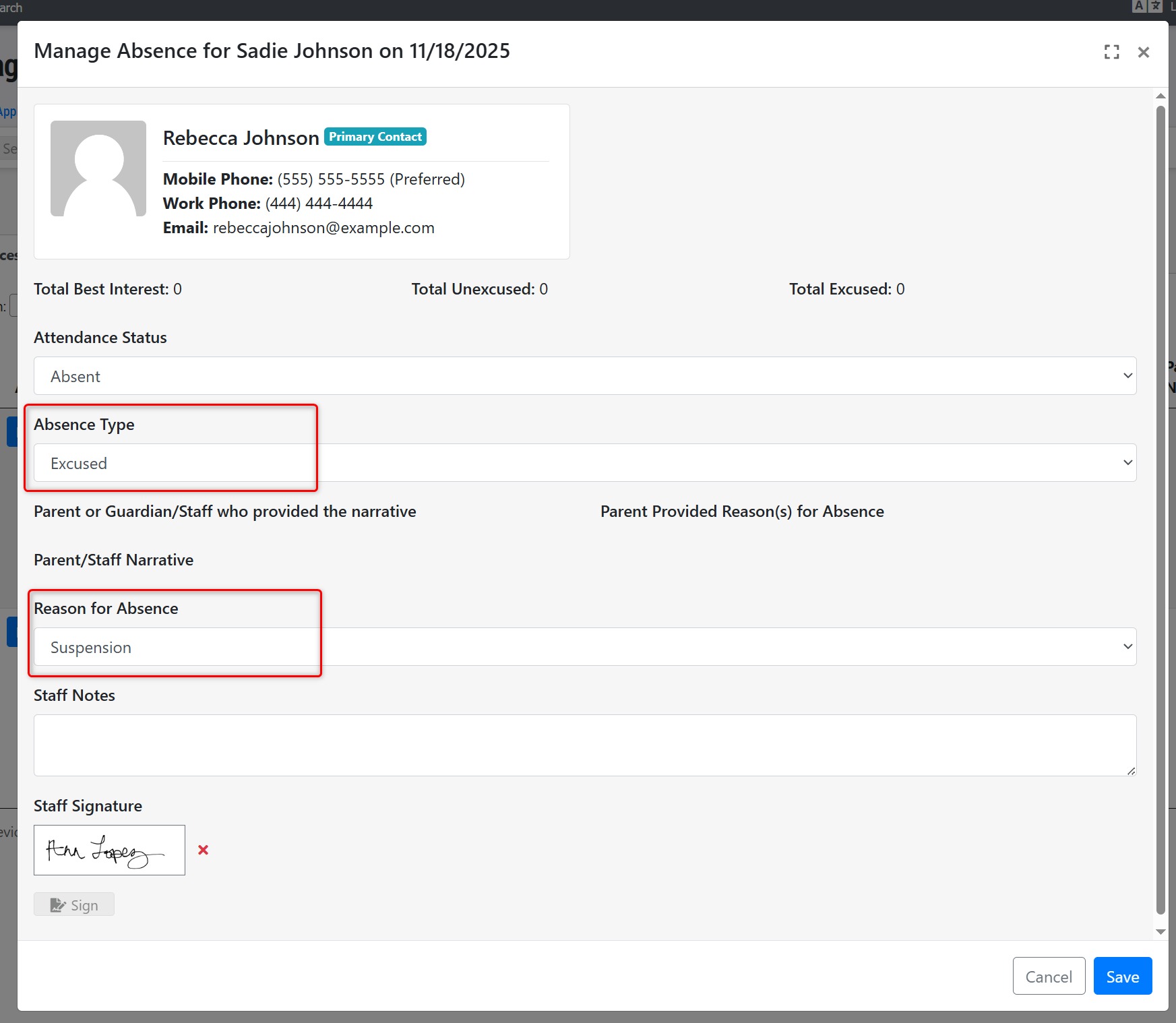
- Added a new Absence Reason of "Suspension" that will be an Excused absence type. This can be viewed by navigating to: Agency Menu > Attendance > Configure Attendance > Absences tab. When marking or processing absence(s) for a child, this new option will be available as an excused absence type now.
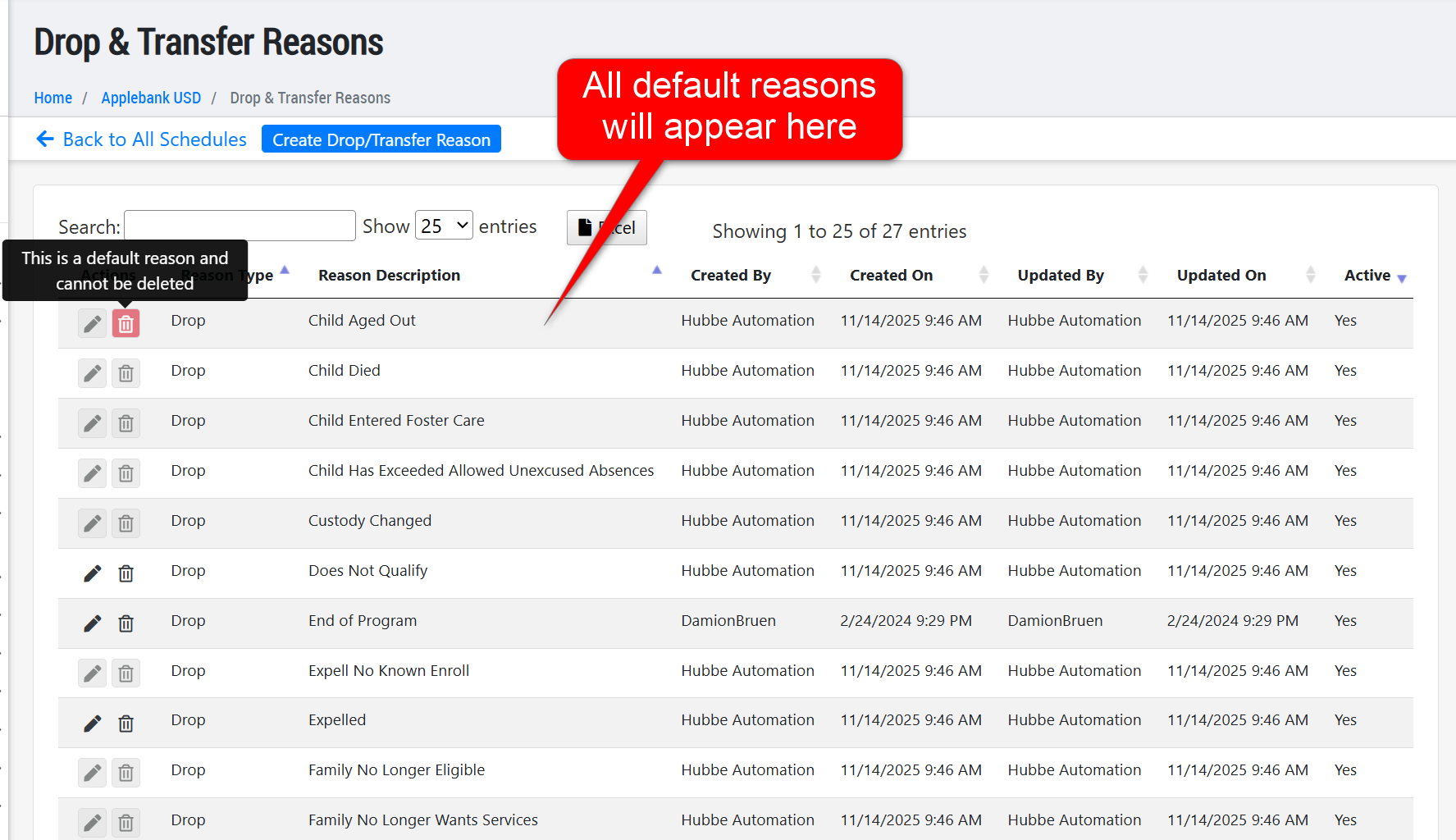
- Updated the "Configure Drop & Transfer Reasons" area to always show all default and custom-added drop & transfer reasons when dropping or transferring a student. We have also included default drop & transfer reasons provided by CDE that cannot be edited or deleted by users. Any drop or transfer reasons that were created before this update will still remain in the grid, and no schedules will be affected. This update is in preparation for a value that will be in the upcoming CAPSDAC 2.0 Report, in which the selected drop/transfer reason will map to a certain code in the report.
IMPORTANT - Since this update will auto-create many new drop/transfer reasons in preparation for the CAPSDAC 2.0 Report, please ensure to go to the following record to ensure your list of reasons look correct and your system does not have duplicate reasons following this release: Agency Menu > Intake, Eligibility, and Enrollment > All Schedules > Configure Drop & Transfer Reasons.
Family Language Instrument Survey for CDE and CDSS Program Updates
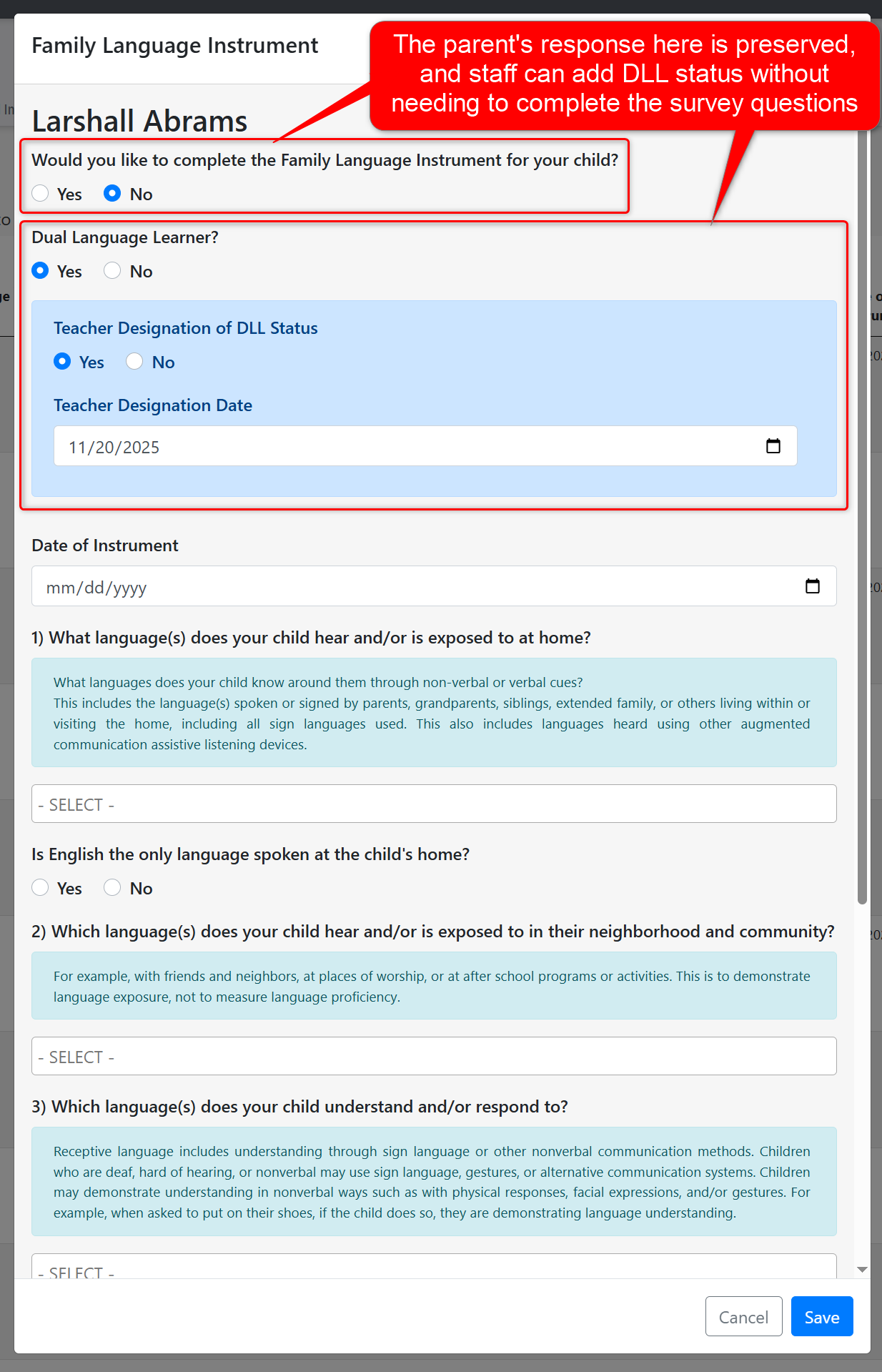
- We have updated the staff side of the Family Language Instrument 4-question survey form to allow staff to enter Dual Language Learner (DLL) information without being required to complete the survey. Prior to this update, staff were unable to mark a child as DLL with "Teacher Designation" as "Yes" without both overriding the parent's opt-out response and needing to fill out the entire survey. Now, staff can preserve the parent's opt-out response to the survey, and still mark the child as DLL by Teacher Designation - and can either fill out the four survey questions or leave them blank. We hope this helps your team manage child language information for your CDE and/or CDSS programs for reporting purposes.
Attendance Exception Enhancements
- We have separated the two features previously both available from the Agency Menu > Attendance > Manage Sign-In/Out Events record. Now, the "Attendance" sub-menu items will include the following two options:
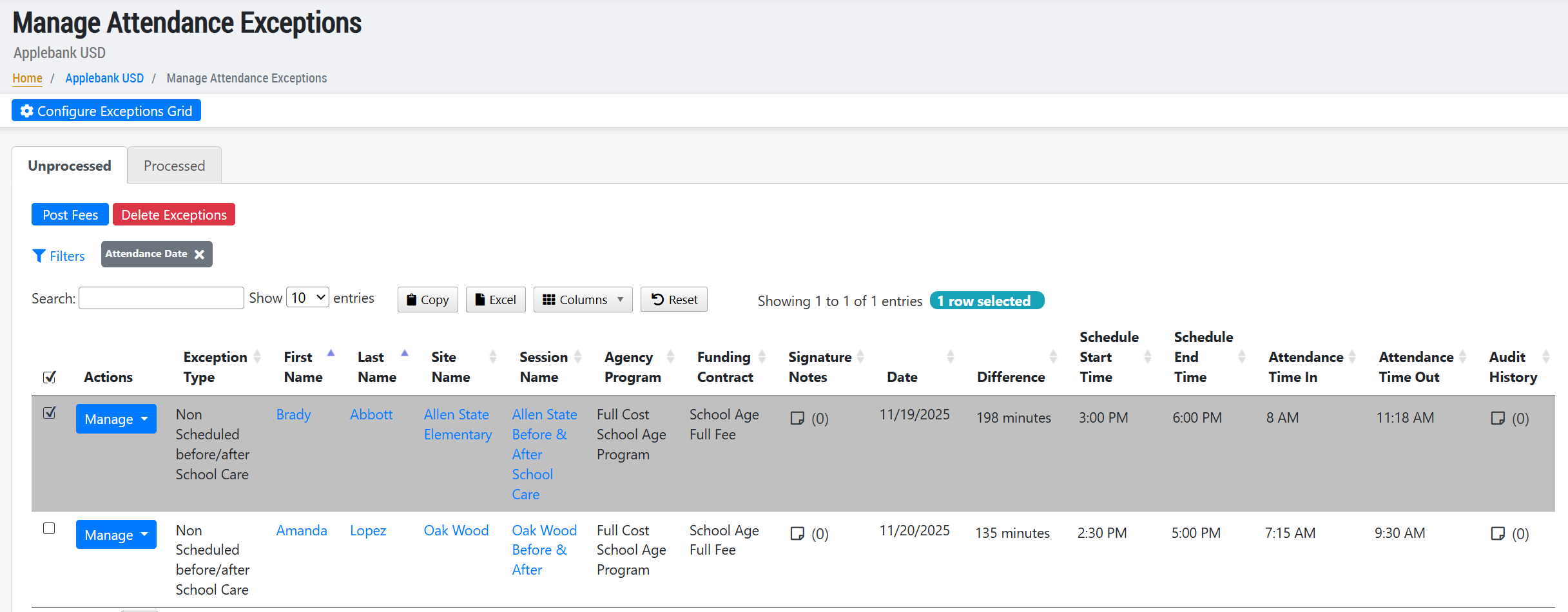
- Manage Attendance Exceptions - This menu item will lead you to the record that will house all attendance exception records previously created. The rules for creating attendance exceptions can be set up using the "Configure Exceptions Grid" button and can be configured to capture instances of students signing in for before or after school programs they are not scheduled to, late pickups, and more. These records can be processed with or without a fee posted to the family's account.
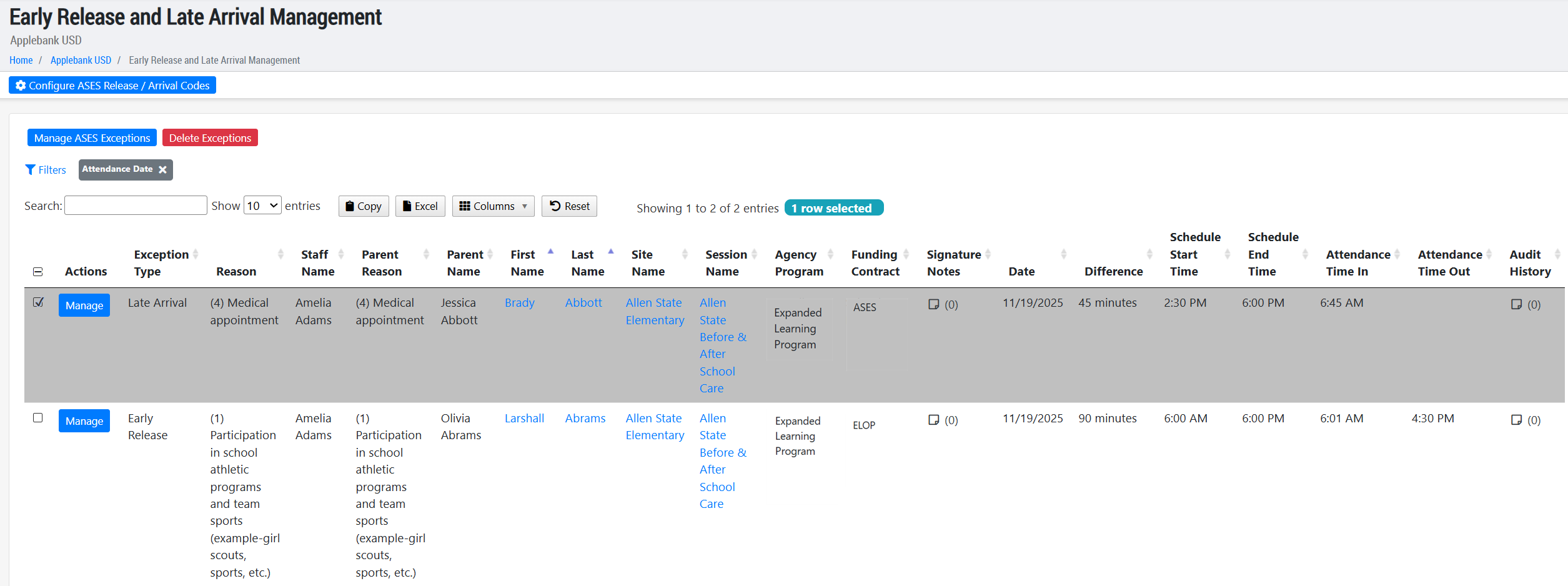
- Early Release and Late Arrival Management - This menu item will lead you to the record that will house all Late Arrival and Early Release attendance exception records, intentionally designed for use by ASES and ELOP programs. If enabled for a session, staff and parents will be required to select a reason for their Late Arrival or Early Release from a list of options, including default ones from the state and any custom ones added by your center. These records do not need to be processed, unlike the other attendance exceptions grid, and feed into the Expanded Learning Attendance Reports and student attendance sheets. This grid features many filters specific to the early release/late arrival records, and allows users to edit the reason assigned to a child's attendance event.
- Manage Attendance Exceptions - This menu item will lead you to the record that will house all attendance exception records previously created. The rules for creating attendance exceptions can be set up using the "Configure Exceptions Grid" button and can be configured to capture instances of students signing in for before or after school programs they are not scheduled to, late pickups, and more. These records can be processed with or without a fee posted to the family's account.
- Updated the way in which users can enable the Early Release / Late Arrival reason codes for sign-in/out to make it a more straight-forward process. Previously, a session's "Subsidy Type(s)" had to have either ASES or ELOP types selected in order for the reason fields to appear to staff and parents during sign-in/out. However, now the following two conditions are the only requirements to enable the reason codes for a session:
- In the Agency Menu > Attendance > Configure Attendance > ASES and ELOP tab, the setting "Enable Early Release/Late Arrival Setup by Session" must be set to "Yes."
- In the grid of sessions that appears below this setting when enabled, the session must have either "Late Arrival Enabled" and/or "Early Release Enabled" for staff and parents to then see and be required to select a reason for the late arrival or early release of the child during sign-in/out.
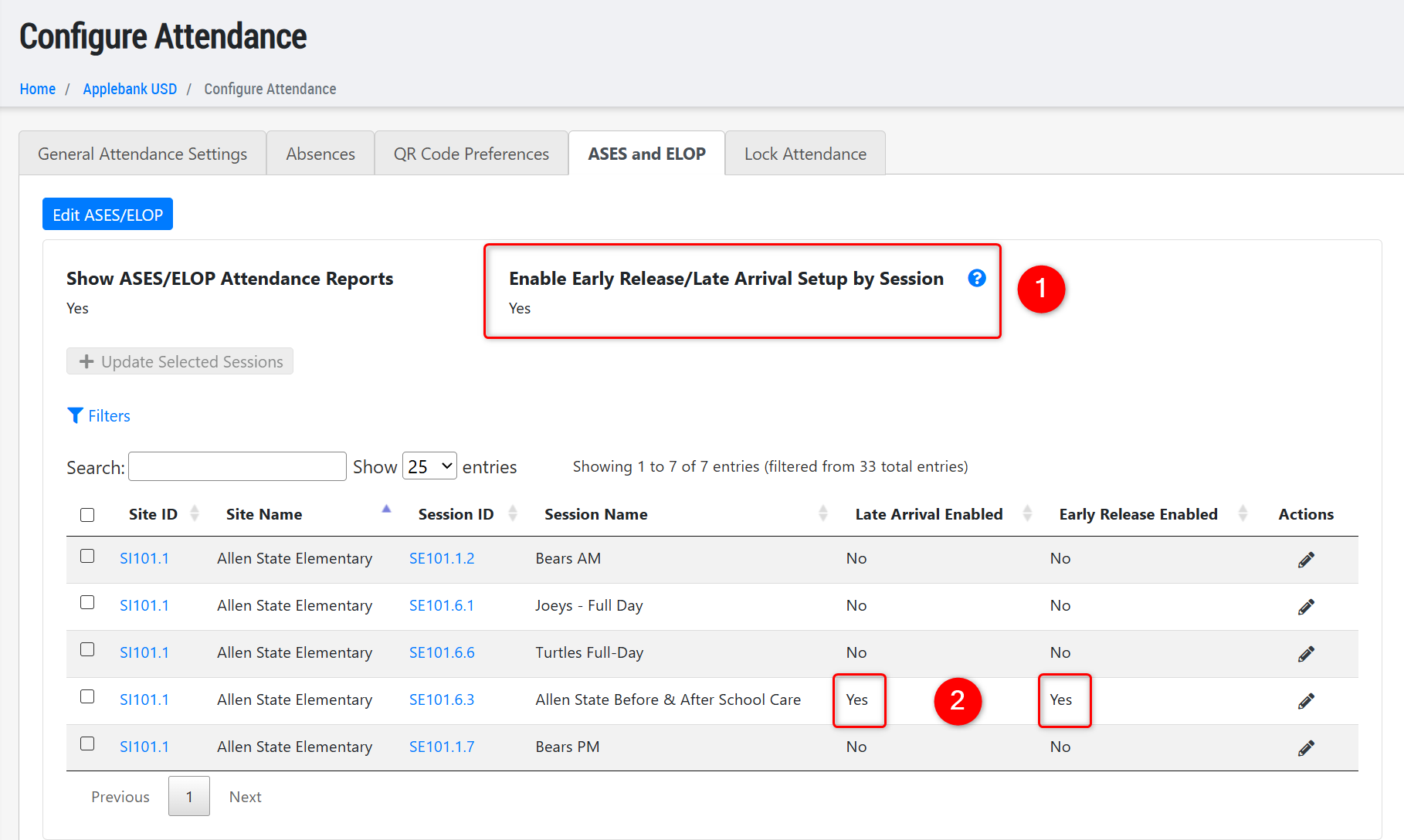
- Note - Please visit this area and ensure that your sessions are configured correctly according to your program needs, if you have this setting enabled in your system.
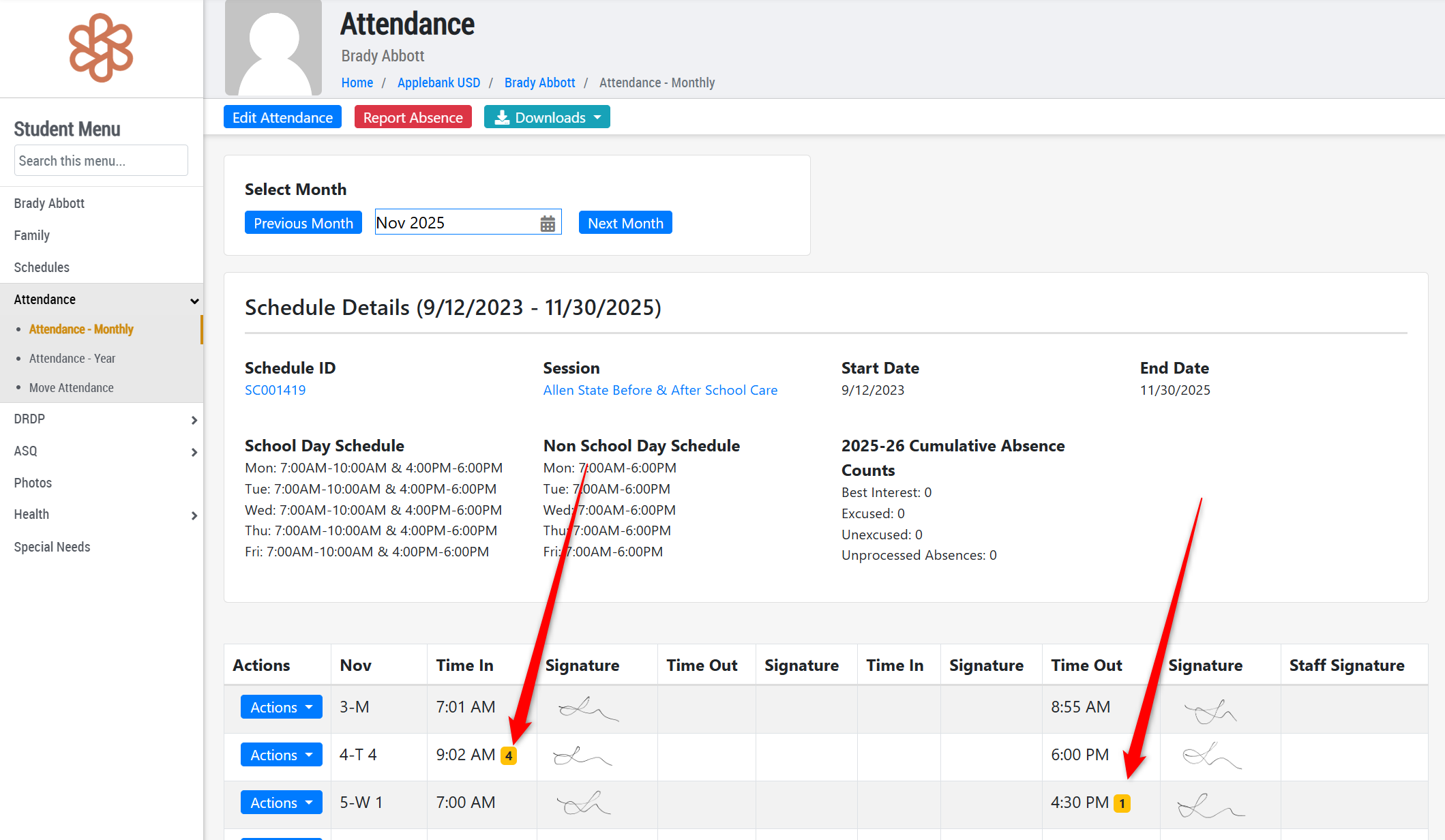
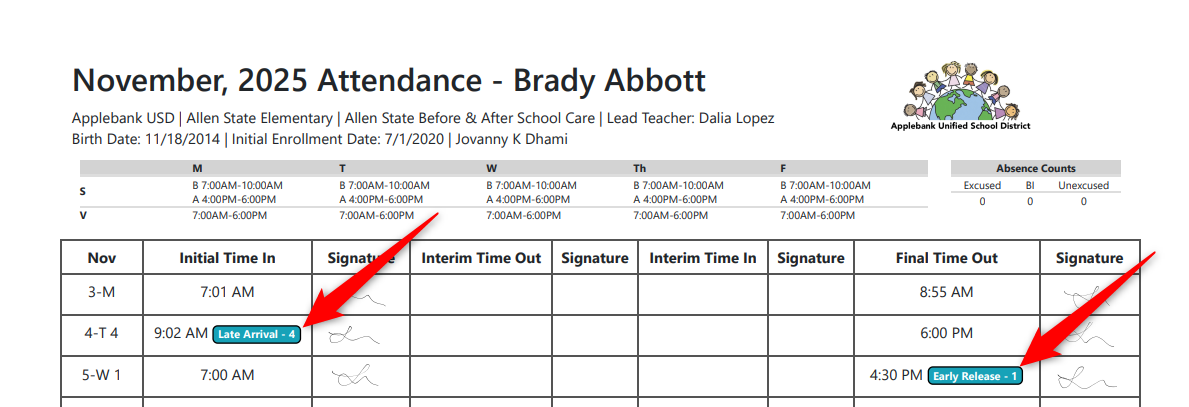
- For systems with Early Release / Late Arrival attendance exceptions enabled for ASES/ELOP programs, we have updated student attendance sheets to always display the code with a label such as "Early Release - 4" or "Late Arrival - 2" listed next to the sign-in/out time. This code will also be displayed on the attendance grids where the student's monthly attendance is displayed, such as in the Student Menu > Attendance > Attendance - Monthly record.
CACFP Enhancements
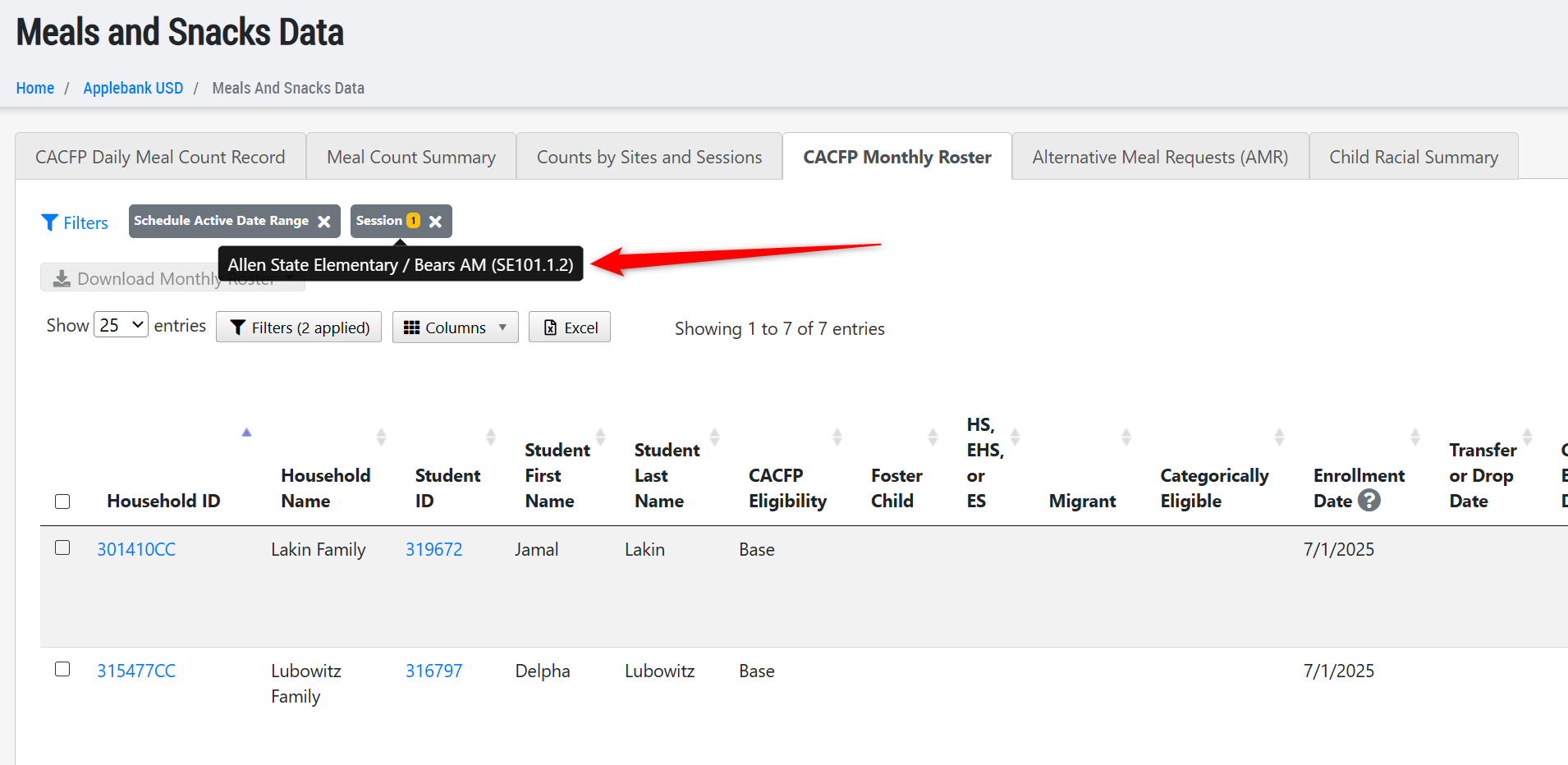
- Updated the "Session" filter on the agency-level CACFP Monthly Roster grid, following user feedback. Previously, the filter was showing children currently/actively scheduled to the selected session(s). Following this update, the grid will show all students who have a schedule in the selected session(s) based on the date range selected in the "Schedule Active Date Ranger" filter. This will ensure a child who was previously scheduled to a session will appear in the grid for the time range they were active in the selected session.
- Updated the Meal Benefit Forms record to simplify the way that families appear in the two tabs - Form Management and Completed Forms. Previously, families could appear in both tabs, signifying that they have both a completed form and still need a form for the selected program year, in certain scenarios. Now, a family will only ever appear either in the Forms Management tab (if the don't have a form yet or don't have one approved yet in the selected year) or the Completed Forms tab (if they have an approved form for the selected year)
Head Start Enhancements
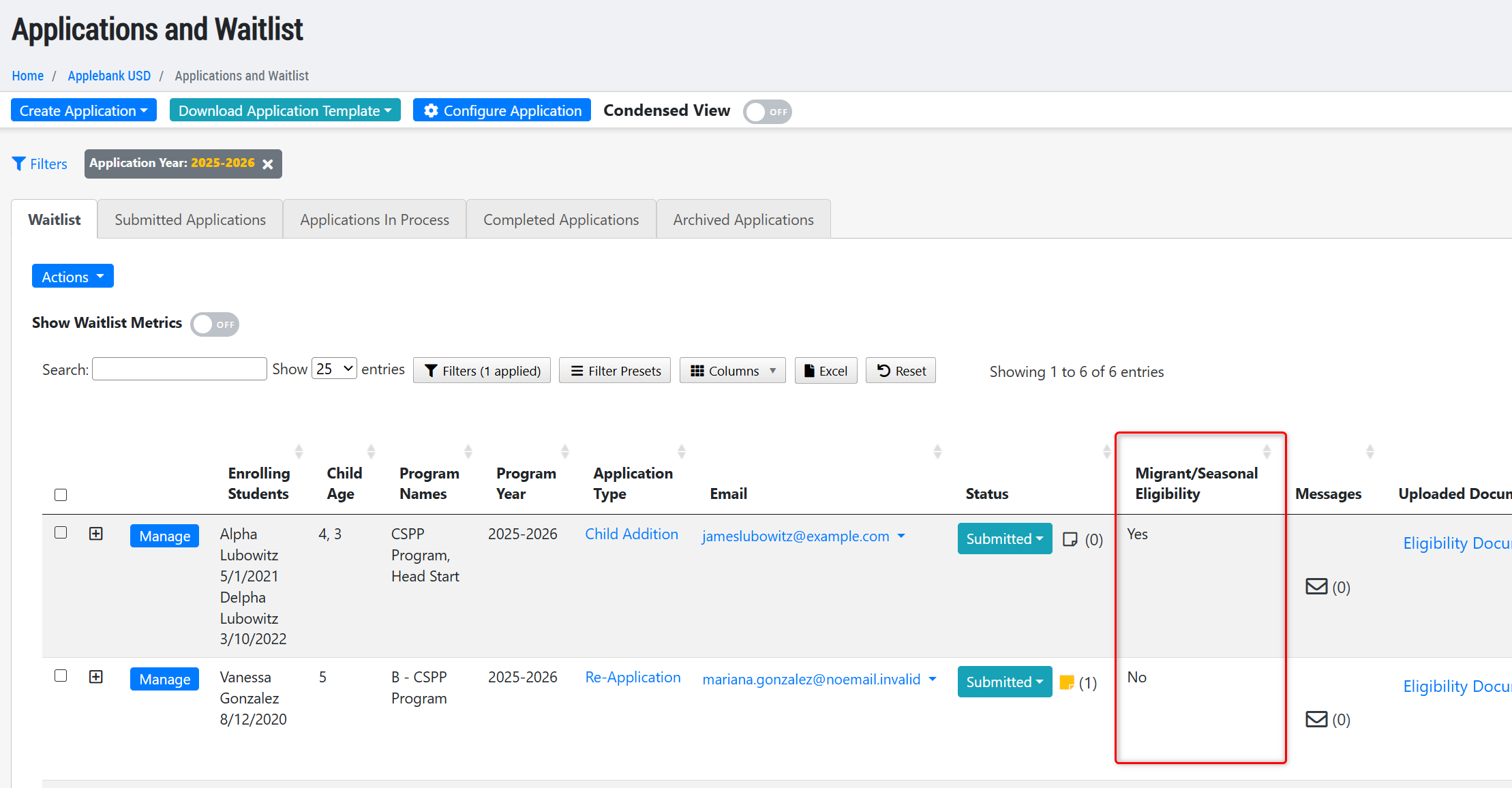
- Added a column to the Applications & Waitlist grid titled "Migrant/Seasonal Eligibility" that will display "Yes" for families that have a higher combined income from agricultural sources than non-agricultural sources.
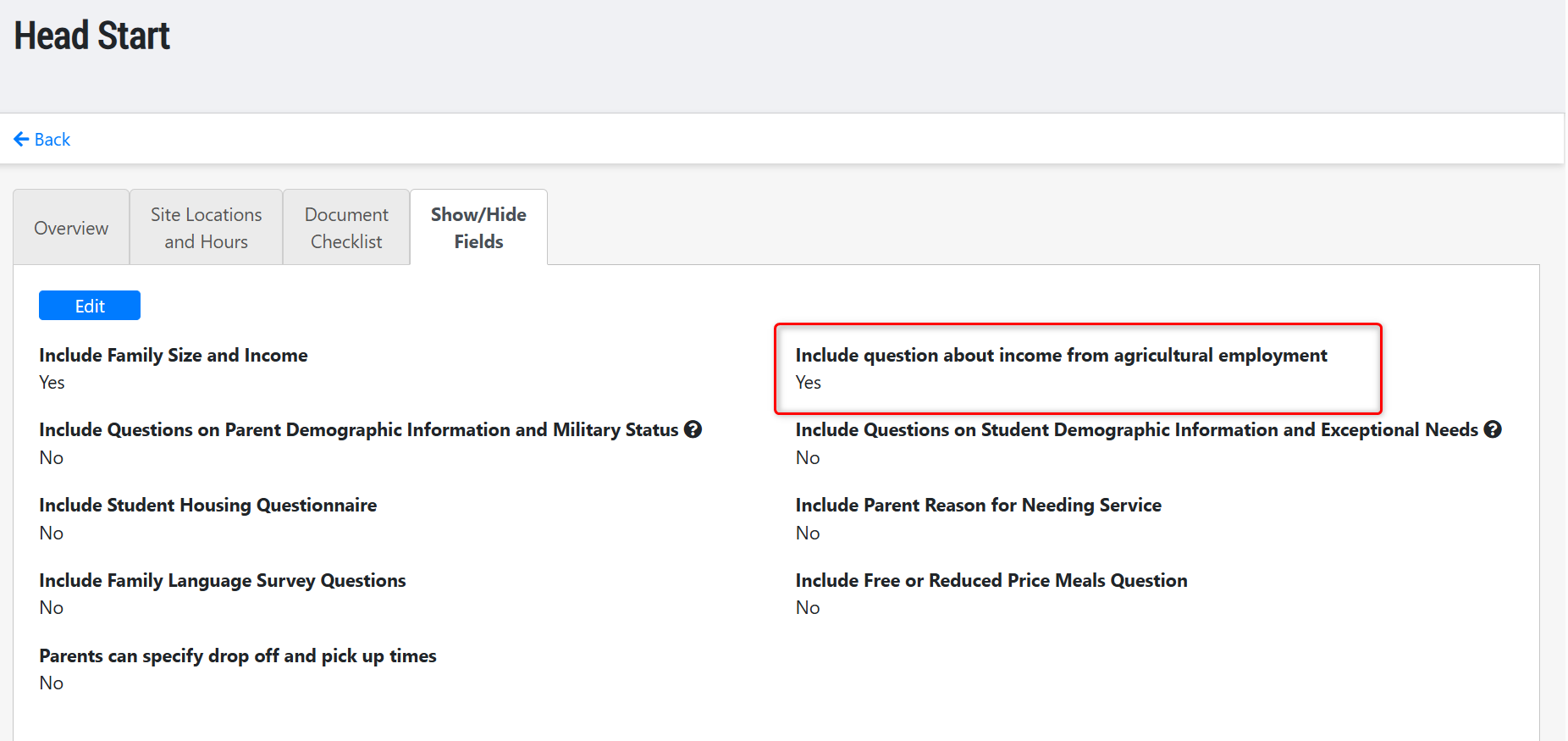
- Note - Last update, we announced the release of the agricultural employment fields that are available to enable for a program's application. You can enable the agricultural incomes fields within a program year's application setup area, as shown below.
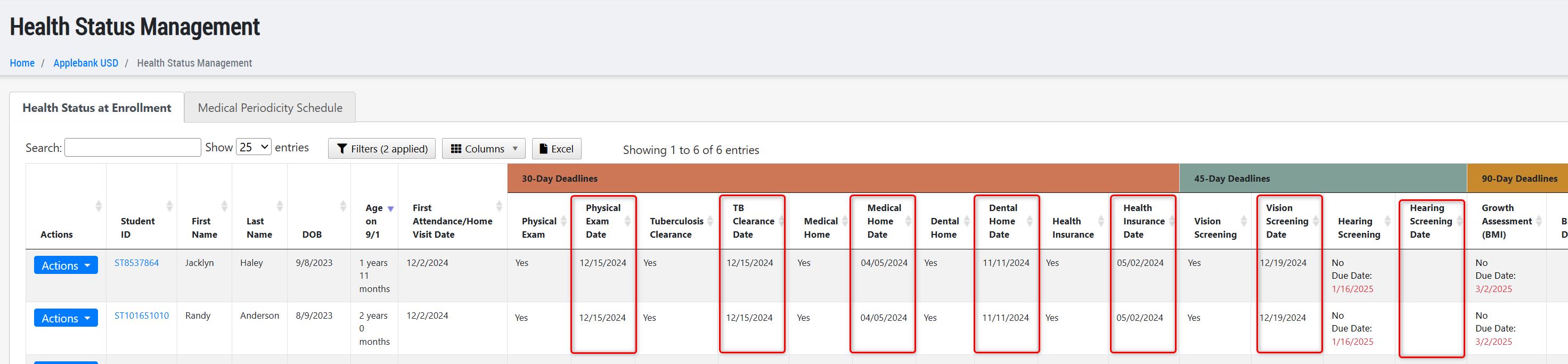
- To the Health Status Management grid, we have added a completion date column to each health screening item listed in the grid, such as the date the child received the TB Risk Assessment, for example. To navigate to this feature: Agency Menu > Health > Health Status Management > Health Status Management tab.
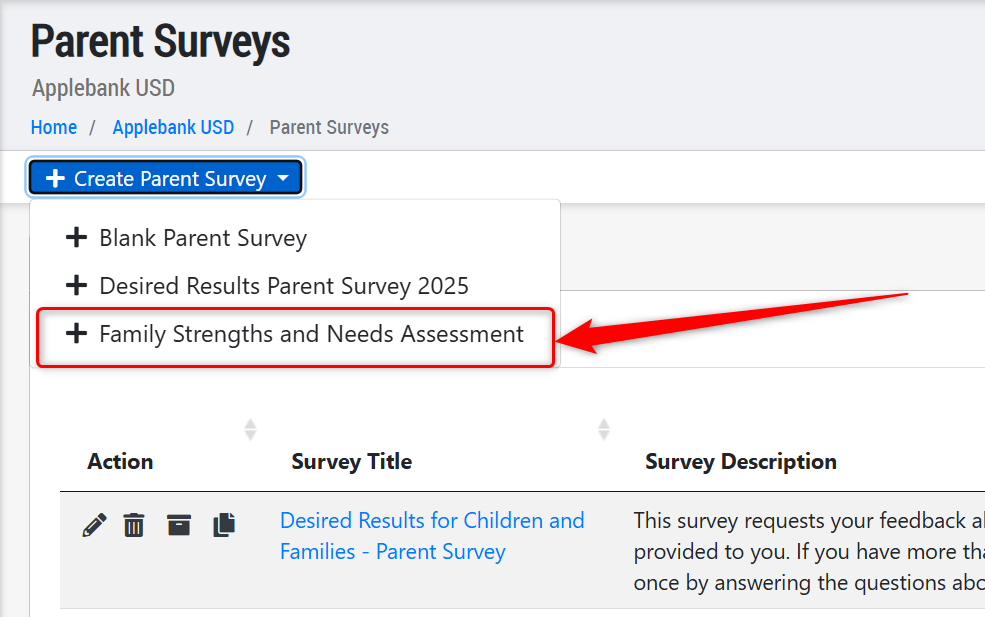
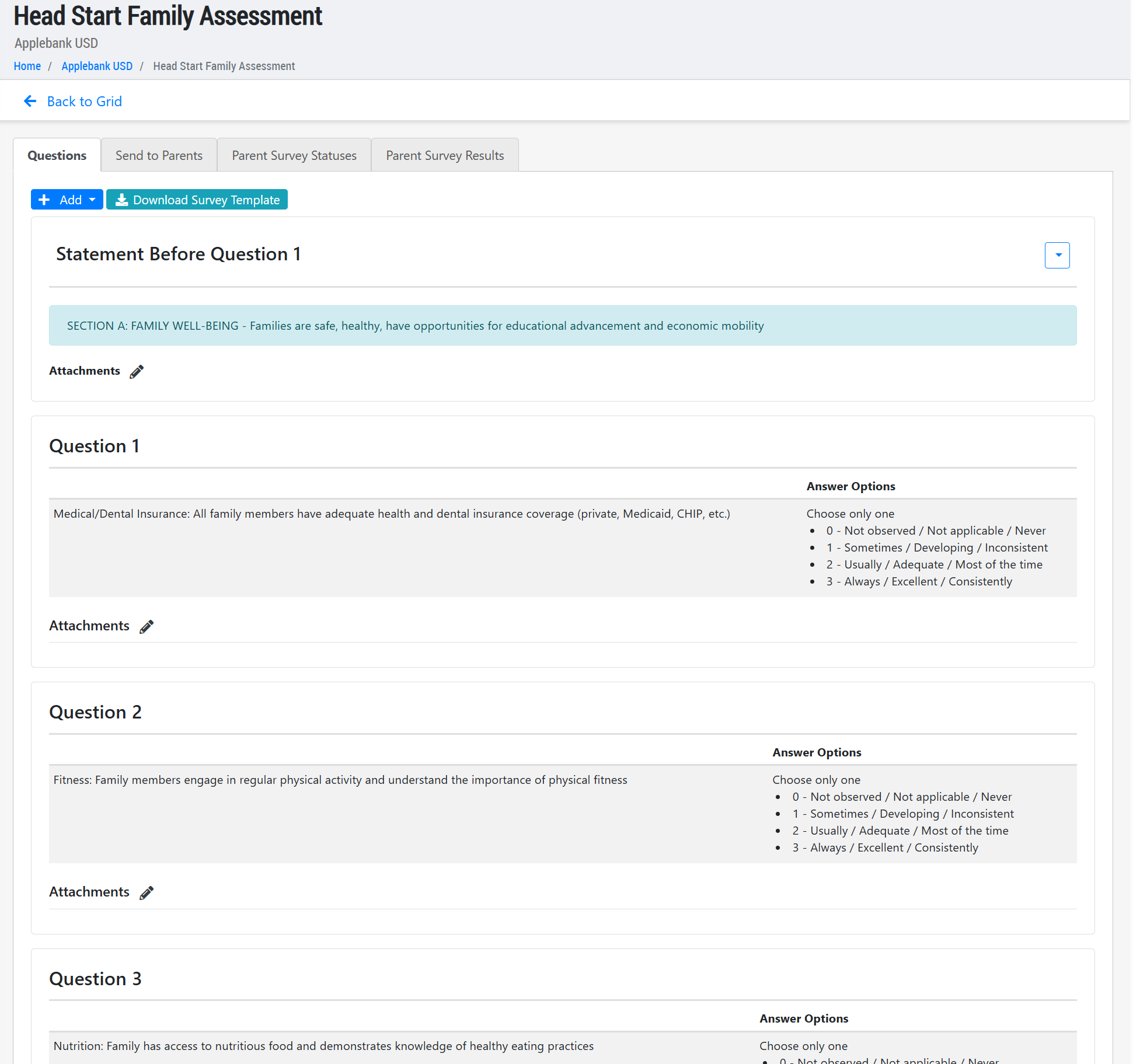
- Created a new template survey option in support of Head Start programs, called the "Family Strength and Needs Assessment" survey. Now, users can select to create a blank/custom survey, the DRDP 2025 Survey, or the Family Strength and Needs Assessment from the Parent Surveys feature. The new survey template will instantly create the 68-question survey questions with the 0-3 rating scale answer options, but users can still add other questions, and/or statements, and/or attachments to any statement or question, if needed.
General Enhancements
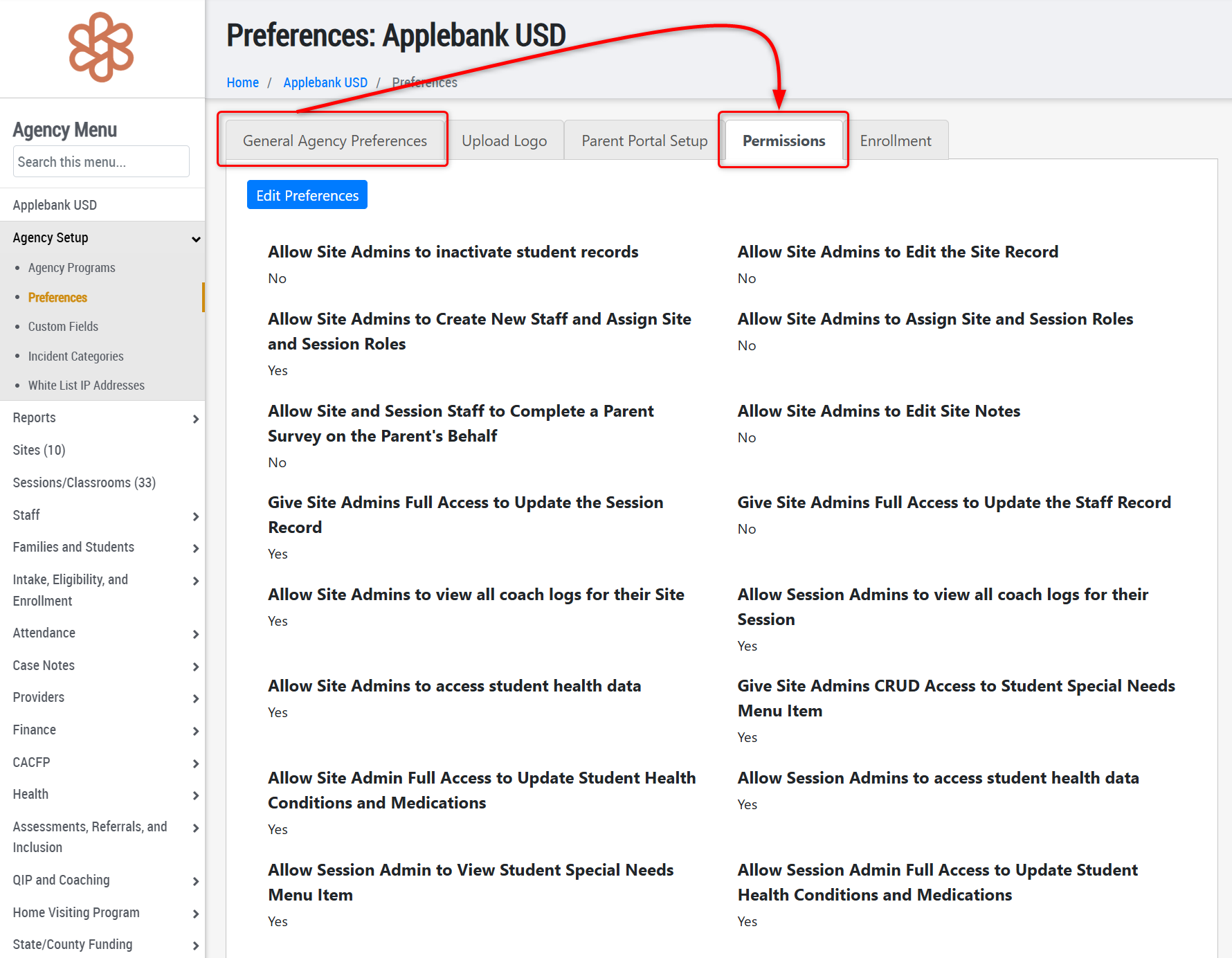
- Reorganized the Agency Preferences to now have a new tab titled "Permissions" that will include all permission-based settings that previously existed in the "General Preferences" tab.
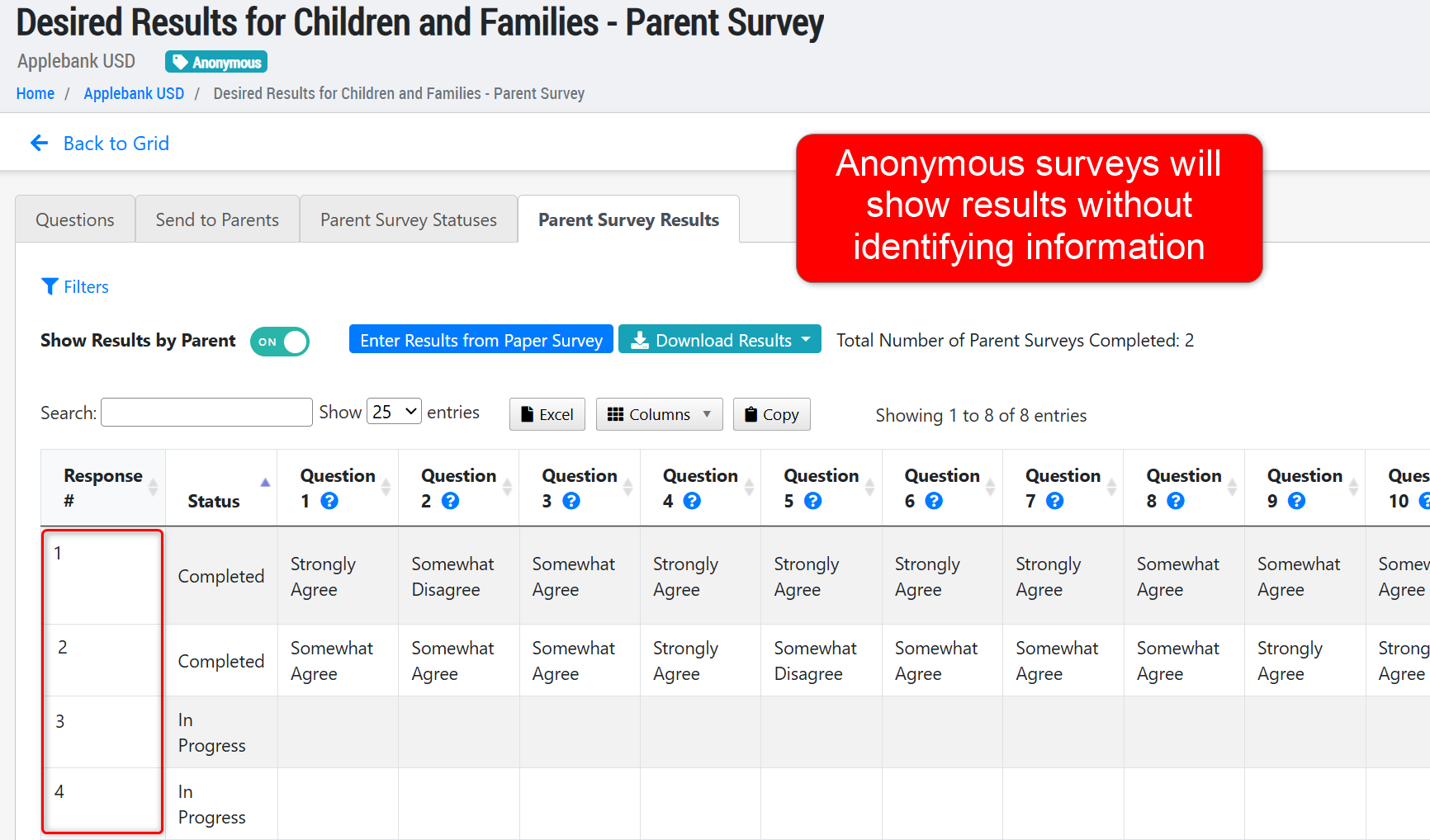
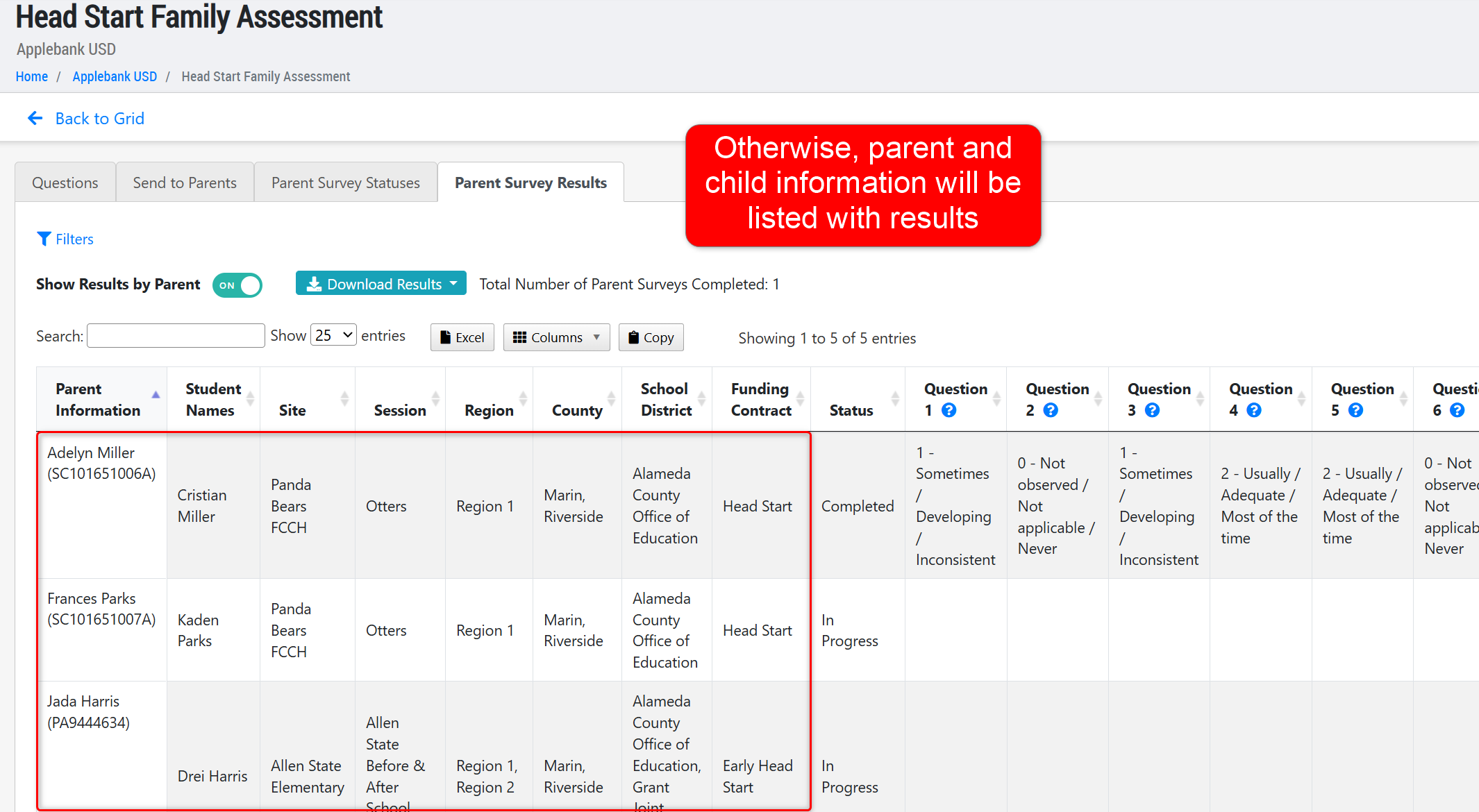
- Added a new tool to the "Parent Survey Results" tab that allows users to "Show Results by Parent" using a toggle above the results. When turned "on" then the original card-view of the question responses transforms into a grid with rows of each parent that has been invited to the survey and their status, along with the responses per question for completed surveys. Please note that if the survey is anonymous, there will not be any parent/child identifying information listed in the row with the survey results.
Role Permission Updates
- Updated the role of Education Specialist to have access to the following records:
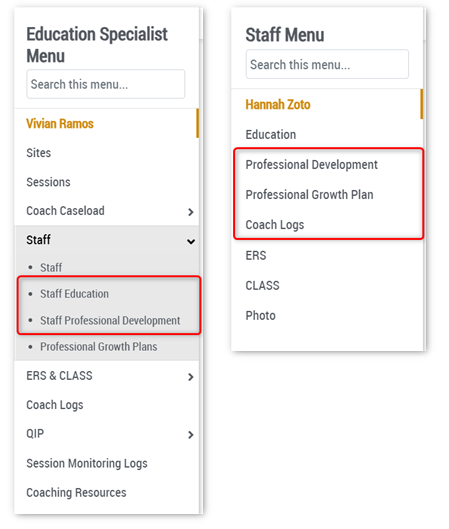
- In the "Education Specialist Menu" which is the first area users will see upon logging in, this role will now see the following records as menu items: Staff Education, and Staff Professional Development. These items will be in the "Staff" sub-menu.
- After navigating to an individual staff record, users with this role will now see the following records as menu items in the "Staff Menu": Professional Development, Professional Growth Plan, and Coach Logs. This will provide users access to that staff's assigned PD, PGP, and Coach Log records.
Important Hubbe Email Communication Updates and Information
- We are very happy to share that we have optimized the permissions of the Hubbe email server. After receiving reports from various users that email communications sent from within the Hubbe system landed in the recipient's "Spam" folder, our team worked to ensure this would not happen again so all important communication will be received and viewed by recipients in their inbox.
Staff Account Updates and Information
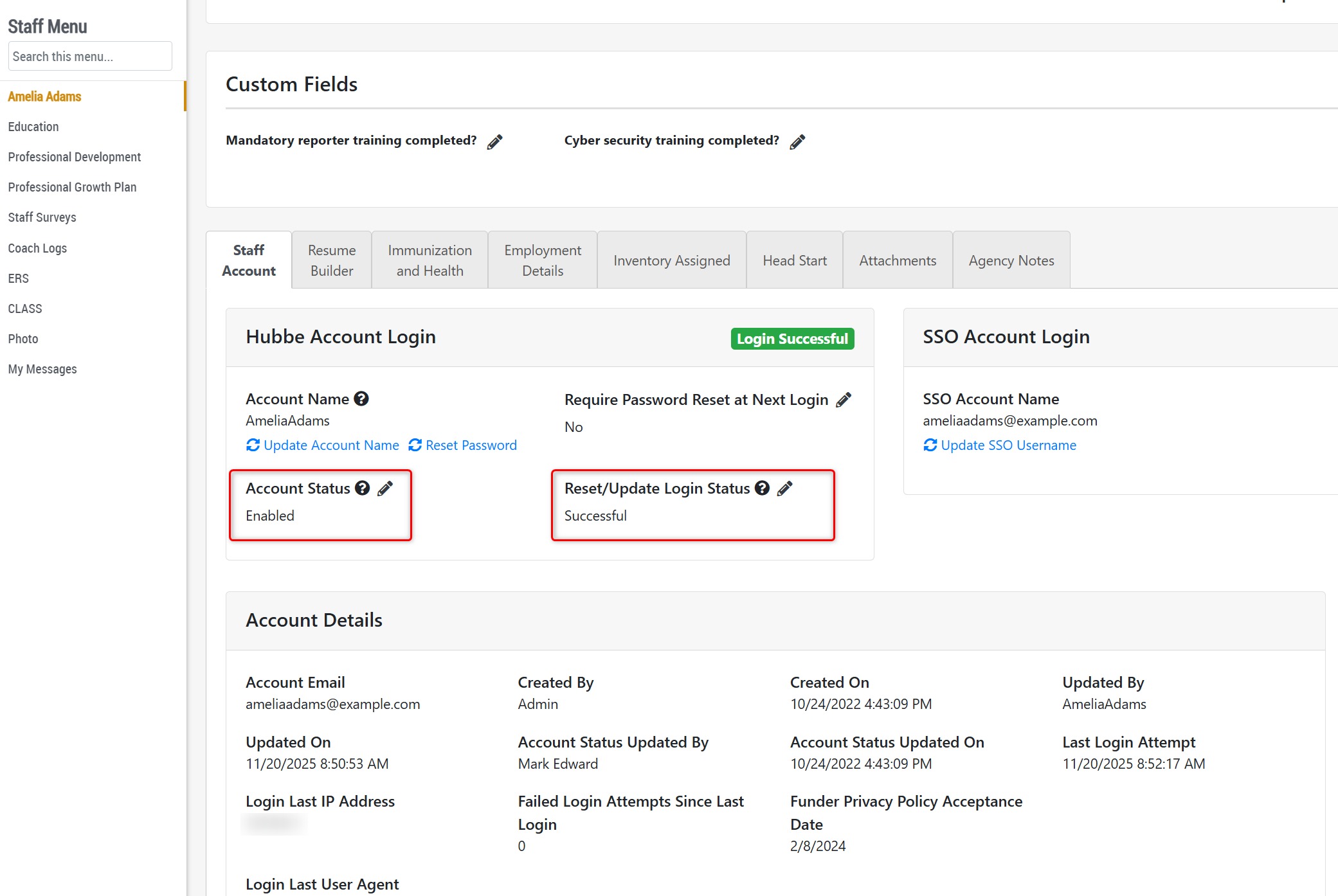
- Within the "Staff Account" tab of a staff record, we have updated the "Hubbe Account Login" area to be more user-friendly. There are two statuses tracked here, called "Account Status" and "Login Status." These tools still function the same, but we've reorganized the fields and have added tooltips to explain what each field is used for. Please see explanations of how these statuses work below:
- Account Status - This field enables users to control access to a staff account. For example, if a staff member should be restricted from accessing their account or blocked from logging in using the correct login credentials, that can be managed here. The options are:
- Enabled - User has full access to the account, within the permissions of the assigned role(s)
- Enabled, Forced Gray Access - User has limited access to their account. They can log in but may be restricted from viewing sensitive information.
- Disabled - User cannot log in to/access their account.
- Login Status - This field reflects the user's ability to log in to their account. Depending on the last login attempt(s), the following statuses may show:
- Successful - If the user has logged in using their correct login credentials (username, password), then the status will remain as "Successful."
- Failed - If the user has entered the wrong login credentials and has failed to log in to their account at least one time, then the status will show as "Failed." The user can still proceed to enter the correct password to log in, or reset their password, in which case the status will change to "Successful" on the next successful login attempt.
- Locked - If the user has entered the wrong login credentials and has failed to log in to their account five times in a row, then the status will show as "Locked." At this time, their account will be blocked from logging in for 15 minutes. After that time, the user can proceed to enter the correct password to log in, or reset their password, in which case the status will change to "Successful" on the next successful login attempt.
- Disabled - If the user has entered the wrong login credentials and has failed to log in to their account fifteen times in a row, then the status will show as "Disabled." At this point, the user will be blocked from logging into/accessing their account completely (even using the correct login credentials) until an administrator updates their Login Status from "Disabled" to "Successful" on the staff record. When resetting a staff's Login Status at this time, we recommend clicking the "Reset Password" link below the "Account Name" field to set a temporary password for the staff to login with, in conjunction with setting the field "Require Password Reset at Next Login" to "yes" so that this temporary password can be used to prompt the staff to create a new password at their next login.
- Account Status - This field enables users to control access to a staff account. For example, if a staff member should be restricted from accessing their account or blocked from logging in using the correct login credentials, that can be managed here. The options are:
Fixes & Adjustments
- Updated the CCL 9040 Roster download to properly retrieve the "Doctor Phone Number" from the child's "Doctor's Phone Number" field in their Medical Home area. The roster can be found in the session record's "Students" tab.
- Updated the process of posting family fees to family accounts so that if a fee is posted with a discount, each parent only receives one email notification (if email option is selected), rather than the two emails previously received - one for the billing statement creation and one for the discount credit applied to the account.
- Updated the Adjustment Factor Rates for the CDPR 9500 Report to ensure they match those provided by CDSS, specifically for Los Angeles County.
- We added the column "Drop Reason" to the "Dropped Schedules" and added the column "Transfer Reason" to the "Transferred Schedules" tab of the All Schedules grids at each level (agency, site, and session). These columns will display the reason selected during drop/transfer, if any.
- Updated the CDE 801A Report to ensure a child is only considered as a foster child if their foster record is active during any portion of the selected reporting period. If the foster record has an "Exit Date" before the start of the selected reporting period, then the child will no longer be reported as a foster child in the report.
- Updated the CAPSDAC 1.0 Report to ensure that the "Funding Contract" filter successfully shows all children scheduled with the selected contract(s) during the selected reporting period.
- Updated the Family Application to allow re-applicants to edit only the middle names of children in the application. We previously released an update to prevent users from editing the entire name (first, middle, and last) to prevent applicants from changing the existing child record to another child in the family and overriding all data upon intake. Following this update, users requested access to update the middle name of the existing children in the re-application.
Was this article helpful?
That’s Great!
Thank you for your feedback
Sorry! We couldn't be helpful
Thank you for your feedback
Feedback sent
We appreciate your effort and will try to fix the article